Generate apps and models
Introduction
In this section we will explore the generative AI features that are available in Flowable Design starting from v3.17.0+ to create apps and models using AI prompts.
Note that AI services typically are not well trained in generating Case and Process models, and even less in Flowable Form and Data Dictionary models. Therefore Flowable is using an intermediate and simplified JSON language as output of the AI service based on the input prompts and then the Case, Process, Form and Data Dictionary models are generated from this. This approach greatly improves the quality of the generated output from the AI service, but there remains the dependency on the quality of the prompt text. It can be necessary that models need to be adapted and enhanced to have them executed in Flowable Platform to meet the requirements.
There are 2 ways to use generative AI with Flowable, one is to create a complete app with Case, Form and Data Dictionary models. The second way is to generate individual Case, Process, Form and Data Dictionary models.
Generating apps
From 2026.1.0+ the app generator is a guided, stepped wizard. Instead of sending a single prompt and waiting for a black-box result, the generator works through a pipeline of stages and pauses to ask for your input at the important decision points — which model type to use, whether the generated data dictionary looks right, how to call an external service, and so on. You stay in control while the AI does the heavy lifting, and you can review (and revise) the result before anything is imported into your workspace.
Starting a generation
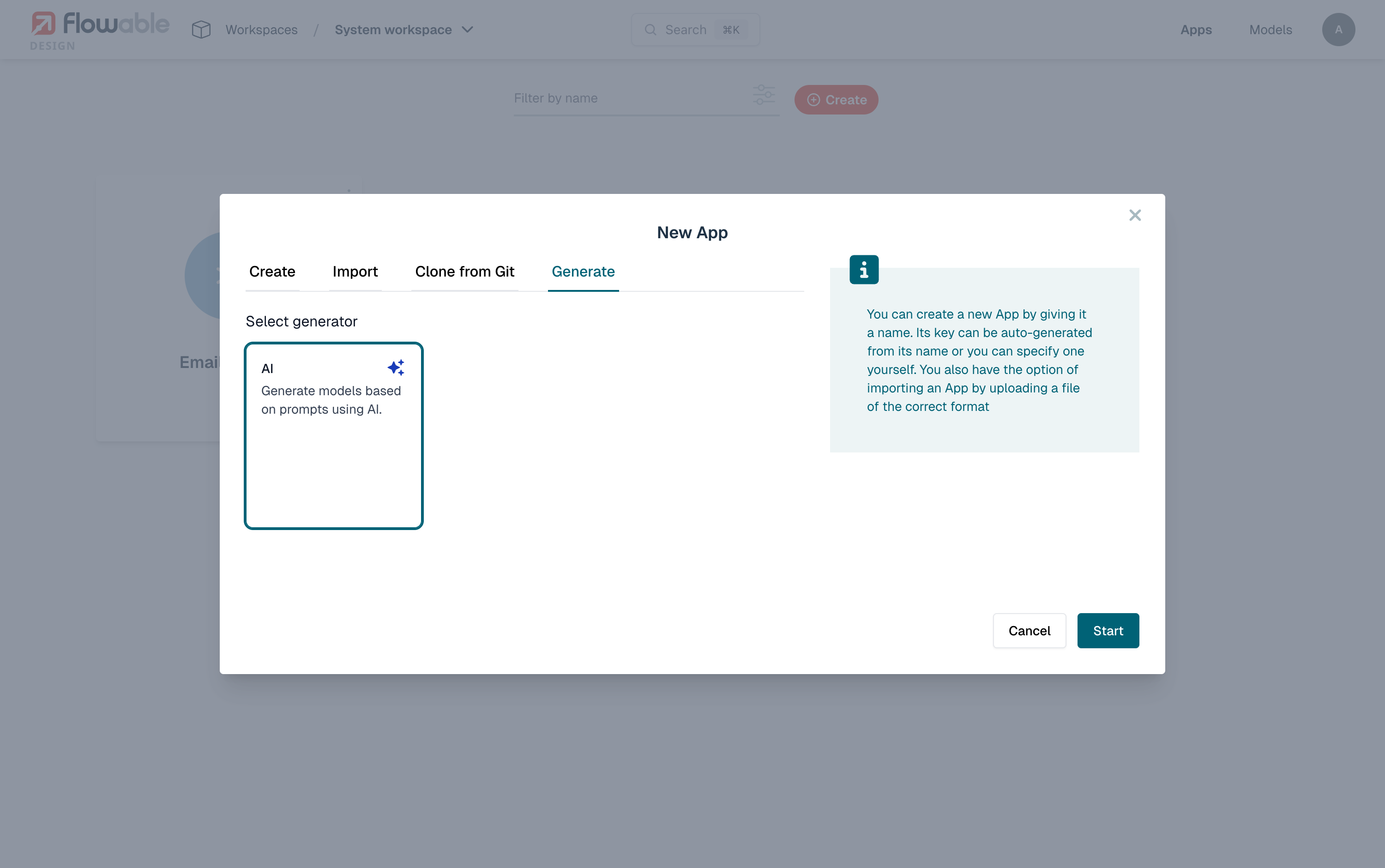
In a workspace, click the Create button and open the Generate tab. Select the AI generator and click Start.
The full-screen Generate an App with AI wizard opens on its prompt step, where you describe the application you want:
- Prompt (required) — a free-text description of the app. Be as generic or as specific as you like; describing the steps, the services and the decision points gives the AI more to work with.
- Upload specification document — instead of (or in addition to) typing, you can upload a
.docxspecification document. Its text is converted to Markdown and appended to the prompt, so an existing requirements document can seed the generation. - Generator Name (optional) — a name so you can find this generation back later under the Previous generations tab.
For this example we use the following prompt to generate a travel request application:
Create a travel request case that contains a Enter travel request task with the origin and destination and the outward trip date and the return trip date. Also the reason for the travel needs to be provided and the type of travel which can be plane, train or car. Also it needs to be provided if a hotel is needed and if so, if there is a hotel preference. Then an approval request is sent to the manager of the person and a approve or reject needs to be provided. If the manager approves, then an arrange travel task is needed to be created for the travel department. The travel confirmation details can be entered by the travel department there, and then the travel requestor gets back a task with the confirmation of the travel booking.
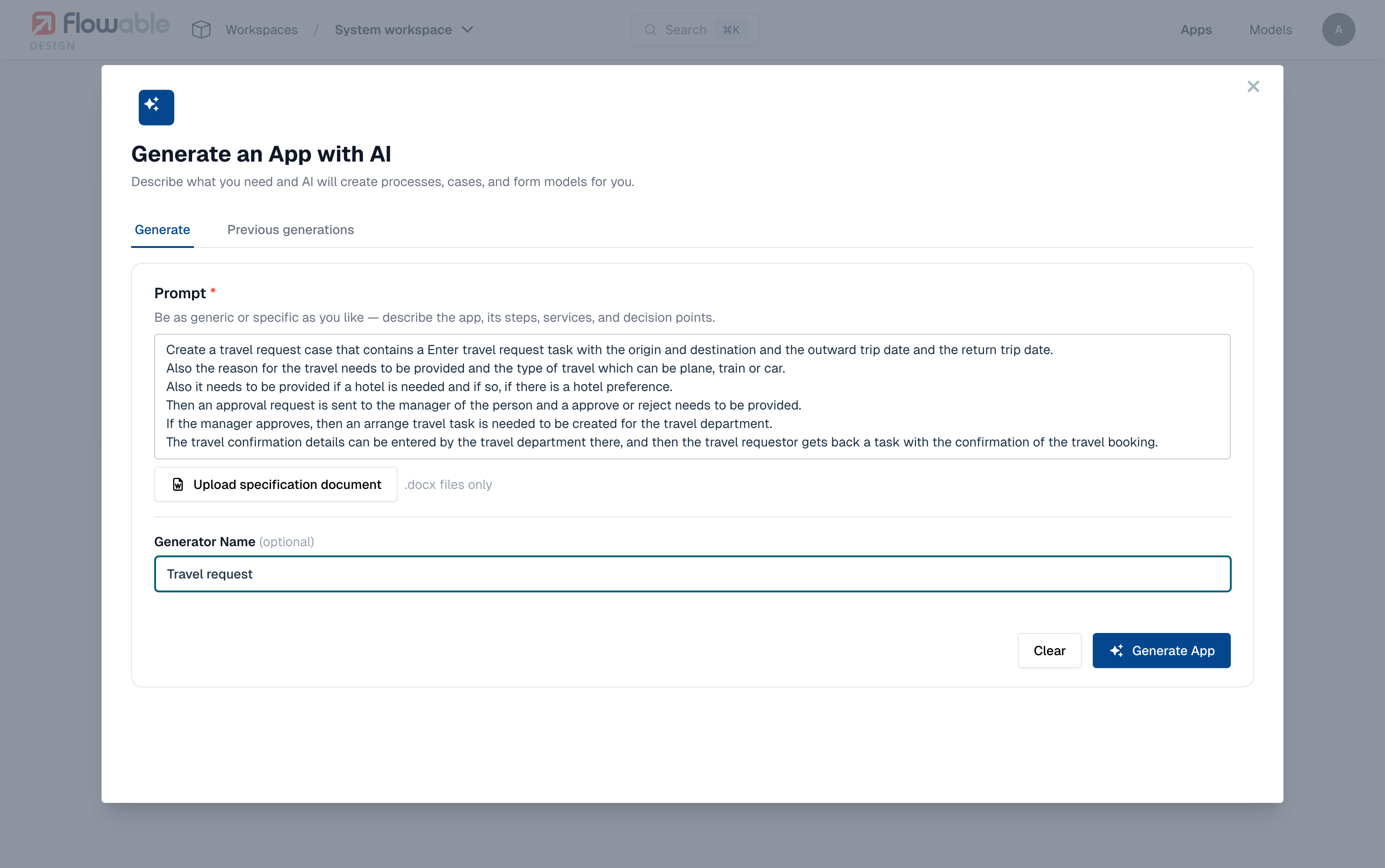
Click Generate App to start the pipeline.
Following the generation progress
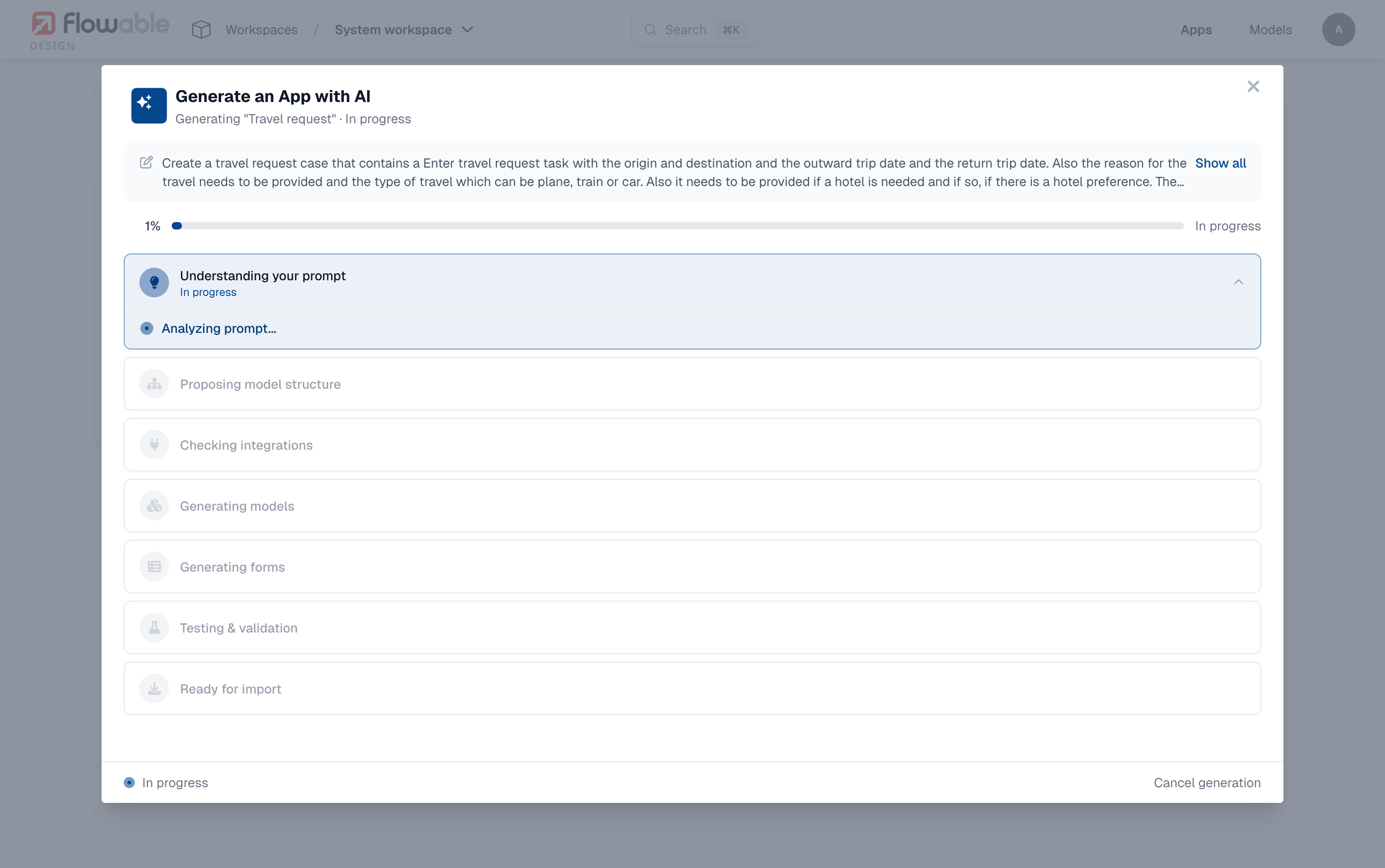
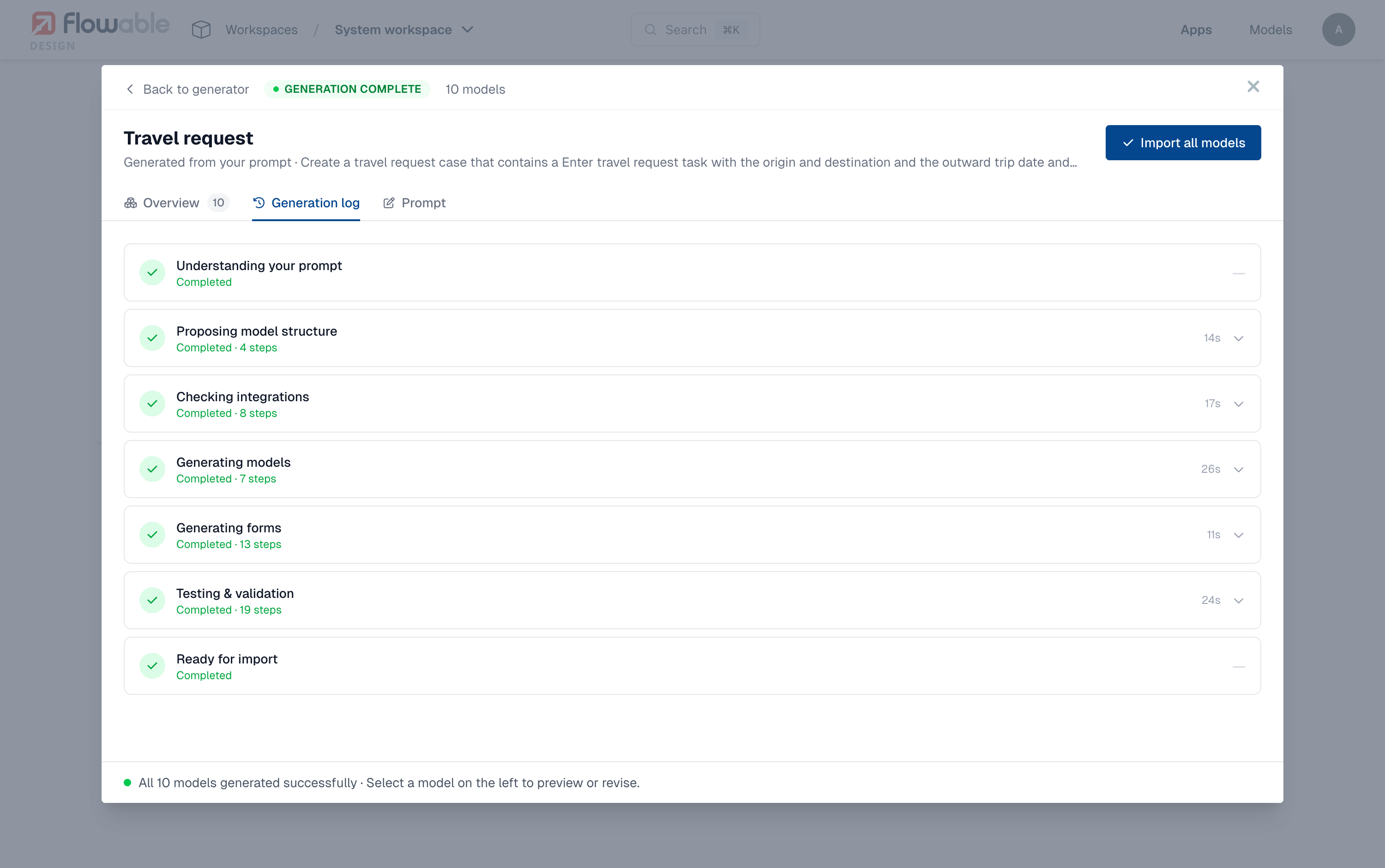
Once the generation starts, the wizard switches to a progress view. At the top you see the generator name, the current status and a preview of your prompt (use Show all to expand it), together with an overall progress bar. Below that, the generation pipeline is shown as a list of stages:
- Understanding your prompt — the AI analyses the prompt and may ask clarifying questions.
- Proposing model structure — it proposes the model type and the main steps, and reviews the generated data dictionary.
- Checking integrations — it detects the REST services and AI agents the app needs.
- Generating models — it generates the case or process and its supporting models.
- Generating forms — it generates a form for each human task.
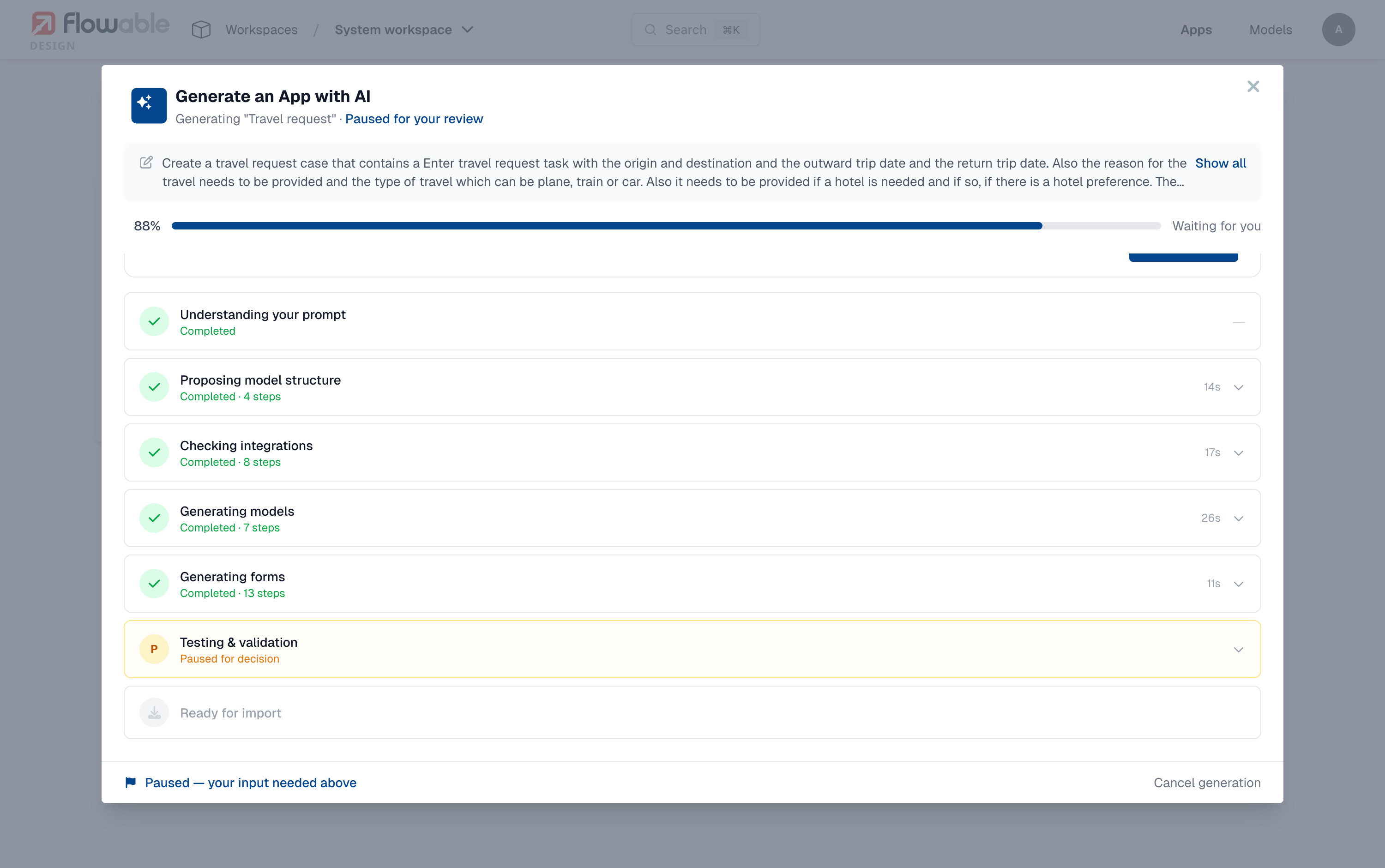
- Testing & validation — it generates and (optionally) runs tests, fixing issues it finds.
- Ready for import — the models are ready to be imported.
Each stage can be expanded to follow its individual steps; completed stages show how long they took, the active stage is highlighted, and a stage that is waiting for you is marked as paused.
Answering the AI's decisions
The defining behaviour of the wizard is that it pauses for your decisions. Whenever it needs input, the pipeline stops, a DECISION REQUIRED card appears at the top of the view, and the footer shows Paused — your input needed above. The generation only resumes once you answer. Depending on your prompt you may see some or all of the following decisions.
Confirm the model structure
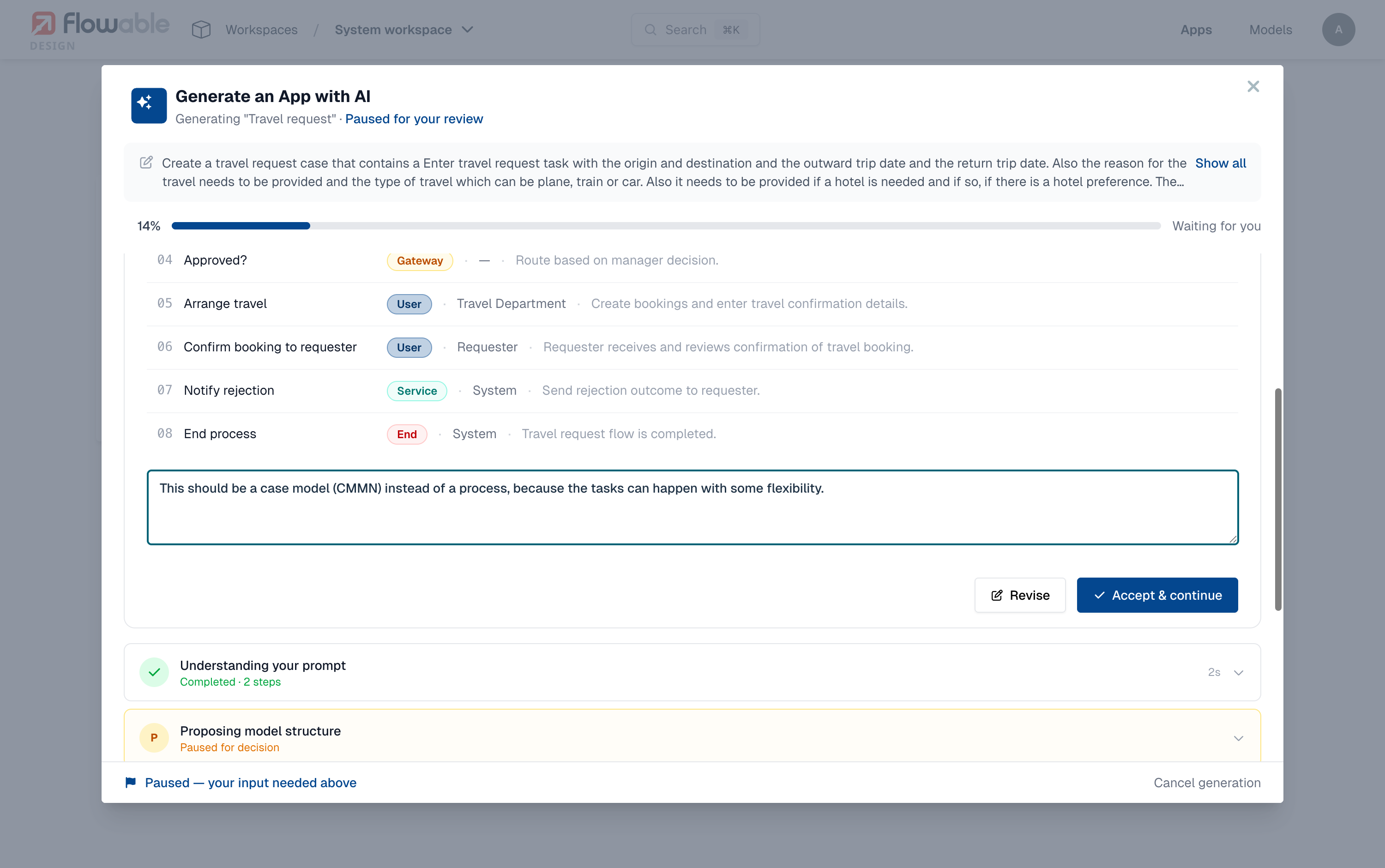
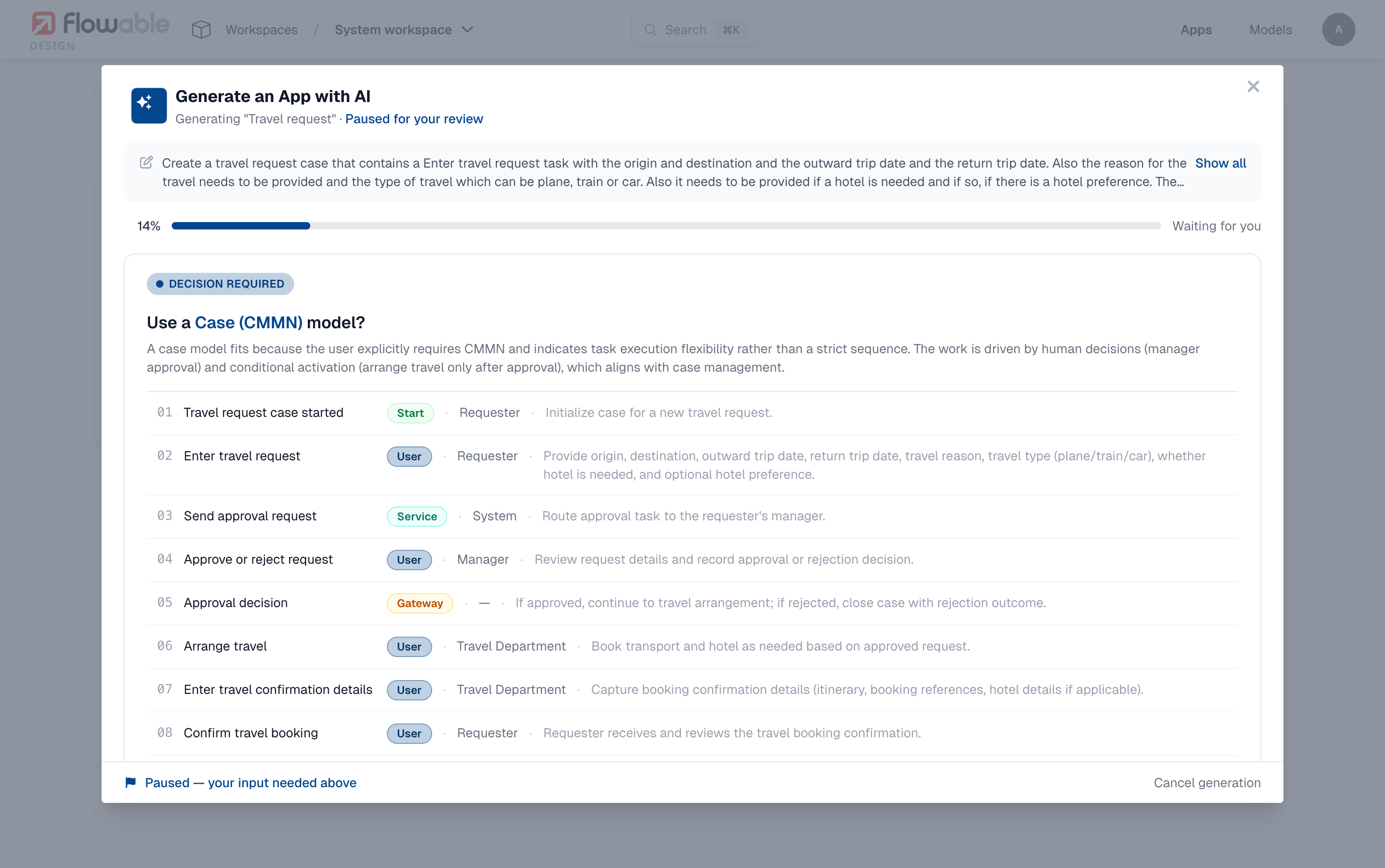
The AI proposes a model type — Process (BPMN) or Case (CMMN) — together with the main steps it intends to generate, including the step type (start, user, service, gateway, end) and the actor involved. Review the proposal and either Accept & continue, or type feedback in the box and click Revise to have the AI rework the structure.
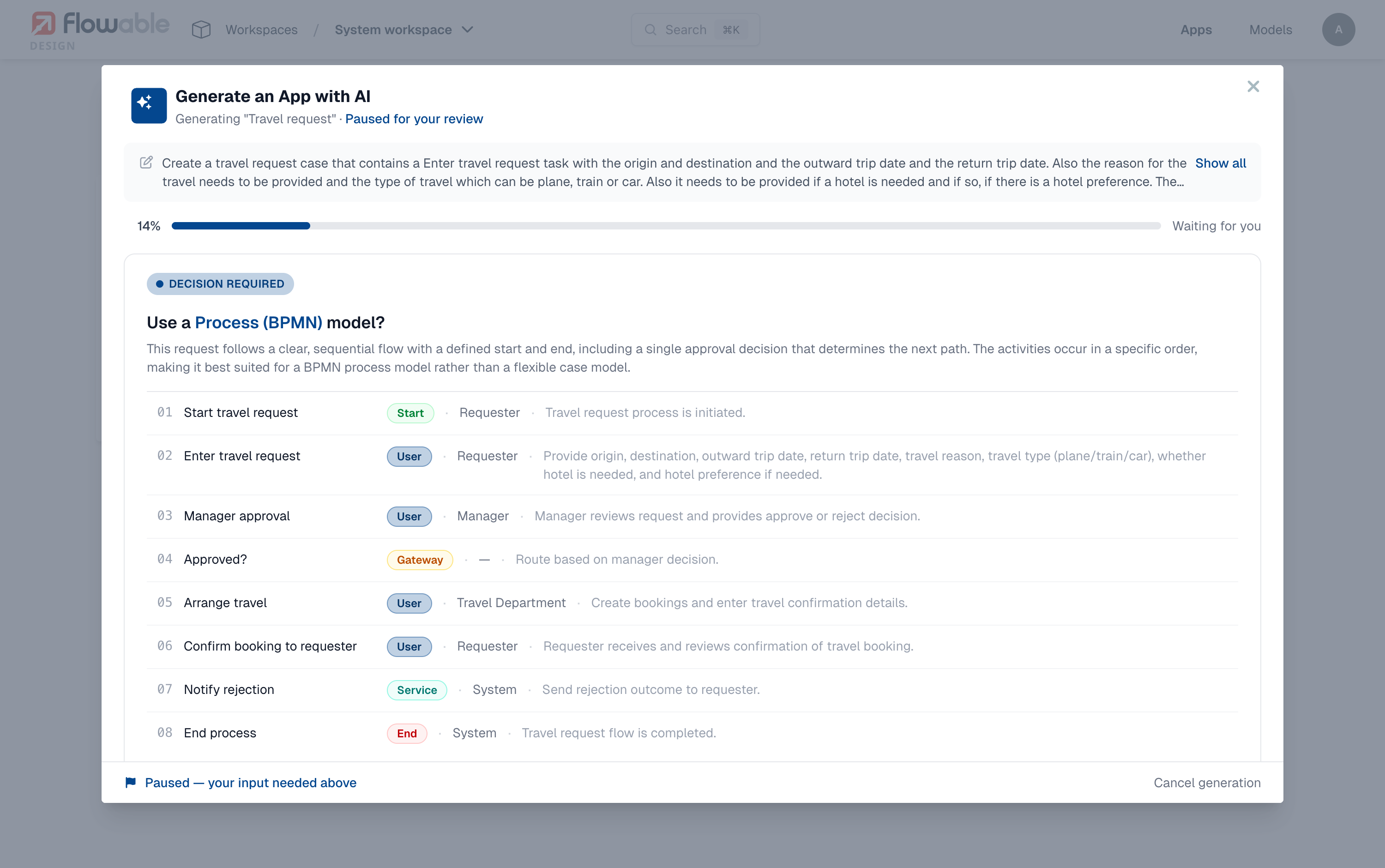
Our prompt asked for a travel request case, but here the AI proposed a process. This is exactly what the revise box is for: we ask it to use a case model instead.
After revising, the AI comes back with a case-based structure, which we accept.
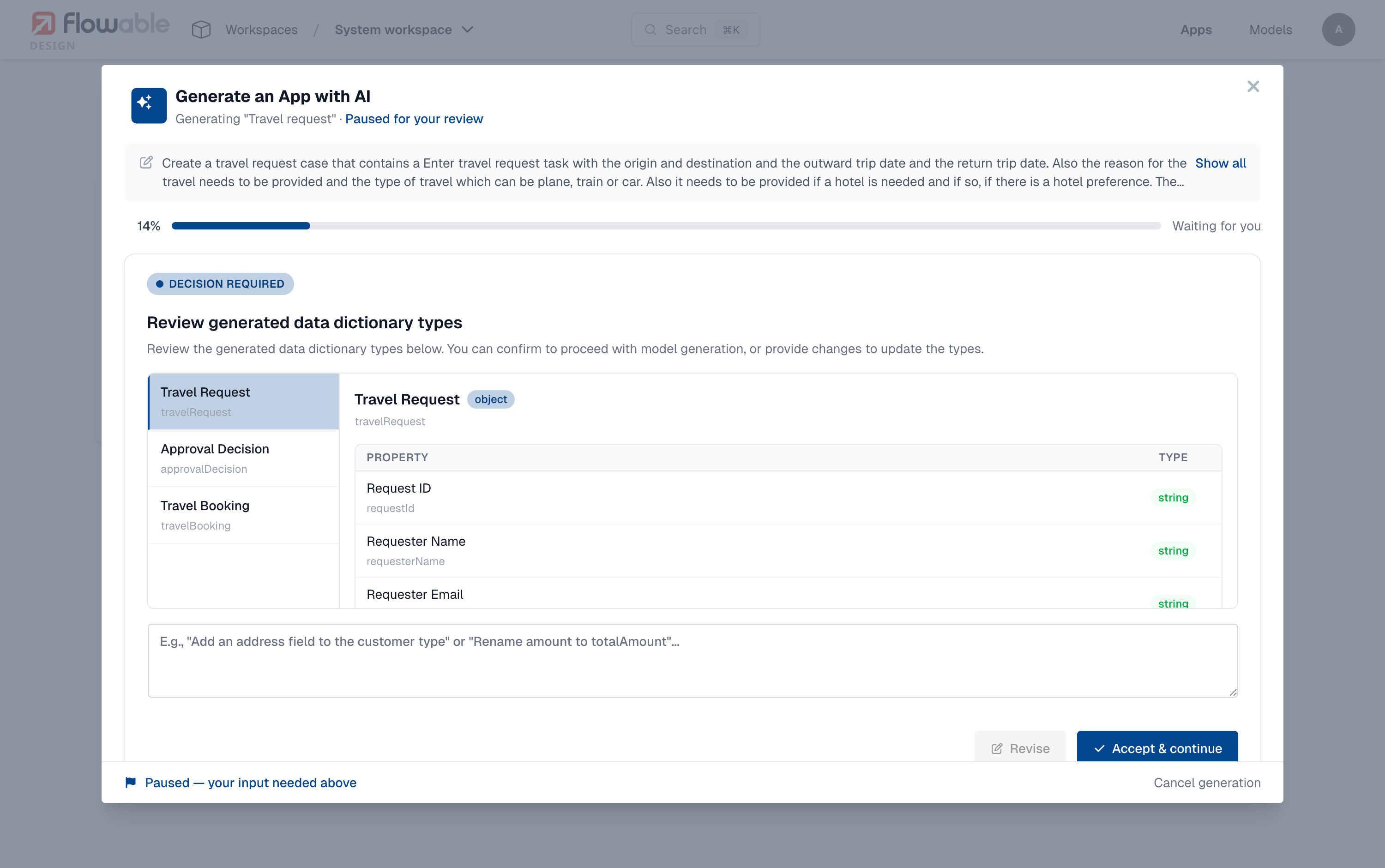
Review the data dictionary
Next the AI shows the data dictionary types it generated for the app, with their properties and value types. Review them and Accept & continue, or describe changes (for example renaming a field) and revise.
Provide integration and agent details
If your prompt implies calling an external system, the wizard pauses on a test call decision so it can validate the generated REST service. You provide the parameter values and the authentication (none, basic or bearer token), or paste an example response to skip the live call.
If the AI identifies useful AI agents for the app, it asks which AI agents to include. Select the utility or document agents you want, or click Skip agents.
Run the generated tests
As part of the Testing & validation stage the wizard generates test definitions for the app and pauses so you can run them against a connected Flowable Work runtime using Flowable Inspect. If a test fails, the AI attempts to fix the model and lets you re-run the tests, so obvious problems are caught before the app is ever imported.
Reviewing and importing the generated app
When the pipeline finishes, a GENERATION COMPLETE overview is shown. On the left the generated models are grouped by category — Process & Case, Forms, Data, Services, Agents and Tests. Selecting a model shows a preview on the right: a graphical diagram for process, case and form models, and a structured view for data dictionary, service, agent and test models.
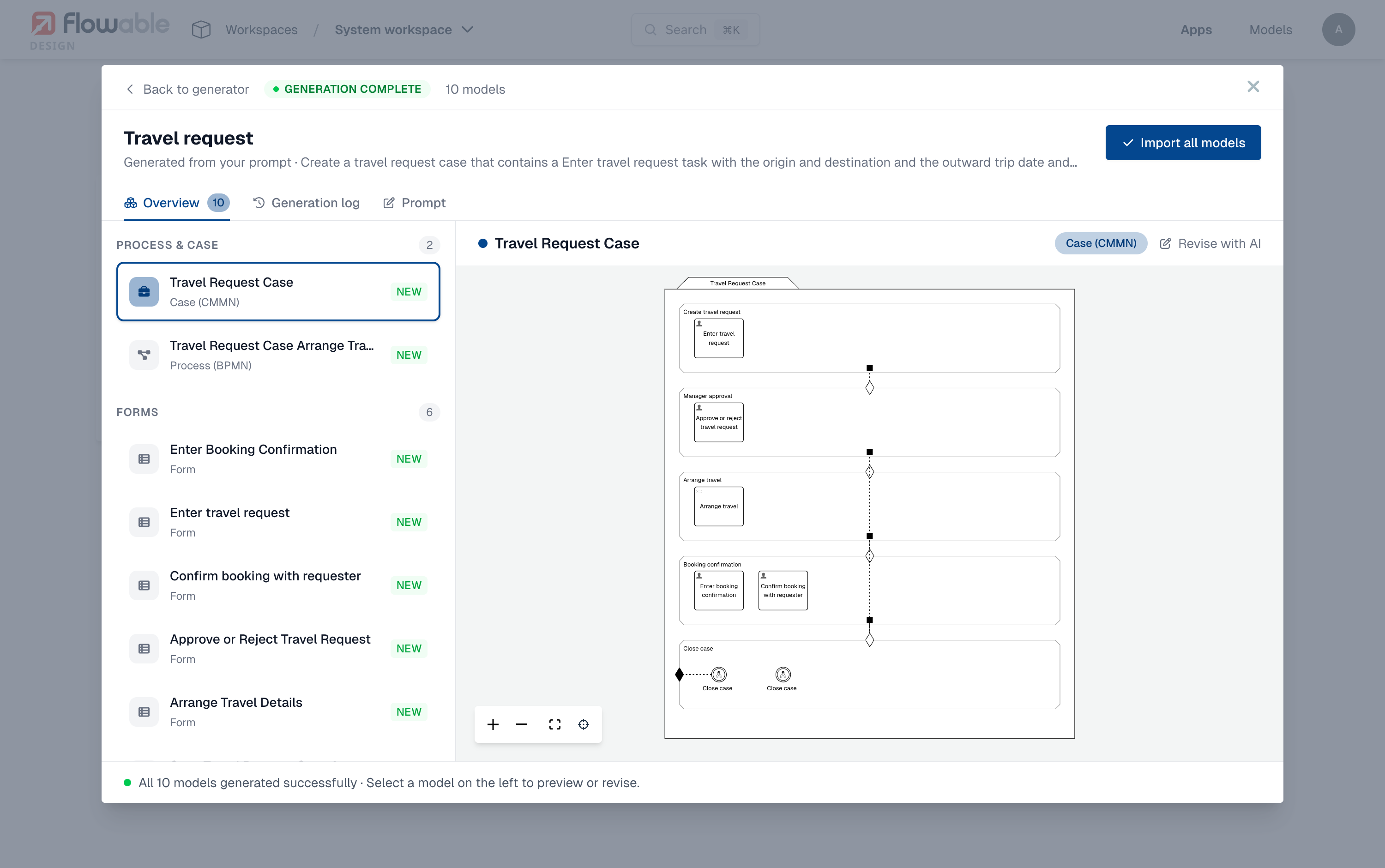
Use the preview to validate that each model was generated the way you expect. Data dictionary, service, agent and test models are shown as structured views rather than diagrams.
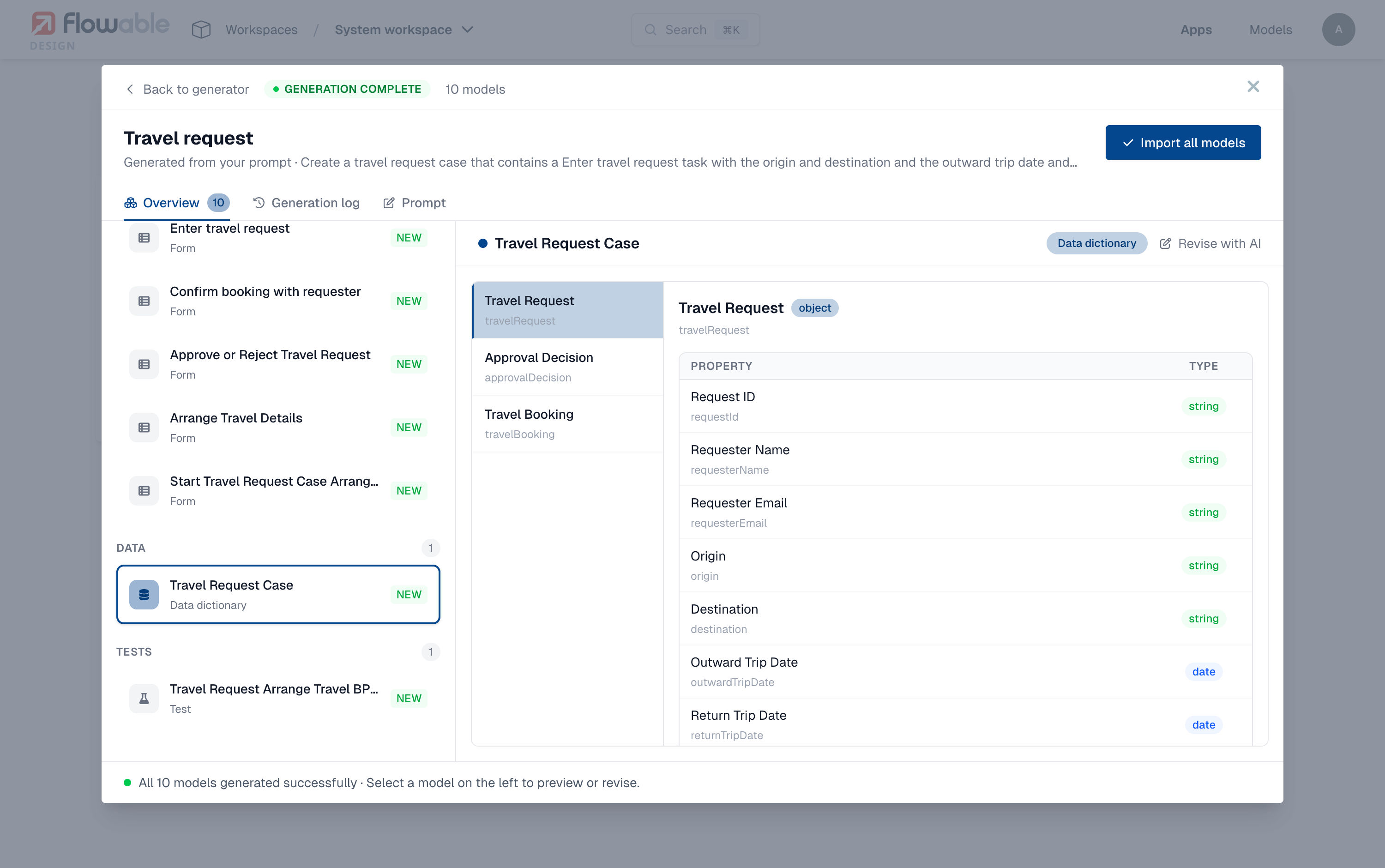
For process, case, form and data dictionary models you can click Revise with AI and describe a change; the AI regenerates just that model. The Generation log tab replays every step the AI took (handy to understand what happened), and the Prompt tab shows the full prompt that was used.
When you are happy with the result, click Import all models. The models are imported into a new app in your workspace and Flowable Design opens the app so you can adapt and extend the models like any other model. If the generation did not meet your expectations, you can go back and generate again with a changed prompt.
Reusing previous generations
Every generation you run is kept under the Previous generations tab of the wizard. Open a previous generation to inspect its models again, continue where you left off, or (re-)import it — useful when you want to compare a few prompts before committing to one.
AI Context and Rules
 info
infoYou can steer how the AI generates models with AI Context and Rules: free-text guidance that is injected into a specific stage of the generation pipeline (for example Generating BPMN process). Rules can be defined globally for the tenant or per workspace, where a workspace rule can extend or override the global one. This lets you make generated apps follow your own conventions.
Assistants modelling over the Design MCP server also see the tenant's global rules through the guide tool.
Generating individual models
In addition to generating a complete app, it is also possible to generate individual Case, Process, Form and Data Dictionary Models. This can be done from within an app and then clicking the Create button. From the opened dialog a generate tab is available where in addition to the OpenAPI / Swagger and Salesforce options an AI generator option is available.
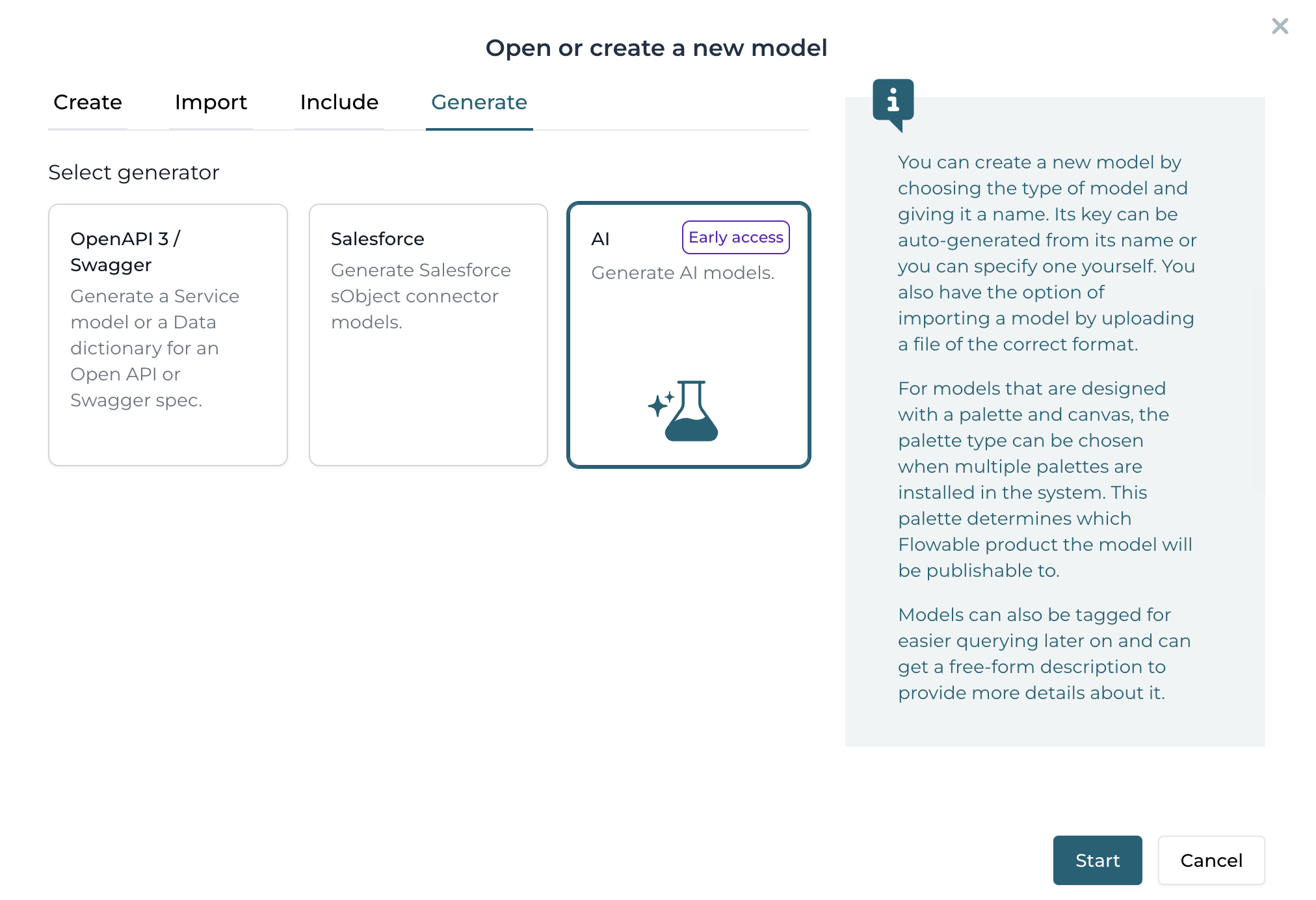
In the next dialog view the model type can be selected, let's go for a process model type. To stay in the loan application example, we'll use a basic prompt to generate a loan application process model. The following prompt is used: Generate an example loan application process that focuses on several reviews of the loan.
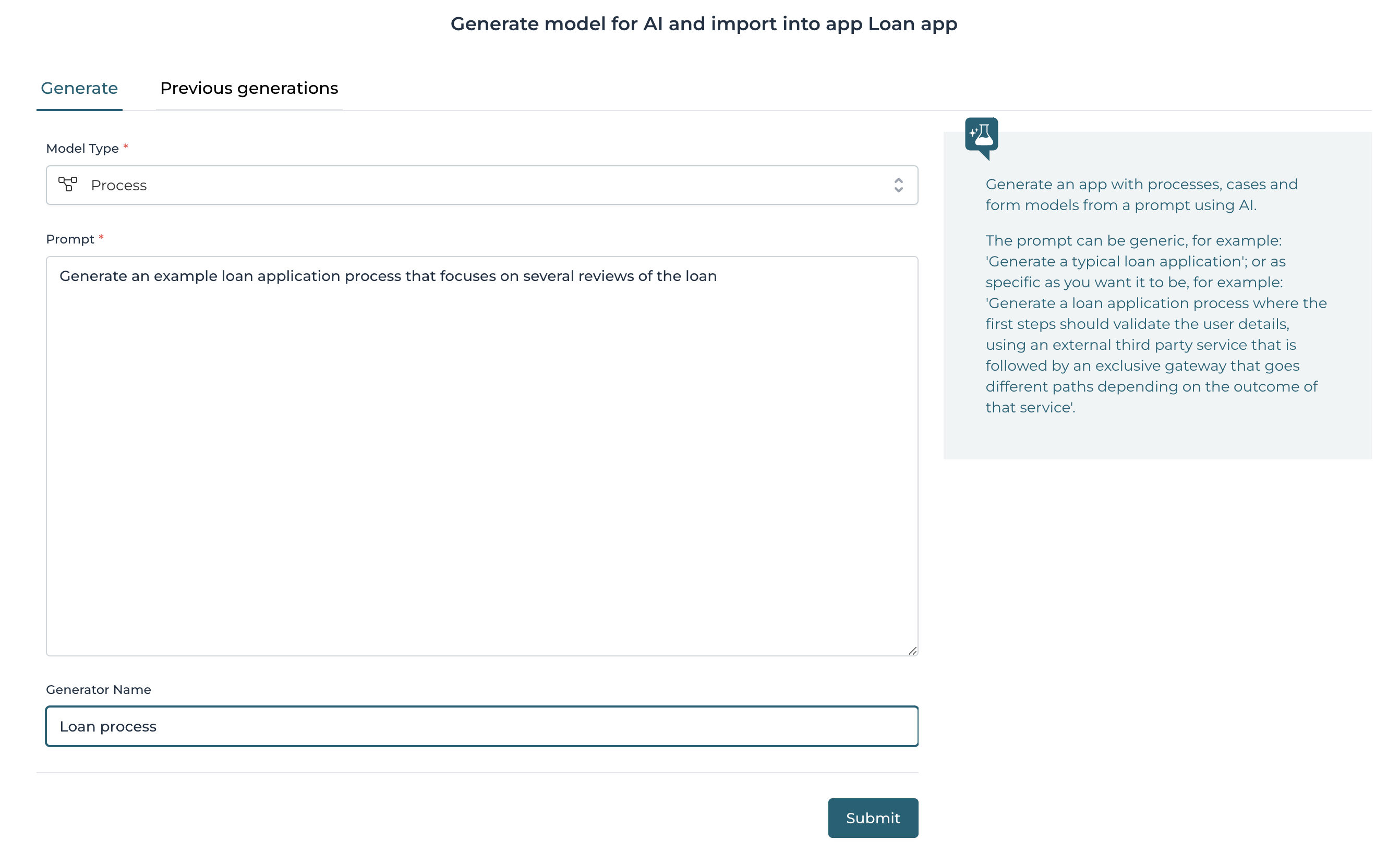
After providing the prompt and a generator name, the information can be sent to the AI service with the submit button. Now an overview page is presented that shows the progress in the model generation.

When the model generation has been completed, a summary view is provided that shows the generated model. Note that it's possible to just import the generated model to the current app, but it's also possible to provide additional prompts to improve the process model.
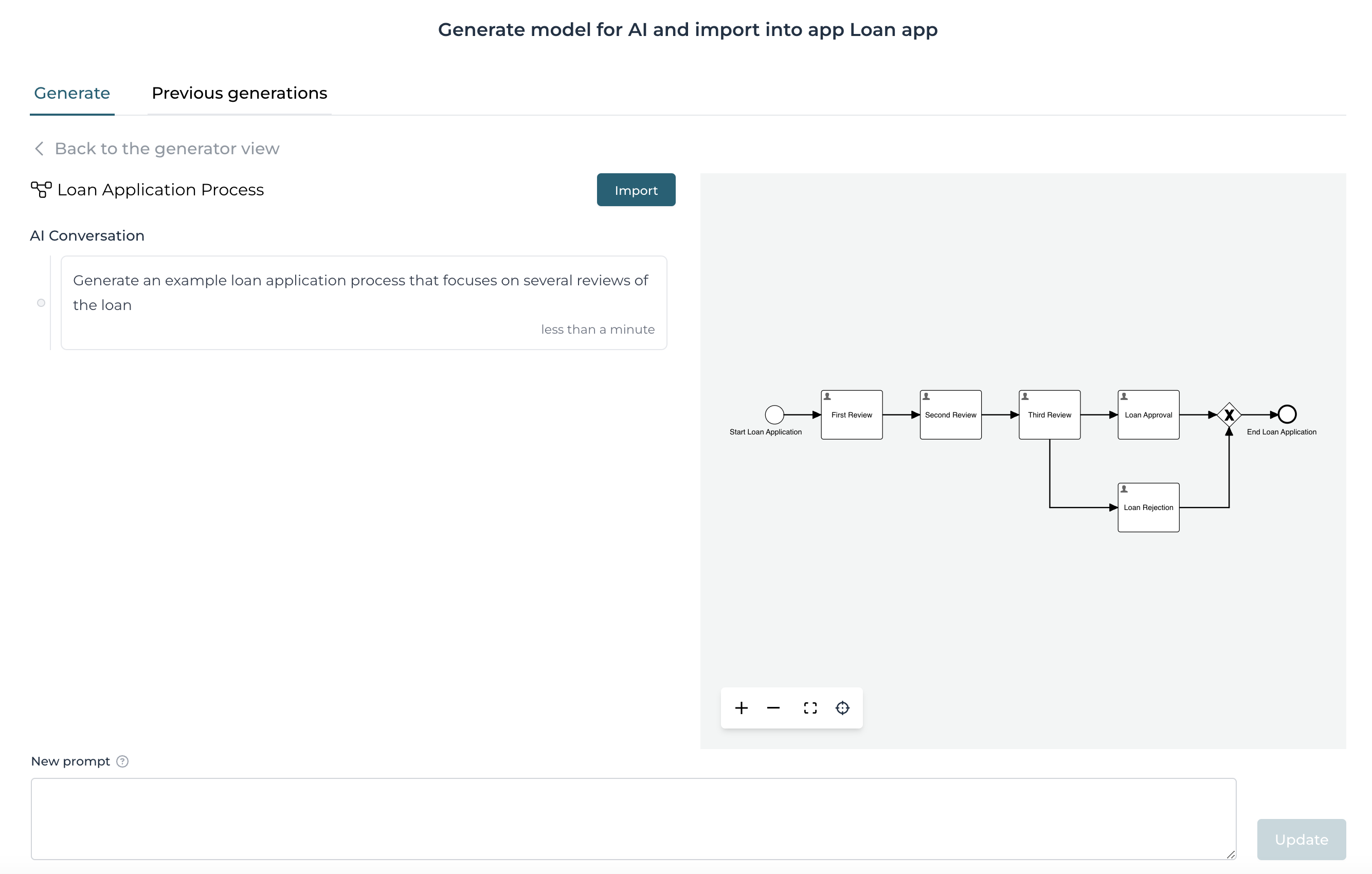
In this example we can see that from the third review there are two connected user tasks. This is not considered as a best practice for a BPMN model (a parallel gateway would clarify this, even though this is valid BPMN), so you can try to adapt this by providing an additional prompt and adding hints accordingly.