Actions
Introduction
An action model packages a piece of backend logic so that it can be triggered from anywhere in Flowable — from an Action Button on a page or form, from the action menu or quick actions of a case, process, task, content item, user or conversation, or programmatically through the action API. When an action is executed it receives an optional input payload, runs its logic on the Flowable Work runtime, and returns a result payload together with an intent that tells the calling UI what to do next (for example, reload the current page or navigate somewhere).
Every action model has an Action type that determines how its logic is provided:
- Bot — the action delegates to a pre-built piece of Java logic that is registered under a bot key. This is used for the out-of-the-box actions, such as starting a process or a case, and for any custom backend logic you implement yourself.
- Script — the action runs an inline script (JavaScript or Groovy) that you write directly in the action model.
You switch between the two with the Action type selector at the top of the action model editor. The rest of this page explains both types.
Bot-based actions
A bot-based action does not contain any logic itself. Instead it references a bot key, and that key is used at runtime to look up the Java implementation — the bot — that actually does the work. A bot is a class that implements the com.flowable.action.api.bot.BotService interface and is registered under a unique key; when the action is executed, the engine finds the bot that is registered under the configured bot key and invokes it with the action definition, action instance and payload.
Because bots are resolved by key, you can package your own logic as a custom bot and reference it from an action model without changing the modeling experience. See Action Bots for how to implement and register a custom bot.
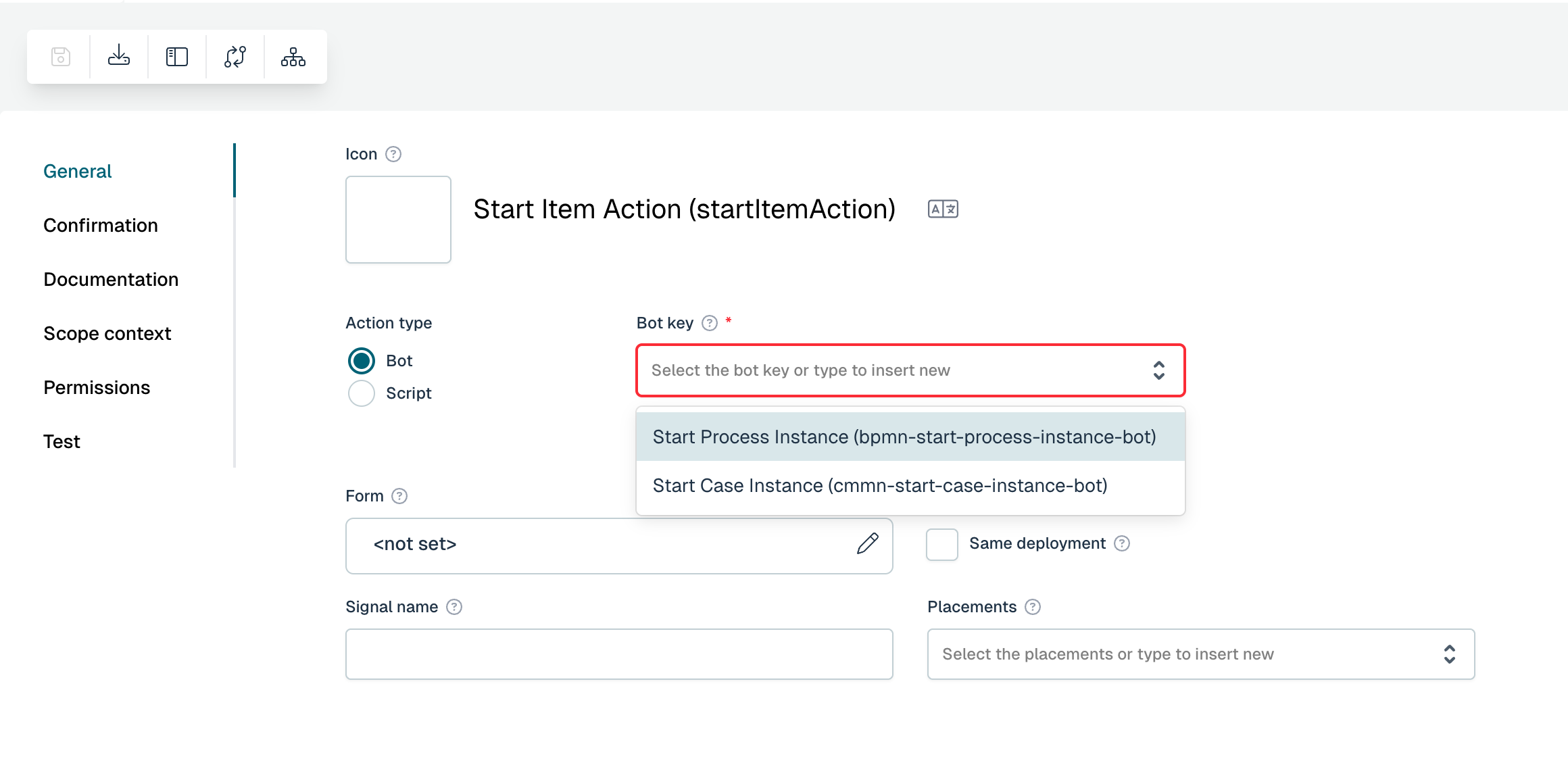
To create a bot-based action, select Bot as the Action type and pick the bot in the Bot key field. The field lists every bot key that is registered on the connected runtime:
Out-of-the-box actions
Flowable ships two ready-to-use bots that cover the most common need: creating a new process or case instance from the UI. You only have to point them at the model you want to start — no Java code is required.
Start a process
Choose the Start Process Instance bot (bot key bpmn-start-process-instance-bot) and select the process model to start in the Process field:
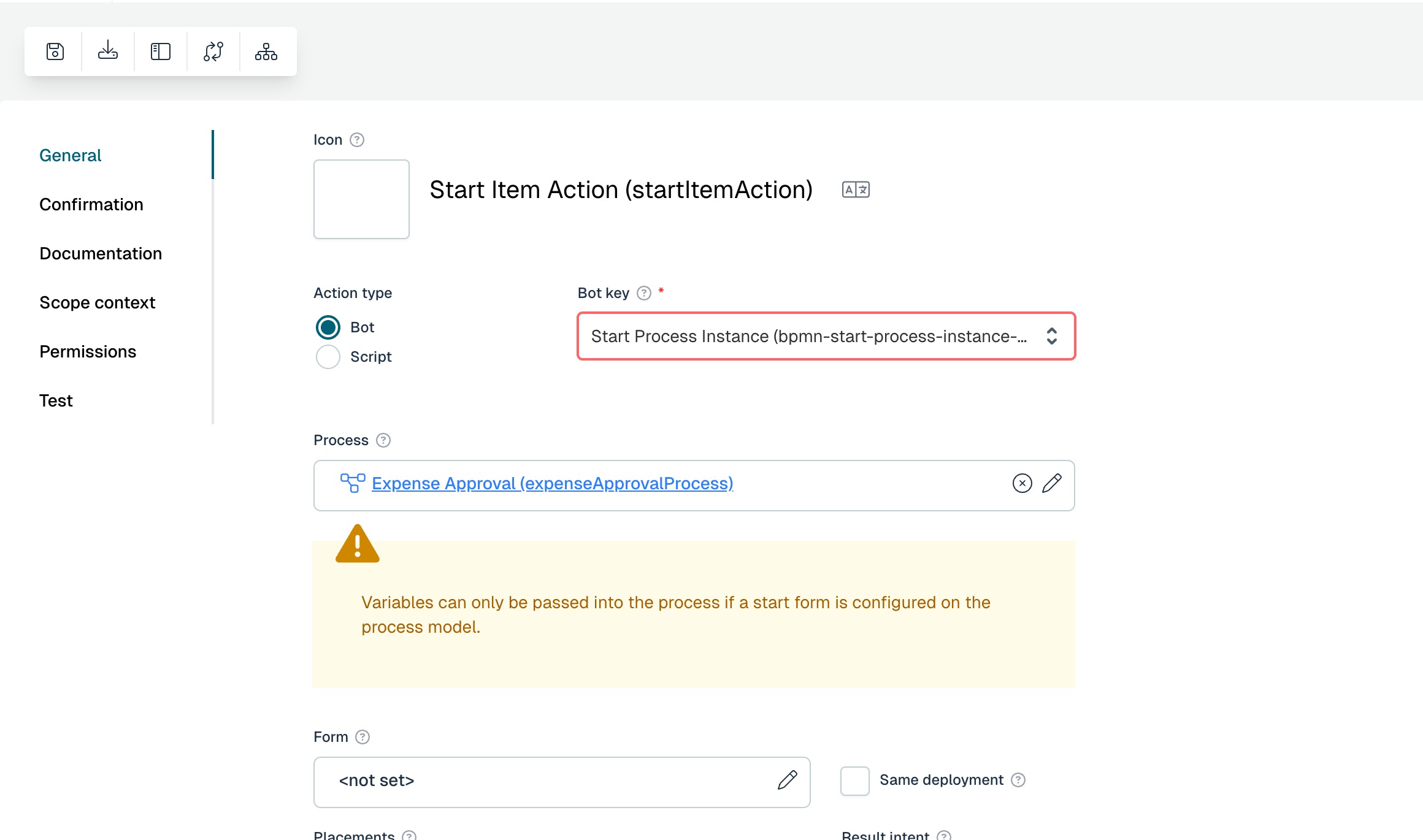
When the action is executed it starts a new instance of the referenced process definition and returns the new instance id in the response. A common pattern is to use that id to navigate straight to the newly created instance — see Create a Process with an Action for a full walkthrough.
Start a case
Choose the Start Case Instance bot (bot key cmmn-start-case-instance-bot) and select the case model to start in the Case field:
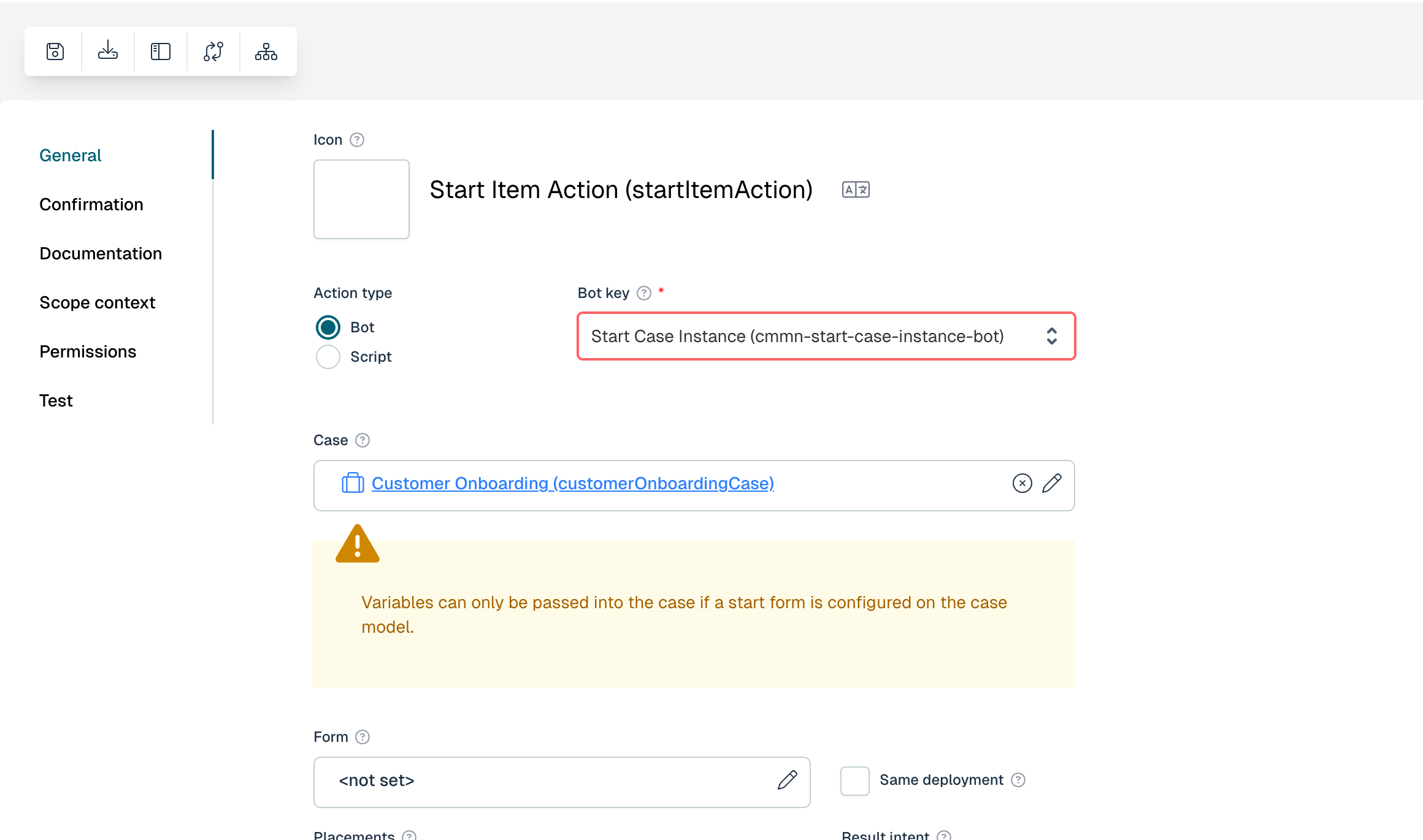
This behaves exactly like the process variant, but creates a case instance instead of a process instance.
Choosing the action form
Both start actions can present a form to the user before the instance is created. You have two options for which form is shown:
- Use the model's start form — leave the Form field on the action empty. The action then shows the start form that is configured on the referenced process or case model, so the same form is reused for both the regular start experience and the action.
- Use a separate action form — set the Form field on the action to a dedicated form. The action then shows this form instead of the model's start form, which is useful when the action should collect a different (for example, smaller) set of input than the full start form.
Either way, the values entered in the form are passed as variables to the new process or case instance.
 note
noteVariables can only be passed into the new instance when a start form is configured on the target process or case model. If the model has no start form, the action still starts the instance, but without input variables.
Scripting-based actions
Instead of delegating to a bot, an action can execute a script directly. Select Script as the Action type, choose the scripting Language (JavaScript or Groovy) and write the script in the editor.
Within the script context, the entire application context is available, enabling a wide range of operations.
You can leverage various Flowable APIs such as runtimeService, historyService, cmmnRuntimeService and more.
To easily access API methods, you can utilize the Flowable Scripting API (flw). Refer to Backend Scripting
for more information.
Below is a basic example that demonstrates adding two numbers (case or process variables), performing an addition operation, and storing the result as a JSON object in the result:
// Get variables from Variable Container
var a = flw.getInput("firstNumber");
var b = flw.getInput("secondNumber");

// Perform operation
var c = a + b;

// Creation of the JSON object
var jsonObject = flw.json.createObject();
jsonObject.putInteger('firstNumber', a);
jsonObject.putInteger('secondNumber', b);
jsonObject.putString('operation', 'addition');
jsonObject.putInteger('result', c);

// Set variable to the Variable Container
flw.setOutput("result", jsonObject);
This is a simplified scenario and could also be achieved directly in the form with an expression {{firstNumber + secondNumber}}.
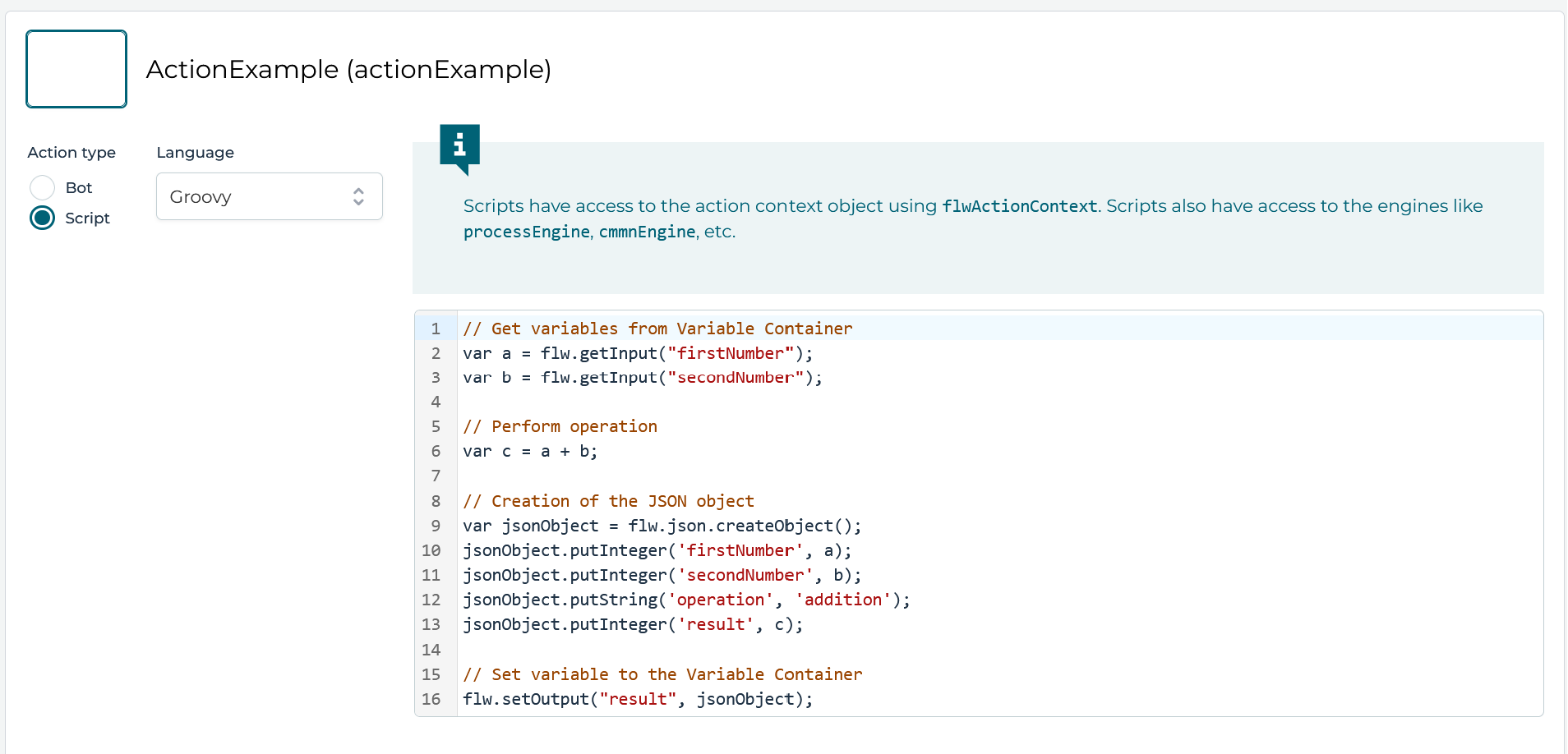
Action Models can be executed in various ways. One option is to execute Action Models using Action Buttons on a page.
For this example, you can create a simple page model with two Number fields for the input parameters.
Then, add an Action Button element to execute the Action Model. Configure the Action Button, assuming {{firstNumber}} and {{secondNumber}} are the bindings
for the two Number fields. To see the dialog below, link the Action Model to the Action Button by clicking the Action Definition Key field in the panel on the right. Then click the payload option on the same panel:
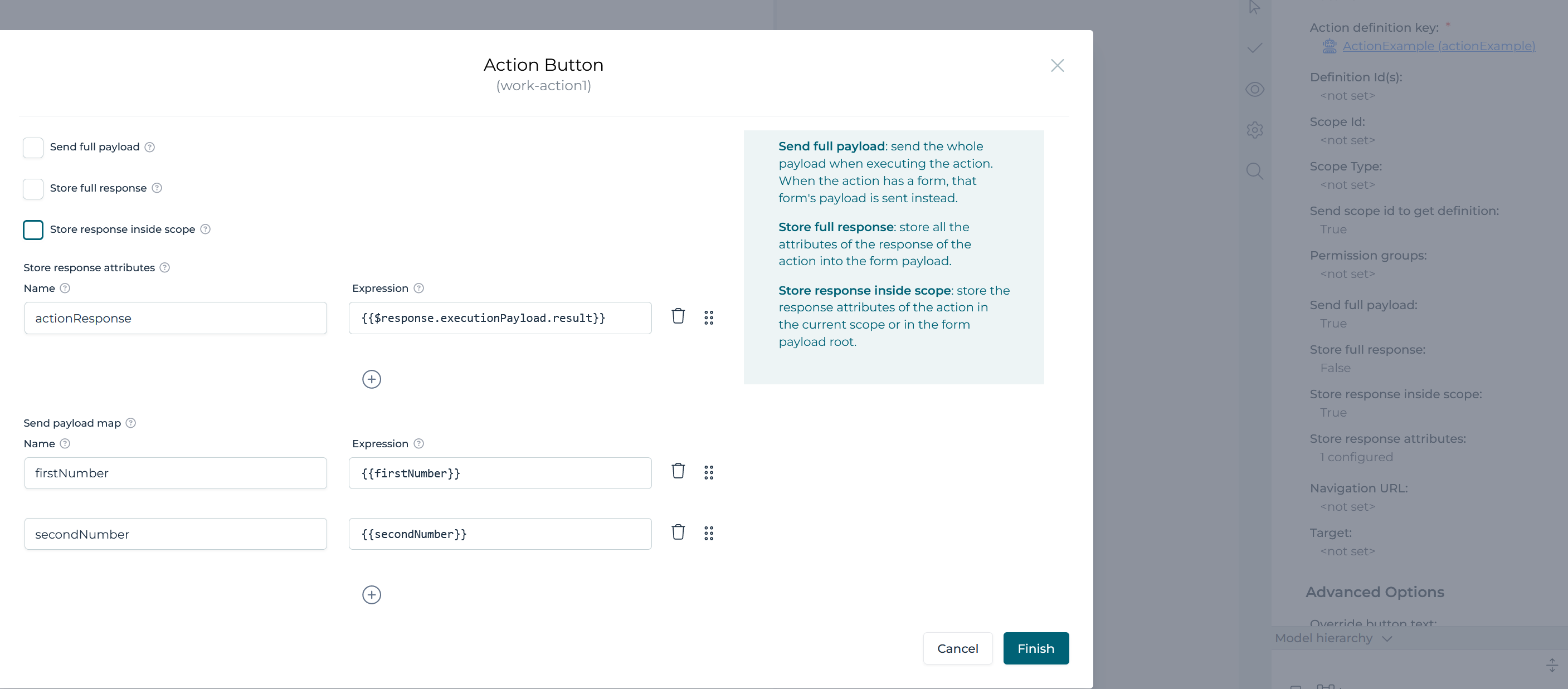
Pay attention to the configuration of the Send payload map and Store response attributes sections of the Action Button.
The Send payload map section allows you to provide input parameters that will be accessible within the script using
the flw.getInput(variableName) operation.
The Store response attributes section captures the result of the script, including any variables set with flw.setOutput(variableName, variableValue)
within the script. These variables will be available in {{$response.executionPayload.*}}.
In the example above, the result is available as {{$response.executionPayload.result}}.
You can also execute other logic, such as creating process instances, easily using scripts in Action Models:
var processDefinitionKey = flw.getInput("processDefinitionKey");
var processInstance = runtimeService.startProcessInstanceByKey(processDefinitionKey);
flw.setOutput("processInstanceId", processInstance.getId());