Master Data concepts
Master data in Flowable represents shared, relatively static reference information — such as country lists, product categories, or currency codes — that is used consistently across processes, cases, and forms. The master data editor in Flowable Design allows you to create and manage master data definitions and their values directly from the modeler, without needing to deploy JSON files manually or use REST API calls.
Master Data editor
When creating a new model in Flowable Design, you can select Master Data as the model type. This opens the master data editor which has three tabs: Definition, Data, and Advanced settings.
Definition tab
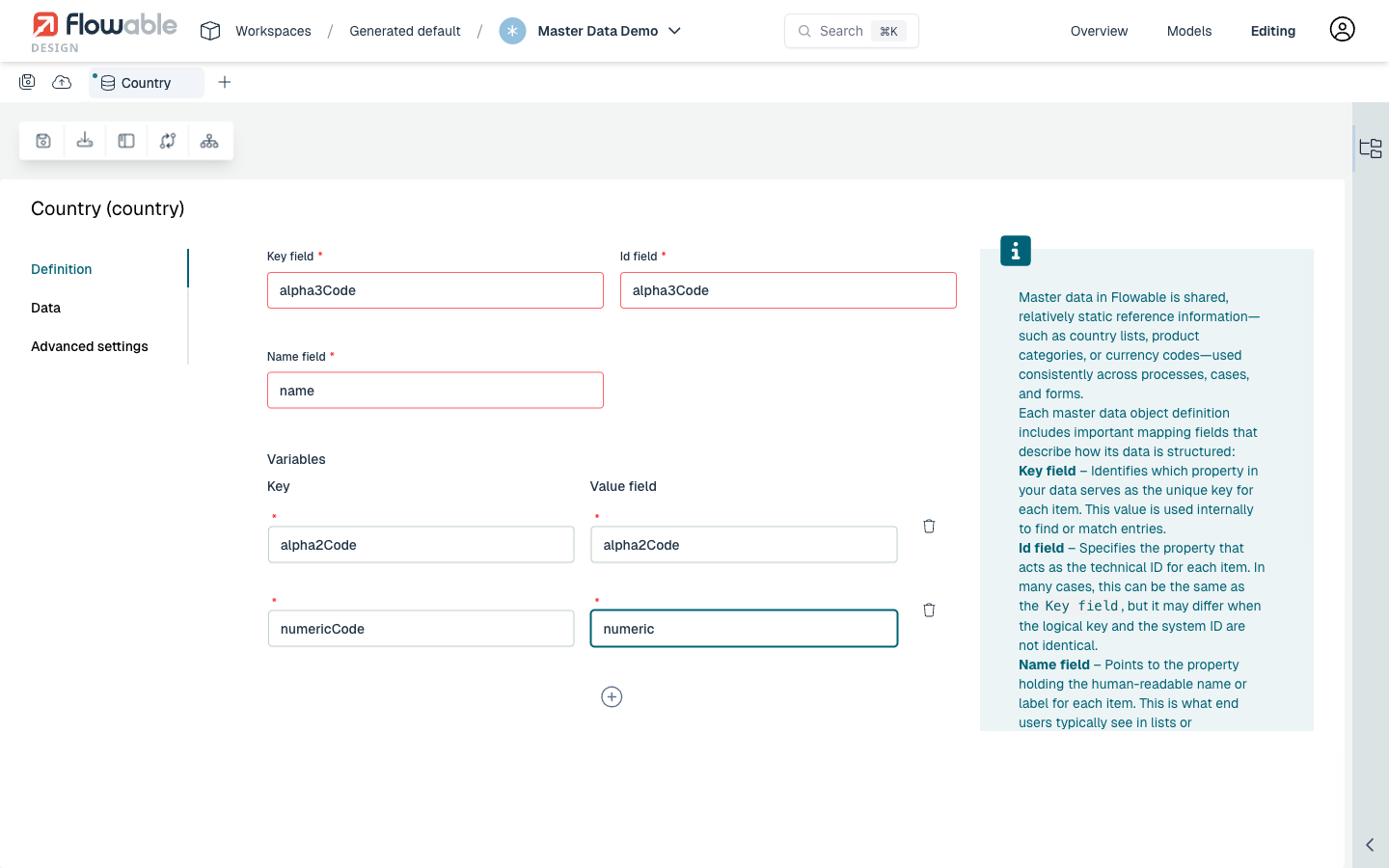
The Definition tab is where you configure the structure of your master data. It has the following fields:
- Key field — Identifies which property in your data serves as the unique key for each item. This value is used internally to find or match entries.
- Id field — Specifies the property that acts as the technical ID for each item. In many cases, this can be the same as the key field, but it may differ when the logical key and the system ID are not identical.
- Name field — Points to the property holding the human-readable name or label for each item. This is what end users typically see in lists or dropdowns in forms.
In addition to the key, id, and name fields, you can also define variables. Variables represent additional properties that should be stored with each master data entry. Each variable has a key (the variable name in Flowable) and a value field (the JSON property name in the data). You can add as many variables as needed by clicking the + icon.
Data tab
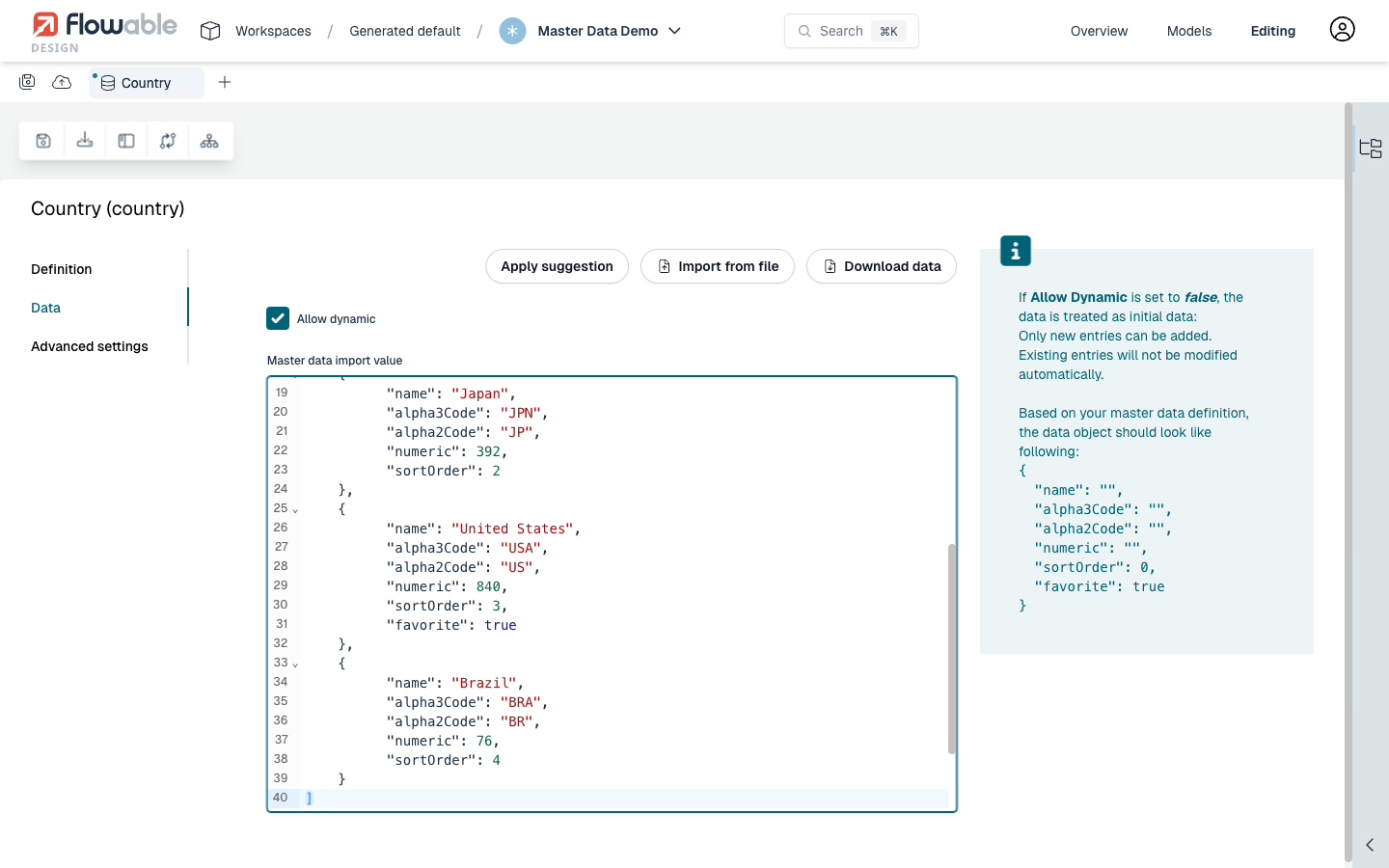
The Data tab is where you provide the actual master data values as a JSON array. Each entry in the array represents one master data instance.
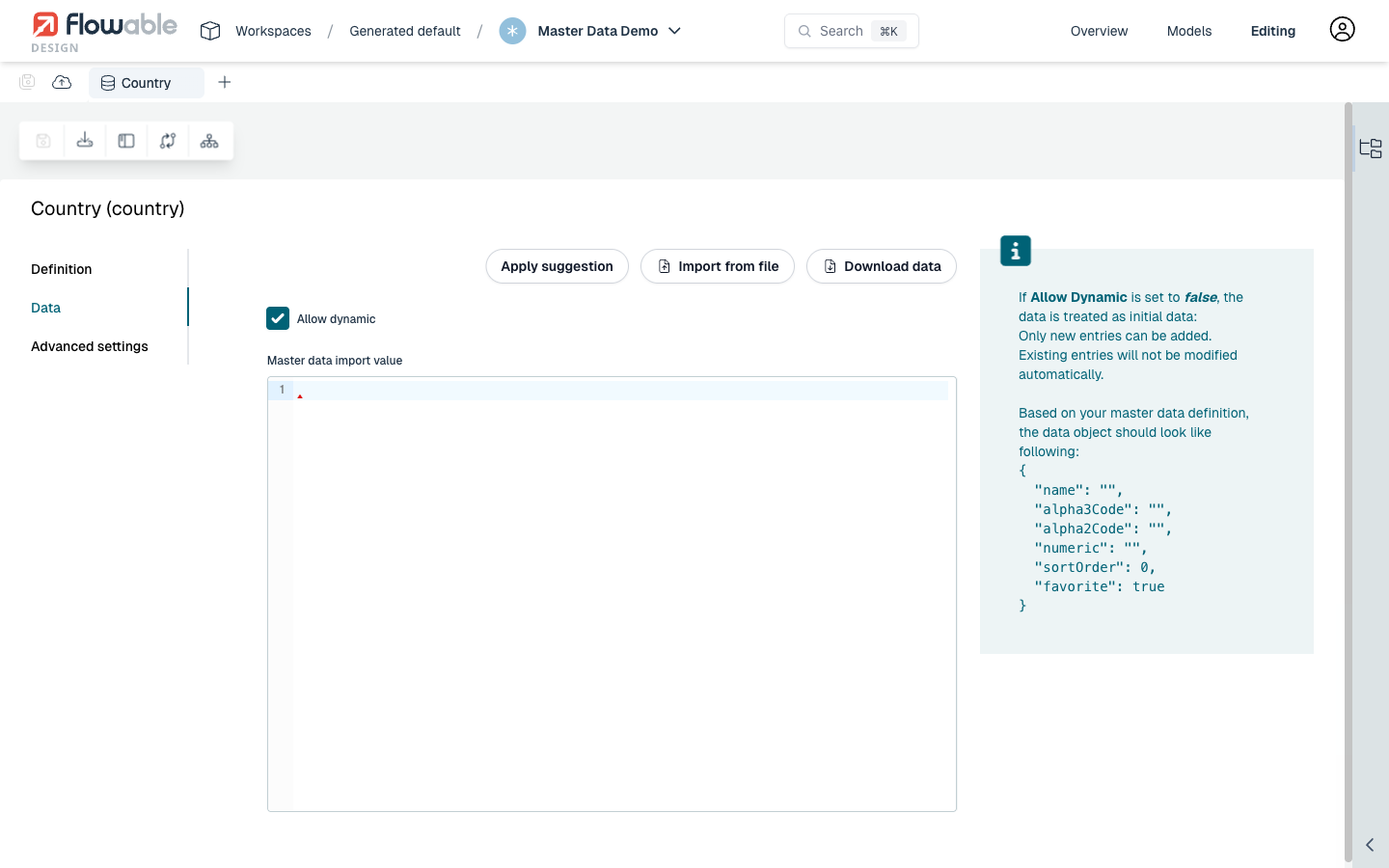
The Data tab provides the following features:
- Apply suggestion — Generates a JSON template based on your definition, showing the expected structure for each entry including all configured fields and variables.
- Import from file — Allows you to upload a JSON file containing the master data values.
- Download data — Downloads the current master data values as a JSON file.
- Allow dynamic — When enabled (default), the data is treated as dynamic and existing entries can be modified. When disabled, the data is treated as initial data: only new entries can be added, and existing entries will not be modified automatically.
The JSON data is entered in the code editor. In addition to the fields mapped by the key, id, name, and variable definitions, each entry can also include the following optional properties:
sortOrder— A numeric value that determines the display order. Entries with a lower sort order appear first.favorite— A boolean value. When set totrue, the entry is shown at the top of the master data options in form dropdowns.
Advanced settings tab
The Advanced settings tab allows you to configure optional metadata for the master data definition:
- Type — An optional classification type for the master data (e.g.,
internal). - Sub type — An optional sub-classification (e.g.,
country).
These values are used for metadata and querying purposes and can help organize master data definitions when you have many different types.
Using master data in forms
Once a master data model is created and published as part of an app, the master data can be referenced in form models.
In a form, add a Select (single) or similar selection component and configure it as follows:
- Set Data source to
Master. - Set Master data key to the key of your master data model (e.g.,
country).
For large lists of master data values, enable the Autocomplete option and set the Input min. length to control when autocomplete suggestions appear. Setting it to 0 triggers autocomplete immediately.