Create a Master Data model for countries
Introduction
This tutorial walks through creating a master data model for a list of countries using the master data editor in Flowable Design. The master data can then be used in form fields to provide a selection list.
Part 1: Creating the master data model
First, open an App in Flowable Design (or create a new one) and click Create to open the "Open or create a new model" dialog.
In the Model Type dropdown, select Master Data and provide a name for the model, for example Country. The key will be auto-generated from the name.
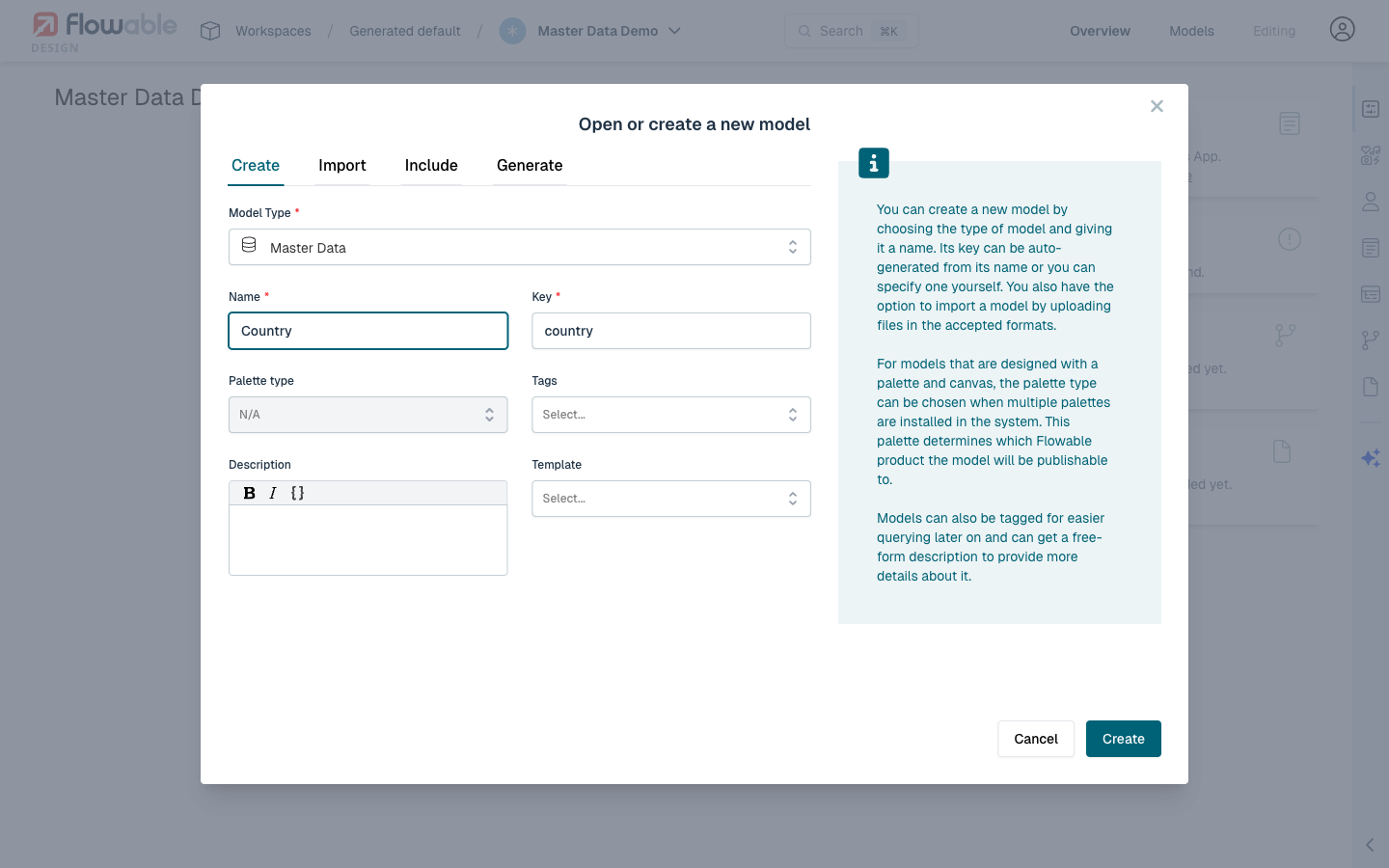
Click Create to open the master data editor.
Part 2: Configuring the definition
After creating the model, the master data editor opens on the Definition tab with three required fields.
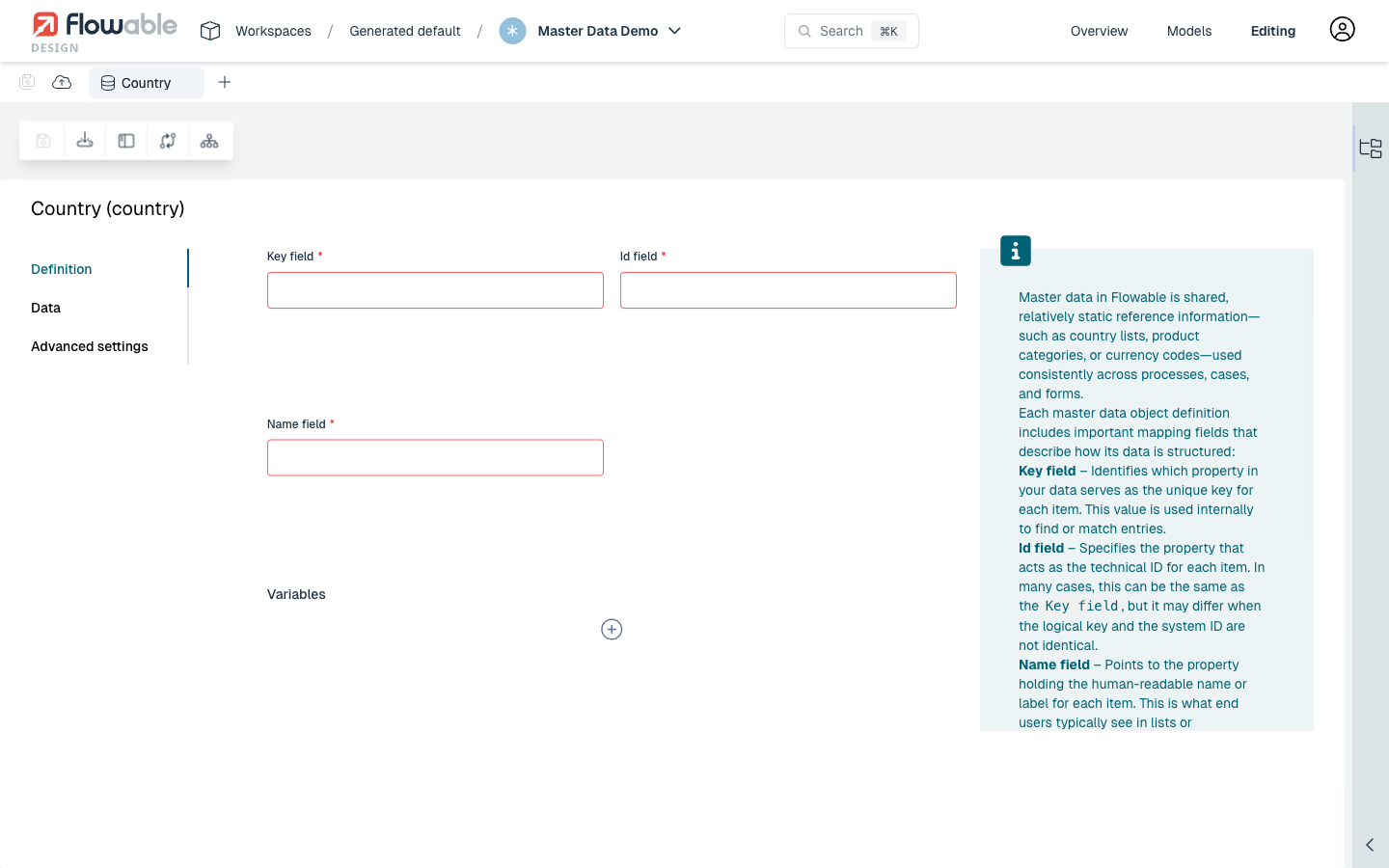
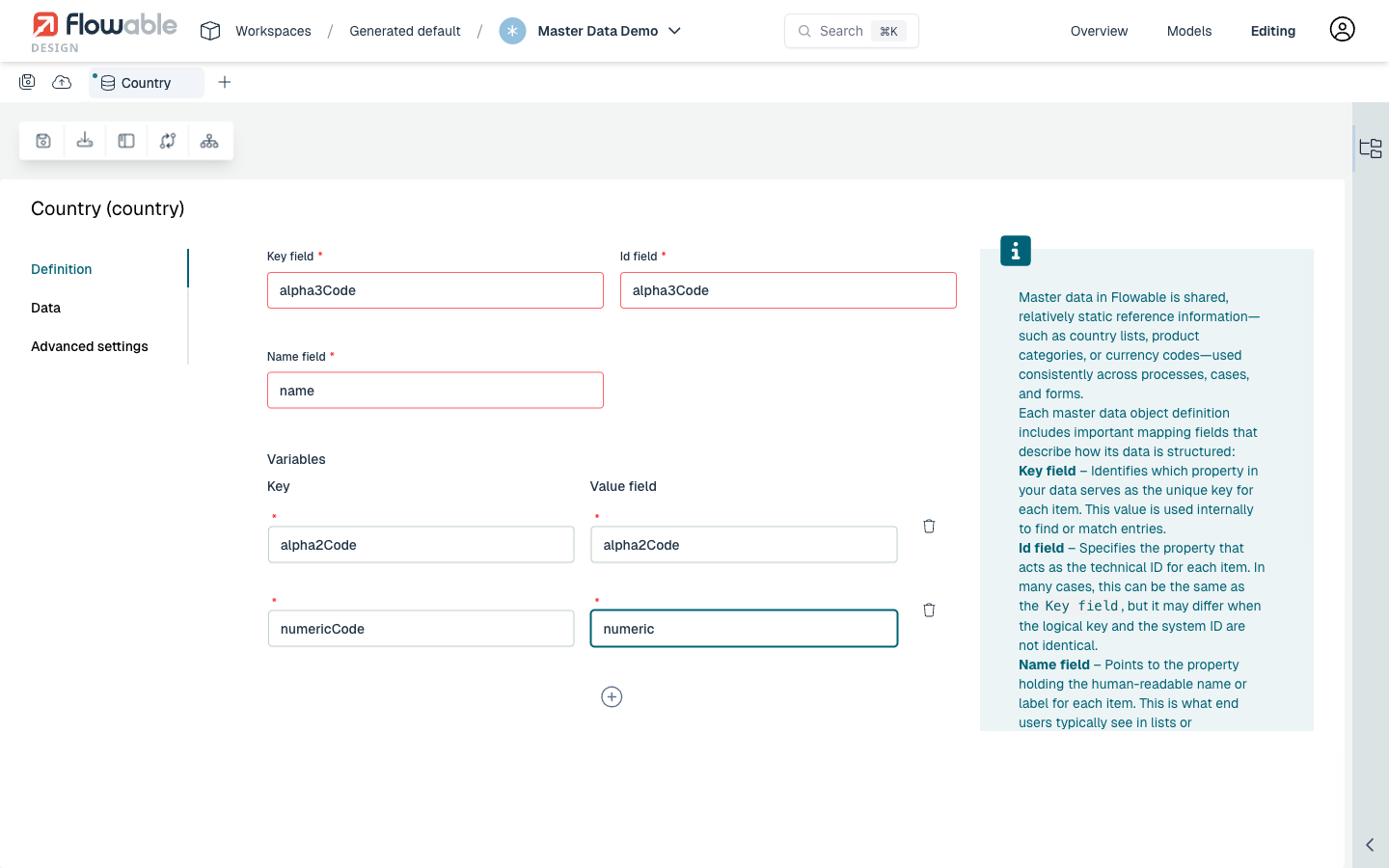
For a country master data model, fill in the following values:
- Key field:
alpha3Code— the three-letter country code serves as the unique key. - Id field:
alpha3Code— in this case the same as the key field. - Name field:
name— the human-readable country name.
Next, add additional variables by clicking the + icon below the Variables section:
- First variable: Key =
alpha2Code, Value field =alpha2Code— stores the two-letter country code. - Second variable: Key =
numericCode, Value field =numeric— stores the numeric country code.
The definition should now look like this:
Part 3: Adding the data
Navigate to the Data tab to enter the actual country values. The information panel on the right shows the expected JSON structure based on your definition.
Enter the country data as a JSON array in the code editor. Here is an example with five countries:
[
  {
    "name": "Australia",
    "alpha3Code": "AUS",
    "alpha2Code": "AU",
    "numeric": 36,
    "sortOrder": 0,
    "favorite": true
  },
  {
    "name": "Germany",
    "alpha3Code": "DEU",
    "alpha2Code": "DE",
    "numeric": 276,
    "sortOrder": 1,
    "favorite": true
  },
  {
    "name": "Japan",
    "alpha3Code": "JPN",
    "alpha2Code": "JP",
    "numeric": 392,
    "sortOrder": 2
  },
  {
    "name": "United States",
    "alpha3Code": "USA",
    "alpha2Code": "US",
    "numeric": 840,
    "sortOrder": 3,
    "favorite": true
  },
  {
    "name": "Brazil",
    "alpha3Code": "BRA",
    "alpha2Code": "BR",
    "numeric": 76,
    "sortOrder": 4
  }
]
The sortOrder property determines the display order, and the favorite property (when set to true) ensures that those entries appear at the top of the selection list in forms.
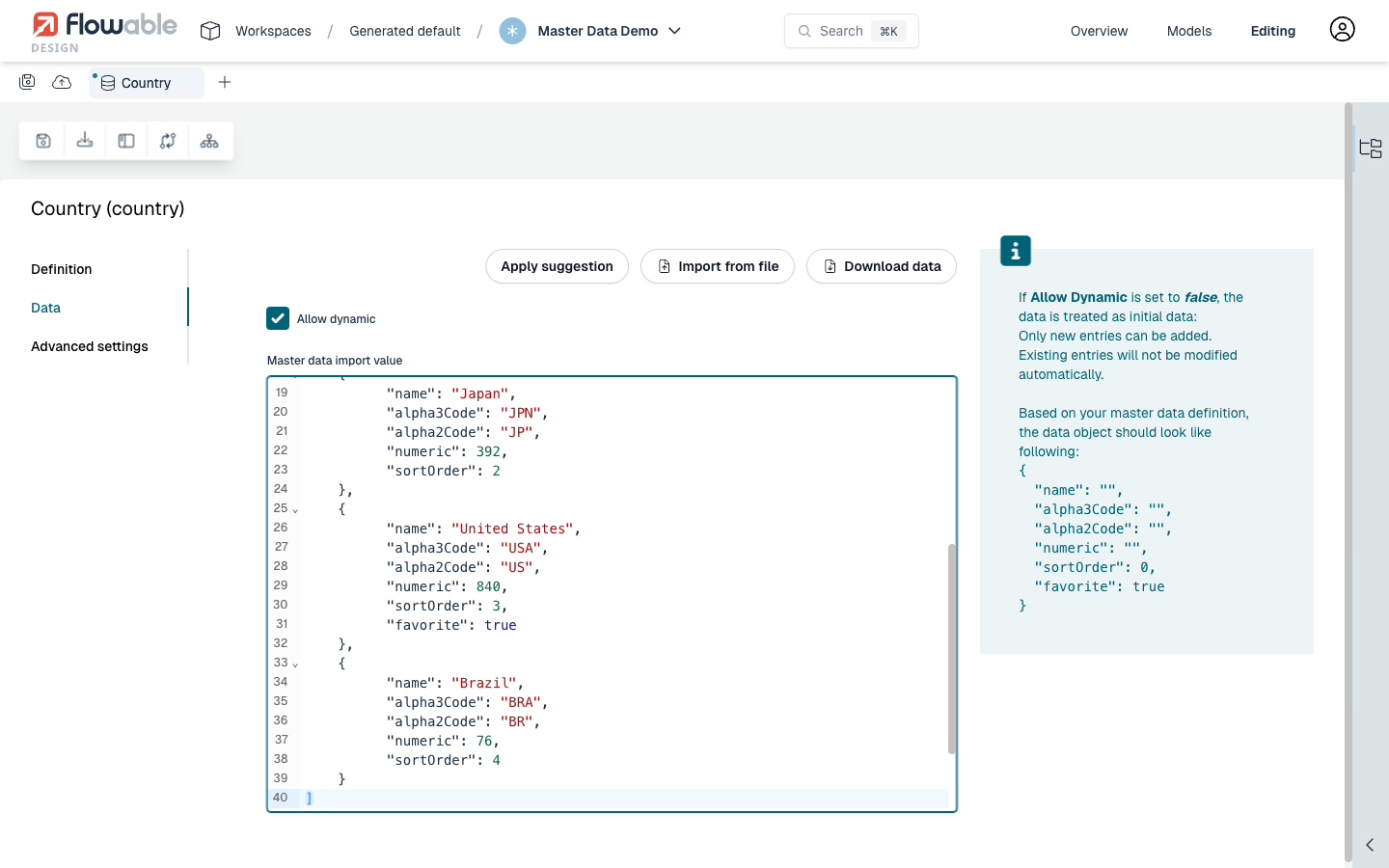
Save the model and publish the app to make the master data available.
Part 4: Using the master data in a form
With the master data model created and published, you can now reference it in a form model:
- Create or edit a form in the same app.
- Add a
Select (single)form field. - In the field properties, set the Data source to
Master. - Set the Master data key to
country(the key of the master data model). - Enable Autocomplete and set Input min. length to
0for immediate suggestions.
When a process or case instance uses this form, the country selection field will be populated with the master data values that were defined in the master data model.