Model Validation
Flowable Design includes built-in model validation that helps you identify issues in your models before publishing an app. The validation status is tracked per model and aggregated at the app level, giving you a clear overview of the quality of your app's models.
App-Level Validation Overview
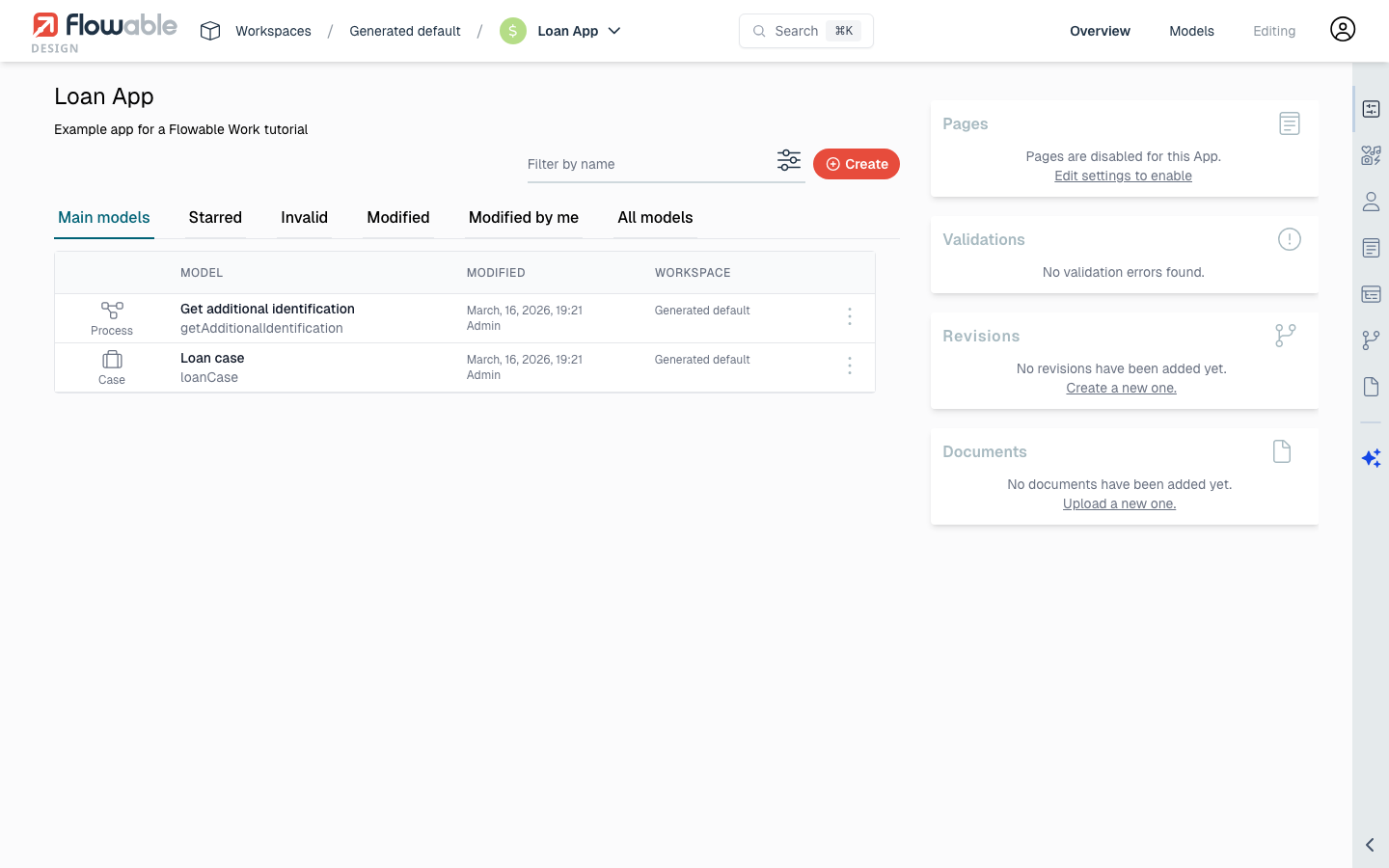
The app overview in Flowable Design shows a Validations panel on the right side of the page. This panel provides a summary of the validation status across all models in the app.
When all models are valid, the panel displays "No validation errors found." with a gray info icon:
When one or more models have validation issues, the panel shows the number of models with errors or warnings, using a red exclamation icon. Each affected model also displays a validation status badge next to its name in the model list:
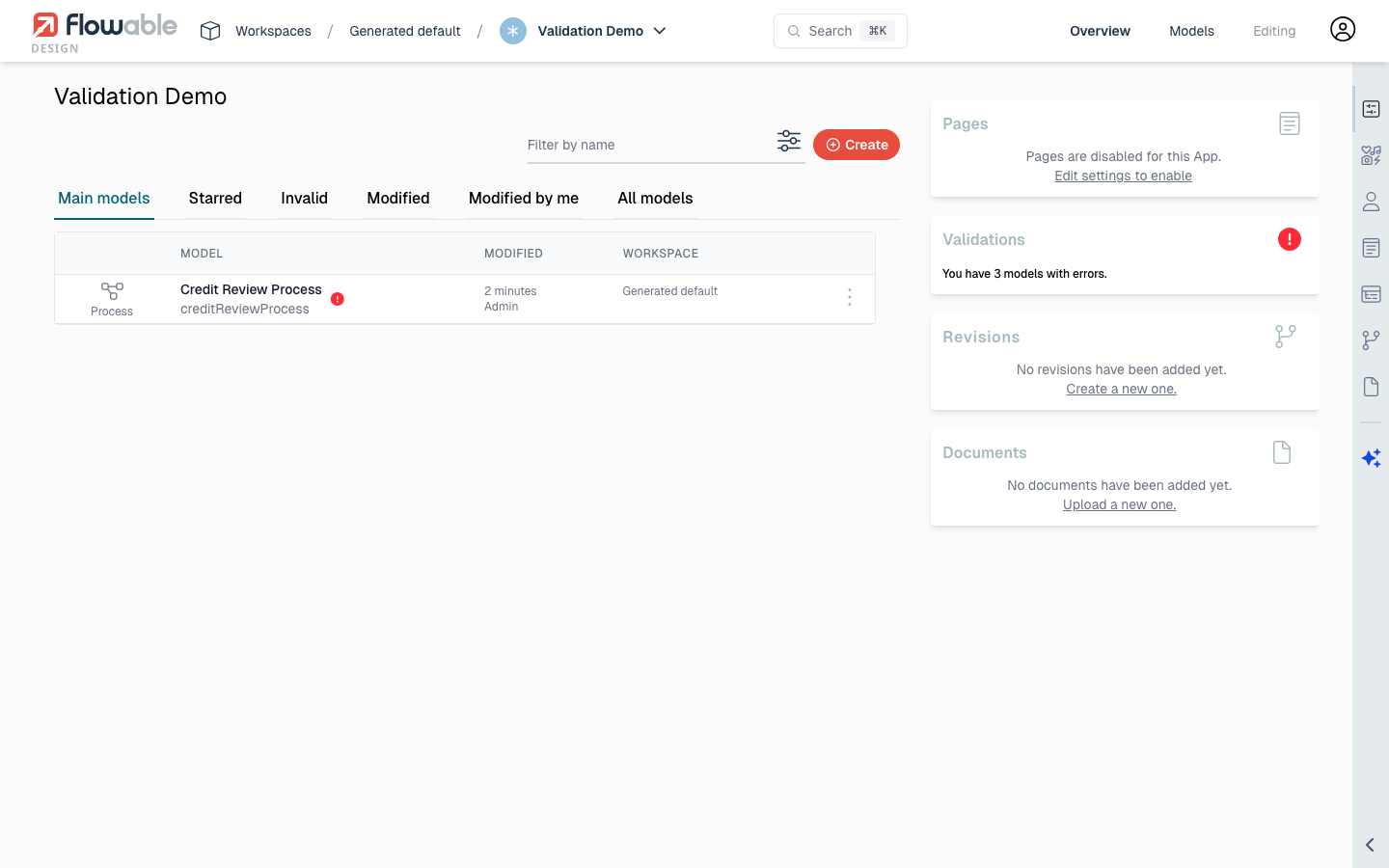
The app overview provides several tabs to help you identify and manage validation issues:
- Main models — Shows the primary models in the app with their validation status icon.
- Invalid — Filters the model list to only show models with validation errors or warnings.
- All models — Shows all models in the app, including referenced models from other workspaces.
When Is Validation Status Updated?
The validation status for each model is automatically updated when the model is saved. For an app that has existing models that haven't been validated yet, you can trigger a full validation of all models in the app from the app overview.
Validation at Publish Time
When publishing an app, the model validation status is shown to indicate if there are known errors and/or warnings. This ensures that you are aware of any potential issues before deploying the app to a runtime environment like Flowable Work.
Editor-Level Validation
Each model editor includes a Validate button in the toolbar (warning triangle icon) that allows you to check for validation issues in the current model. When issues are found, the button becomes highlighted and its label changes to indicate the severity (e.g., "Validate (view errors)" or "Validate (view warnings)"). The validation results are displayed in a resizable panel within the editor, listing each issue with its element name and a description.
Process Editor (BPMN)
In the BPMN process editor, click the validate button in the toolbar to check for validation issues. The validation panel opens at the bottom of the editor canvas, showing a table with NAME and DESCRIPTION columns. Elements with validation issues are also marked with a warning badge directly on the canvas.
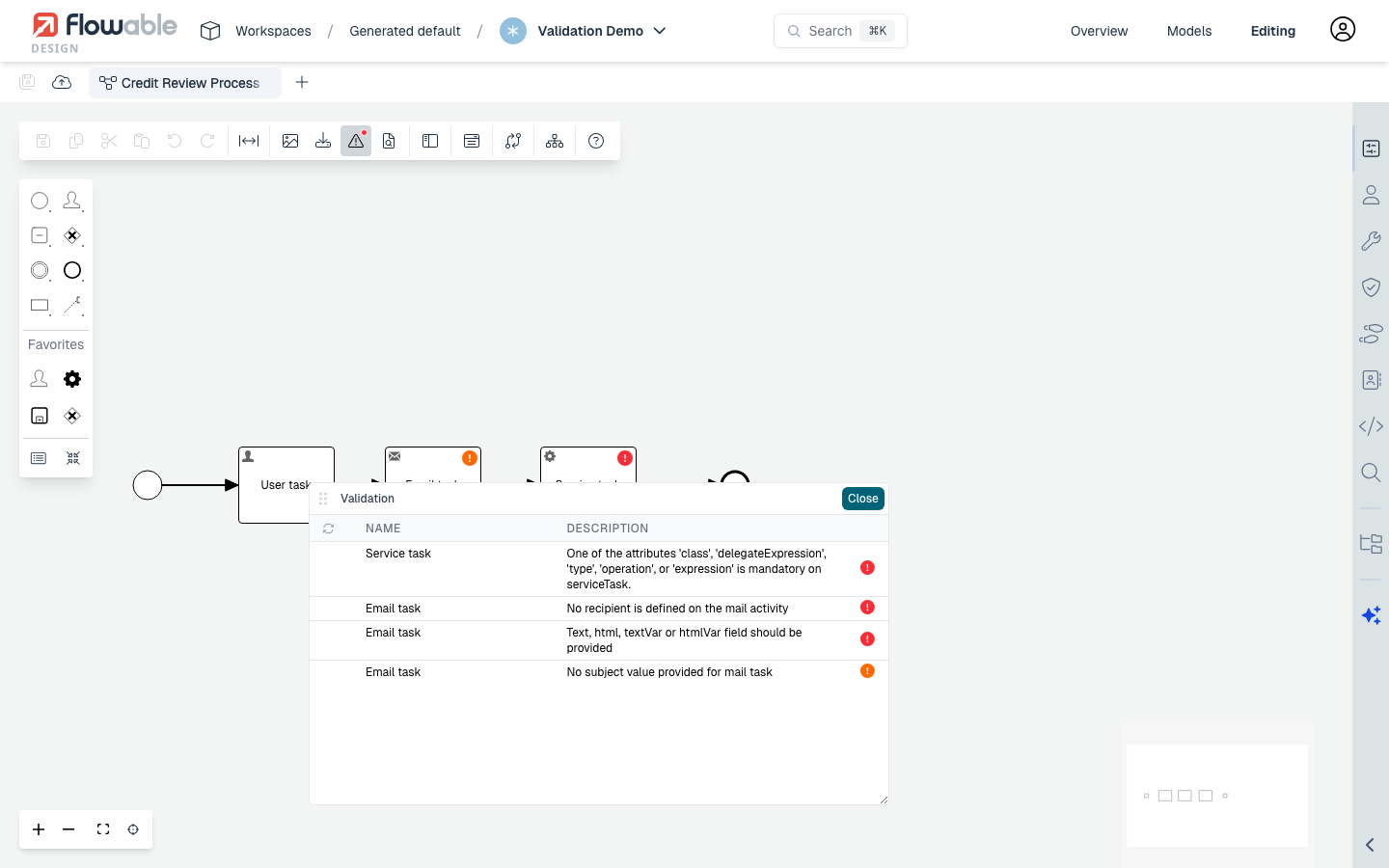
Common process validation checks include:
- Elements have incoming and outgoing sequence flows
- Service tasks have a required implementation attribute (class, delegateExpression, type, operation, or expression)
- Email tasks have a recipient, subject, and body configured
- Sequence flows have valid conditions where required
- Referenced models (forms, decisions) exist in the app
Form Editor
The form editor includes the same validate button in its toolbar. Clicking it checks the form model for configuration issues and shows the validation panel at the bottom of the editor.
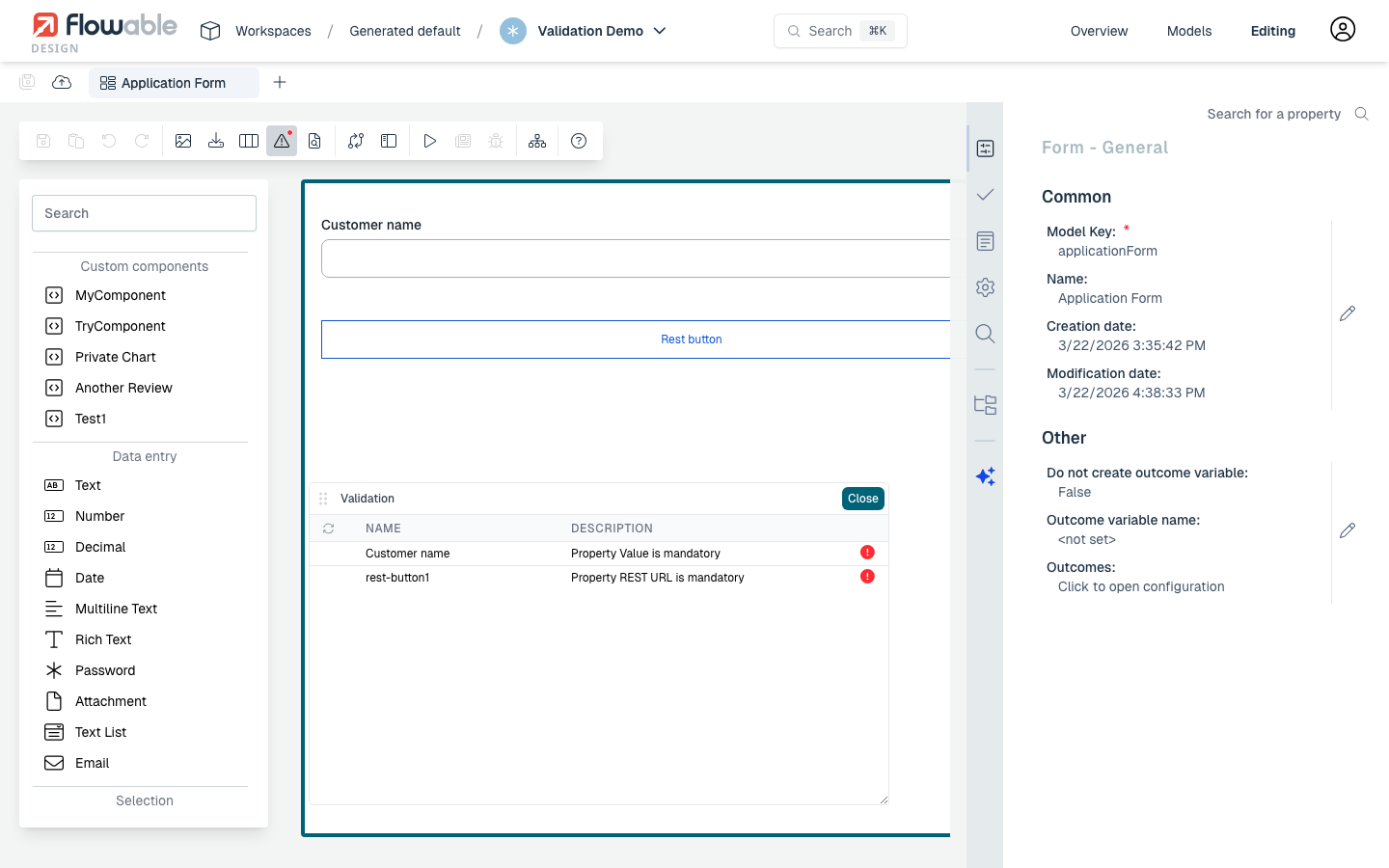
Common form validation checks include:
- Required properties have a value configured (e.g., a text field needs a Value binding)
- REST buttons have a REST URL defined
- Data bindings reference valid variables
- Component configurations are complete
Agent Model Editor
The agent model editor validates agent configuration. Like other editors, the validation panel appears at the bottom when clicking the validate button.
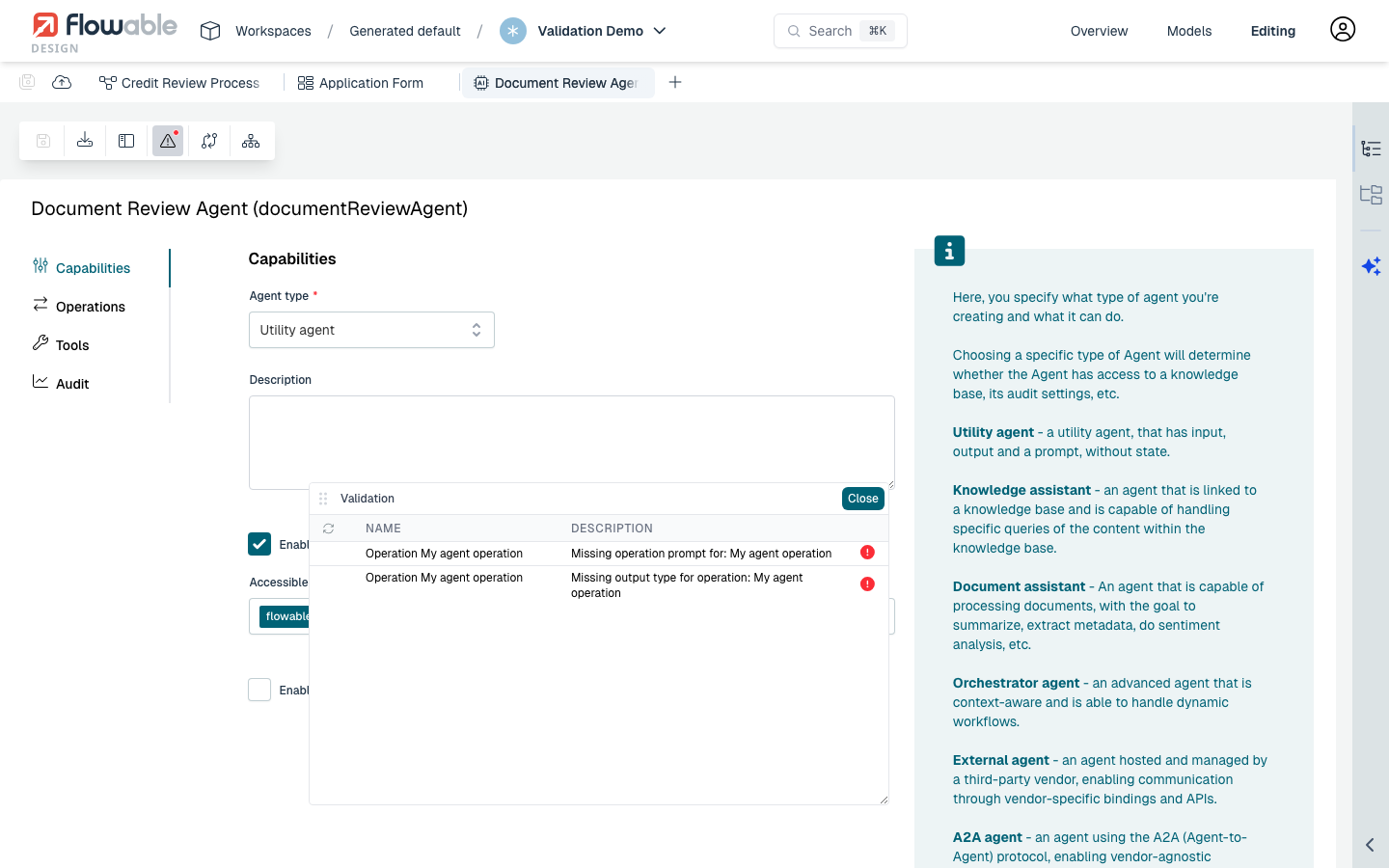
Common agent validation checks include:
- Operations have a prompt defined
- Operations have an output type configured
- Agent type is set
- Tool references are valid
Service Registry Model Editor
The service registry model editor validates the service configuration, including operations, input/output definitions, and authentication settings.
Supported Model Types
Model validation is available in the following model editors:
| Model Type | Validation Support |
|---|---|
| Process (BPMN) | Errors and warnings for flow, configuration, and references |
| Case (CMMN) | Errors and warnings for plan items, sentries, and references |
| Form | Configuration and binding validation |
| Decision (DMN) | Rule and expression validation |
| Service Registry | Operation and authentication validation |
| Agent | Type, operation, and tool validation |
| Event | Event definition validation |
| Channel | Channel configuration validation |
| Data Dictionary | Field and type validation |
| SLA | Time and action configuration validation |
| Query | Query definition validation |
| Sequence | Sequence configuration validation |
Next Steps
A valid model is not necessarily a model that behaves as you intended. Once validation passes, use Token simulation to watch how work flows through the model, and Model testing to assert that it produces the results you expect.