Development
Introduction
Design can be used to develop plugins that can installed and used in other Design instances.
Conceptually, plugins look similar to apps, with the difference that they can only contain service models, the process and case models that plugin tasks wrap, and so-called 'plugin tasks'.
Plugins can only be created in workspaces that can contain plugins:
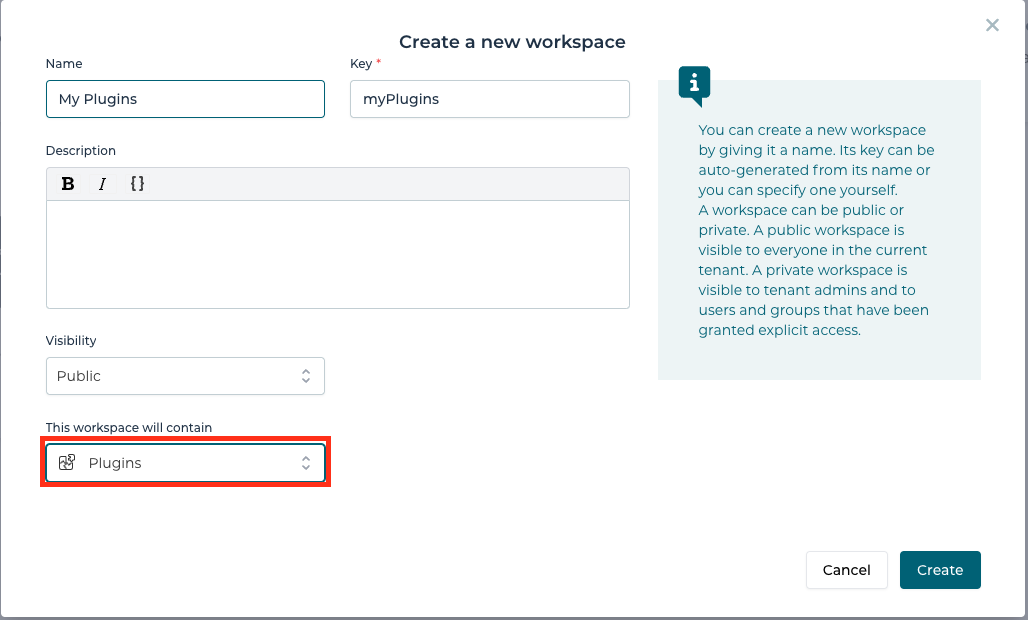
This guide demonstrates how such plugins are developed. If you are interested in how to use and install plugins have a look at Plugin usage
Create Plugin
Once a workspace that can contain plugins is created (see screenshot above), then in this workspace new plugin models can be created:
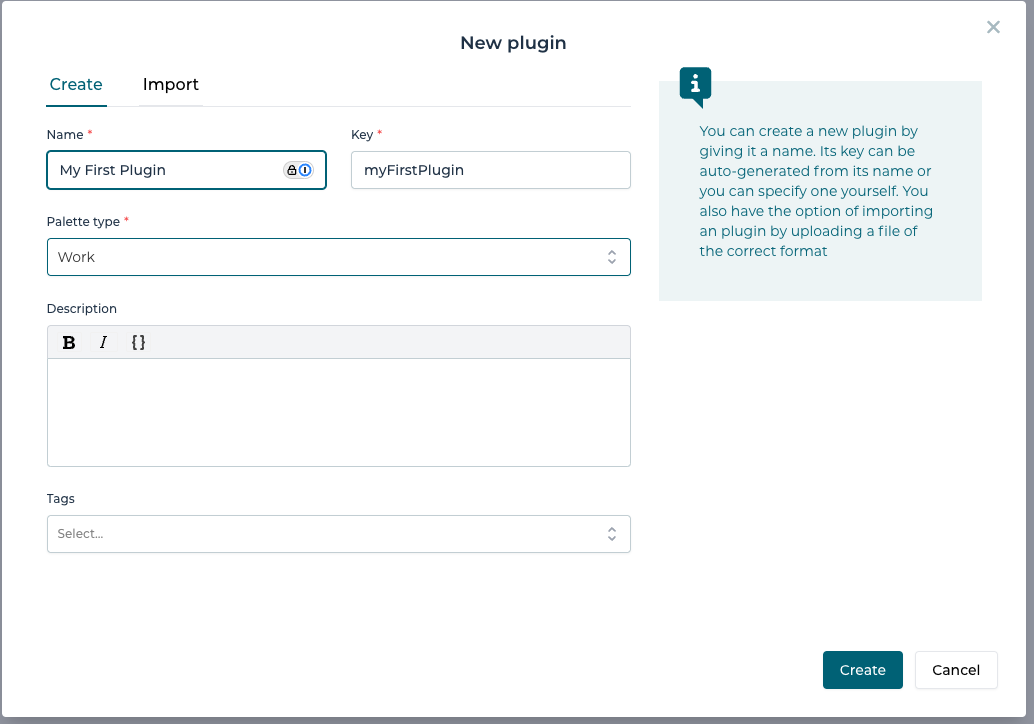
These plugins can contain the following models:
- Services - See Introduction to Service Registry to learn how to model services.
- Processes and Cases - the BPMN and CMMN models that Process and Case plugin tasks wrap (see Plugin Task below). 2026.1.0+
- Plugin Tasks - See below.
Plugins have a version which has to be in the X.Y.Z format, where X, Y and Z are numbers. This version is important when installing plugins, since only a single version of a plugin can be installed on a single Design instance. As such, version numbers should always be higher if the plugin has changed and the old version needs to be replaced.
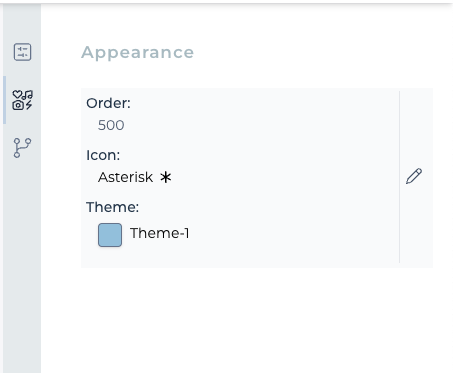
Plugins also have an order, which defines where in the palette picker their tasks will be located.
e.g.
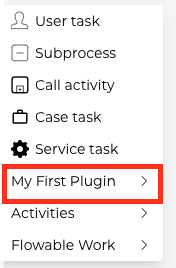
The order is configured in the property panel of the plugin:
Plugin Task
A plugin task is the unit that end-users actually drag onto their modeling canvas. When a plugin is installed and linked to a workspace, each of its plugin tasks shows up as a task in the BPMN and/or CMMN palette. A plugin model can contain any number of plugin tasks.
The power of a plugin task is that it acts as an 'API': it exposes a small, curated set of properties to the modeler while hiding all of the implementation behind it. The people using the task never need to know whether it calls a REST service, starts a whole process, or opens a case — they only see the inputs and outputs you chose to expose.
Task type
2026.1.0+Every plugin task has a Task type that determines what happens when the task runs:
| Task type | What the task does | Behaves like |
|---|---|---|
| Service | Calls a service model — for example a REST call, a script, or any other service. This is the original plugin task type. | a service task |
| Process | Starts a BPMN process and, optionally, waits for it to finish. | a call activity |
| Case | Starts a CMMN case and, optionally, waits for it to finish. | a case task |
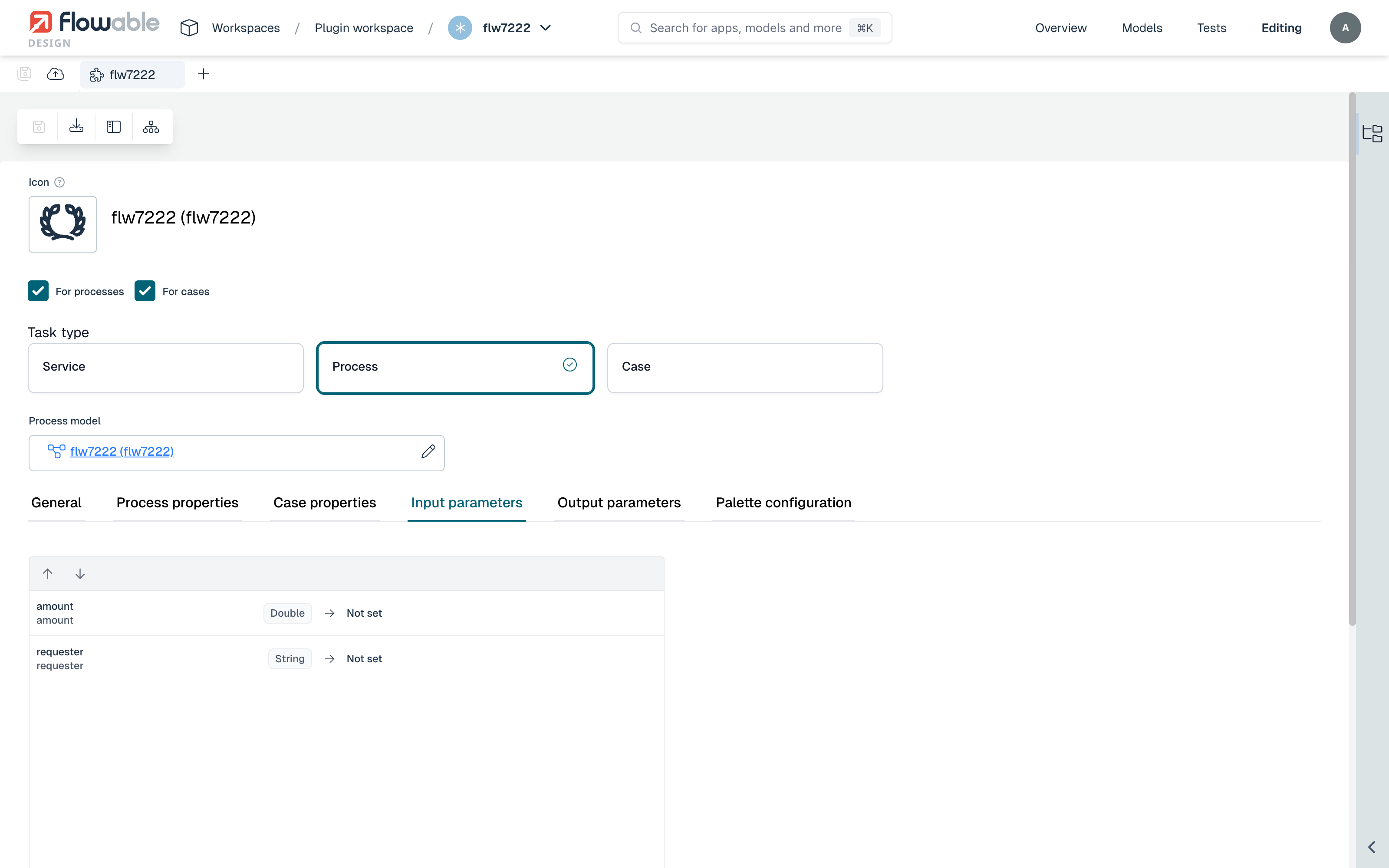
The Process and Case task types let you package an entire process or case — together with its declared interface — as a single, reusable palette item. Instead of copying a sub-process or sub-case into every app and wiring up its variable mapping by hand, you model it once, expose a clean set of parameters, and distribute it as a versioned, installable plugin. Consumers get a self-contained task and never see the process or case behind it.
Changing the task type resets the model reference and the parameter configuration, so choose the task type first.
Where the task appears
The For processes and For cases checkboxes at the top of the editor control which palettes the task is added to:
- For processes — the task appears in the BPMN palette and can be used inside processes.
- For cases — the task appears in the CMMN palette and can be used inside cases.
A single plugin task can target one palette or both, independently of its task type. A Service task, for example, can be offered in both palettes, and a Process task can also be offered in the CMMN palette (where it starts its process from within a case). The Process properties and Case properties tabs are enabled according to these two checkboxes.
Service tasks
The first thing to do for a service plugin task is to link it to a service in your plugin. e.g.
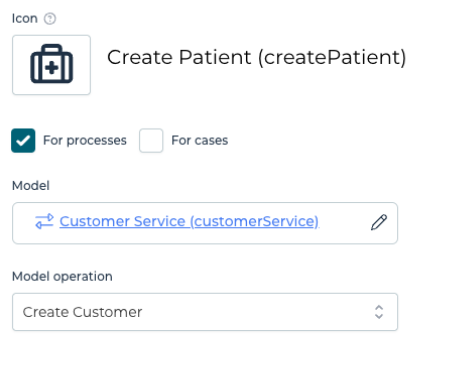
Once it is linked, the input, output and error parameters of the service can be configured. A decision can be made which parameters should be exposed to the users of the task and which don't. In this way, the plugin task acts an 'API' towards both the service and the end-users.
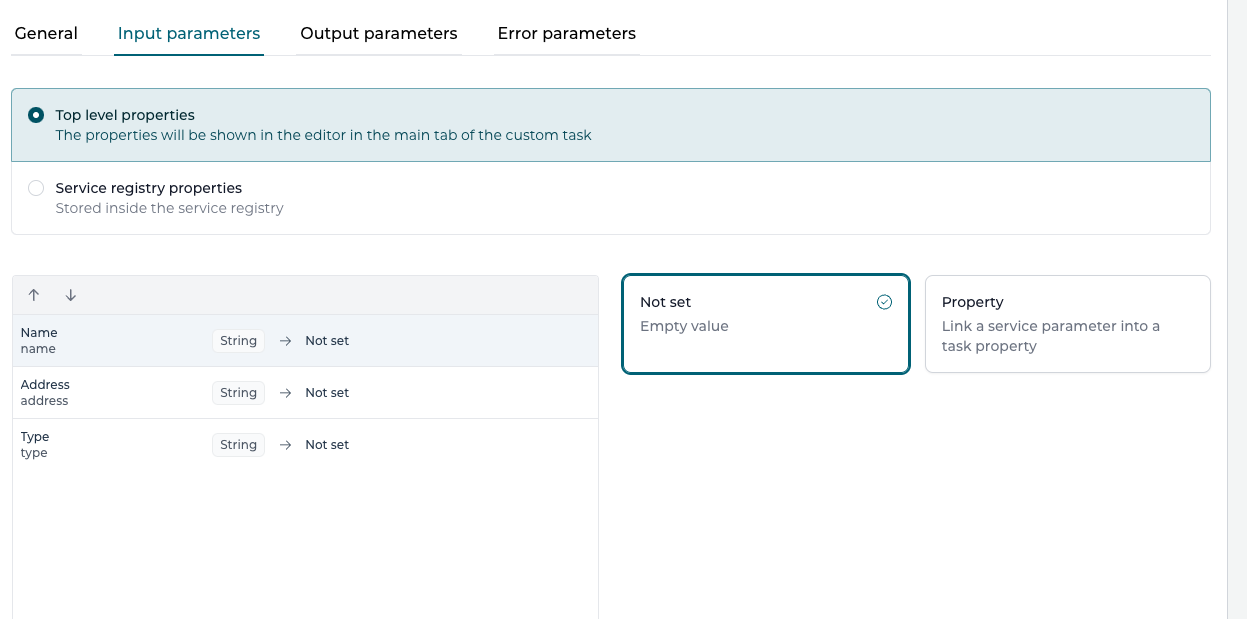
In the example above we are exposing some of the input parameters of the service as top level properties, which means that they will appear in the main property panel when clicking on the task.
In this editor you can provide default values for properties, ignore properties, etc.
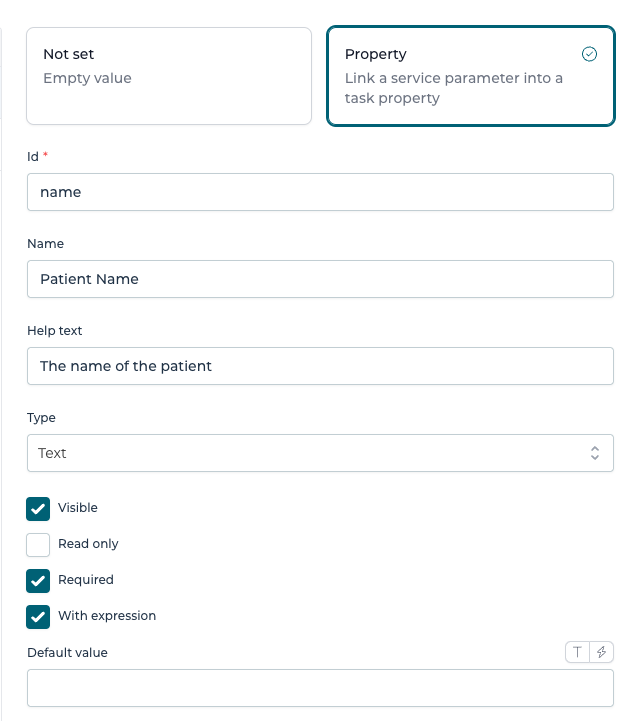
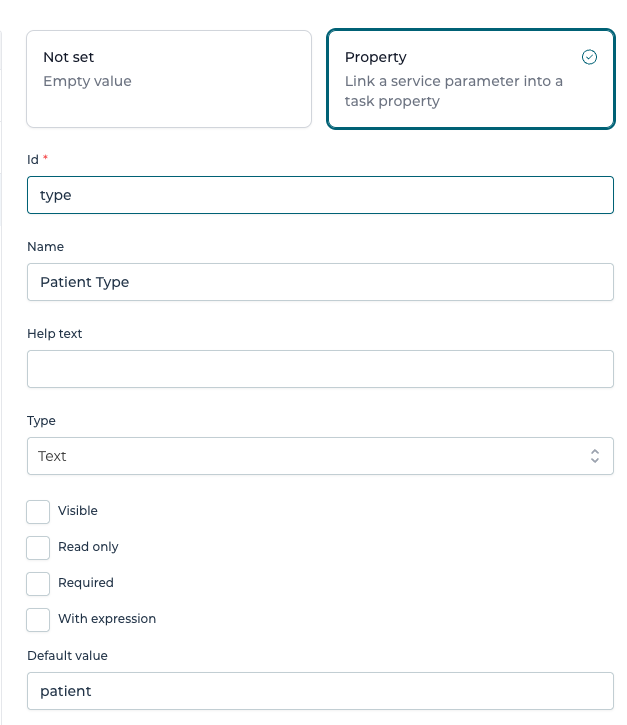
e.g. the property above has an adjusted name, is required and expression can be used with it.
- The id is a unique identifier for the particular property.
- The name is the human-readable name, as shown in the property panel.
- The optional help text will be shown to the user in a tooltip, when set.
- The type determines how users will be able to change the value of the property.
- The visible flag configures whether the property is shown to the user. Hiding a property can be useful when setting for example a default value that the users shouldn't change statically in a task.
- The read only flag, when checked, will disallow editing the property value.
- The required property will add validation, ensuring a value must be set for the property.
- The with expression flag determines whether the expression toggle is rendered for this property. If unchecked, only 'primitive' values will be able to be entered.
e.g. the property below is hidden and a default value is provided for it:
(This approach can be used to use the same service, but provide different tasks for it without the user ever knowing that the same service is used.)
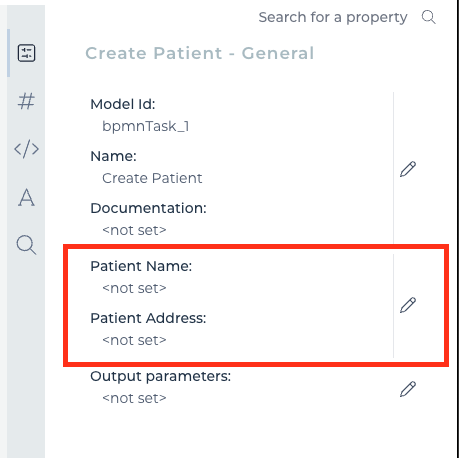
In the property panel it will look like:
The alternative to Top level properties is to use the other setting Service registry properties. When this option is selected, the parameters will be shown in the typical parameter mapping popup shown when working with a service model.

The options for the output and error output parameters are less, since in those values the names of the process / case variables are written.
In the property panel this will look like:
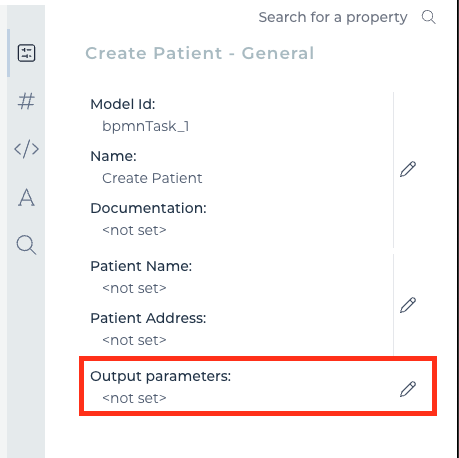
and when editing it will look like:
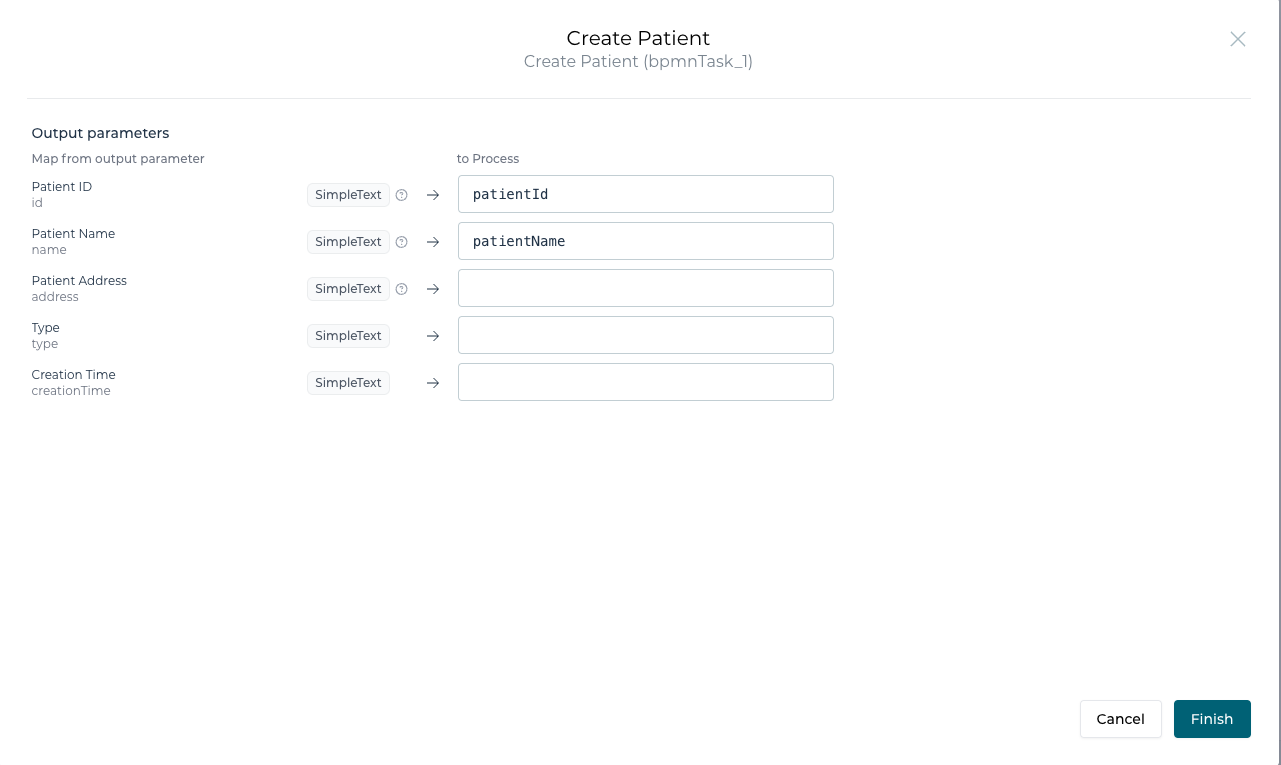
Process and case tasks
2026.1.0+A Process or Case plugin task wraps a BPMN process or CMMN case model that is bundled inside the plugin. Model the process or case as usual, declare its input and output parameters on the root element, and then reference it from the plugin task.
Selecting the model
After choosing the Process or Case task type, pick the model to run in the Process model / Case model selector. This is a process or case model contained in the plugin, so that it is installed together with the plugin task.
As soon as a model is selected, the input and output parameters declared on its root element are loaded automatically onto the Input parameters and Output parameters tabs. The plugin task's interface therefore stays in sync with the interface of the process or case it wraps — add a parameter to the process and it appears here as well.
Exposing input and output parameters
Each declared parameter can be exposed to the users of the task, exactly like the top-level properties of a service task. Selecting a parameter opens a detail panel where you choose how it is handled:
- Not set — the parameter is not exposed as a property and no value is mapped for it.
- Property — the parameter is linked into a task property that the modeler can fill in. You then configure the same fields described for service tasks above (Id, Name, Help text, Type, Visible, Read only, Required and With expression), plus an optional Default value.
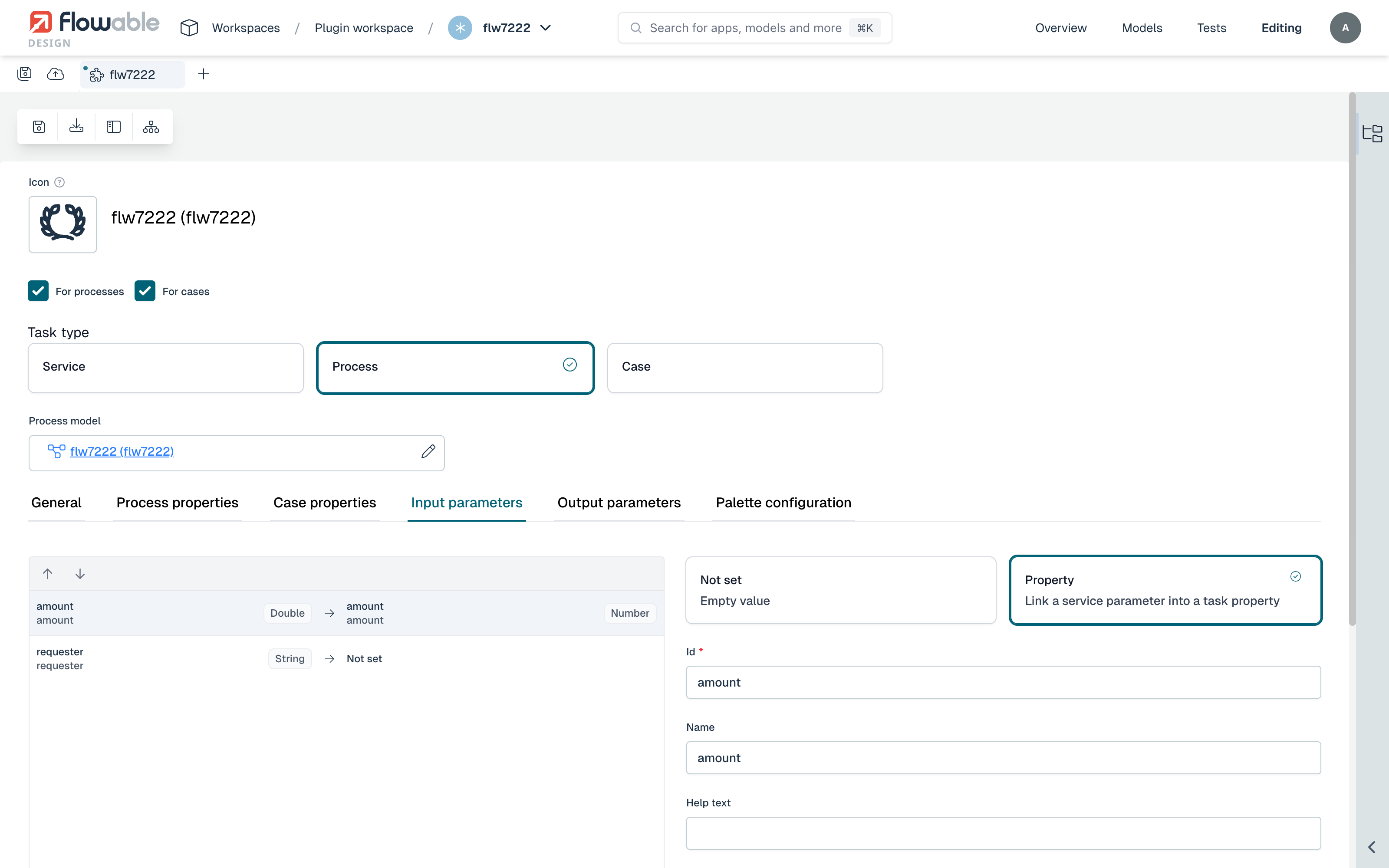
Unlike service tasks, process and case parameters are always exposed as top-level properties — there is no Service registry properties alternative. Clearing Visible and providing a Default value is a convenient way to fix part of the interface so that users of the task cannot change it.
Process properties
When the task is available for processes, the Process properties tab configures how the process instance is started. These map directly to the equivalent call activity settings.
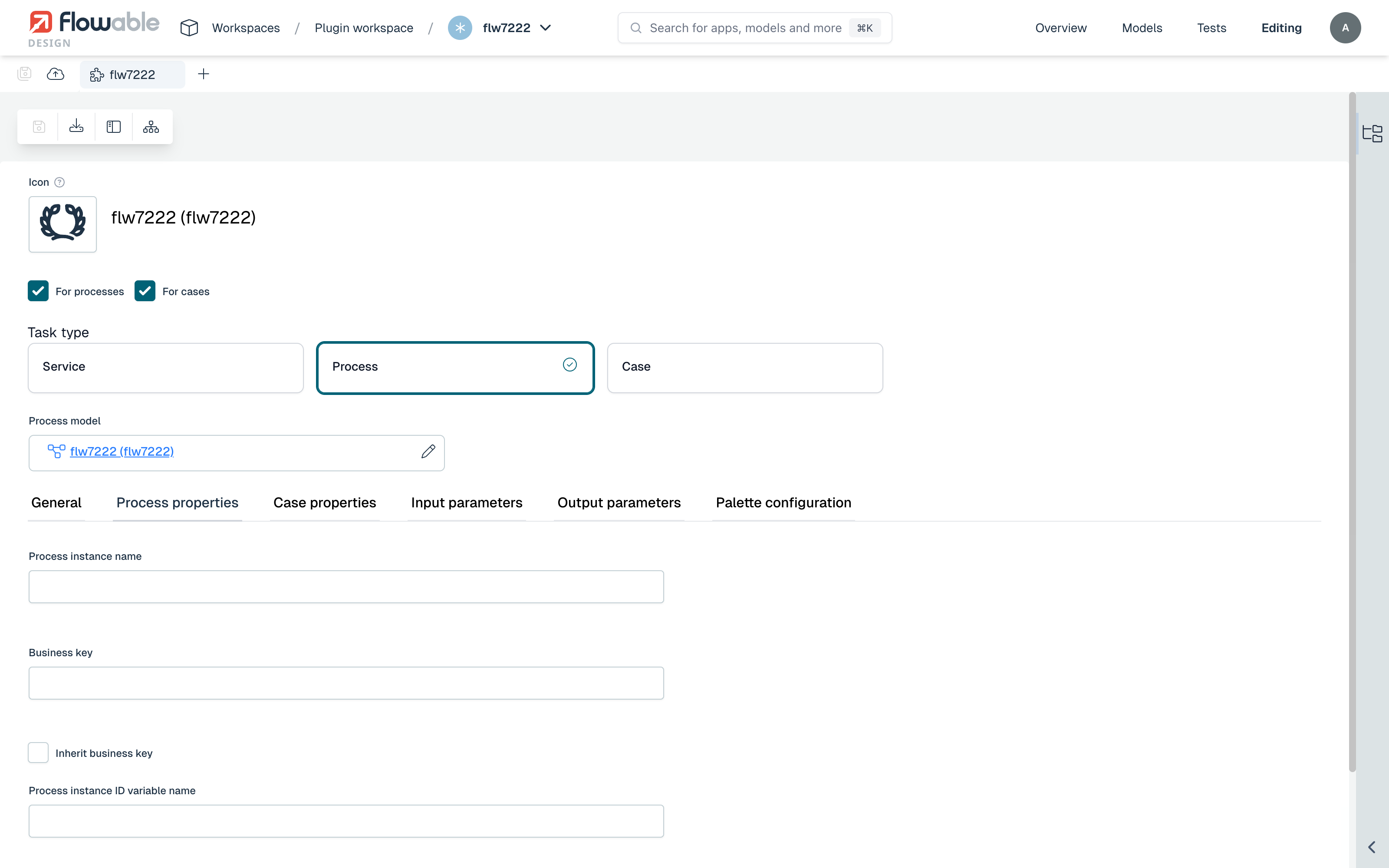
| Property | Description |
|---|---|
| Process instance name | A name for the process instance that is created. |
| Business key | The business key to assign to the new process instance. |
| Inherit business key | When checked, the new process instance reuses the business key of the calling instance. |
| Process instance ID variable name | The name of the variable that receives the id of the created process instance. |
| Inherit variables | When checked, all variables of the calling instance are copied into the new process instance. |
| Use local scope for output parameters | When checked, output parameters are set as local variables on the task instead of on the calling instance. |
Case properties
When the task is available for cases, the Case properties tab configures how the case instance is started. These map to the equivalent case task settings.
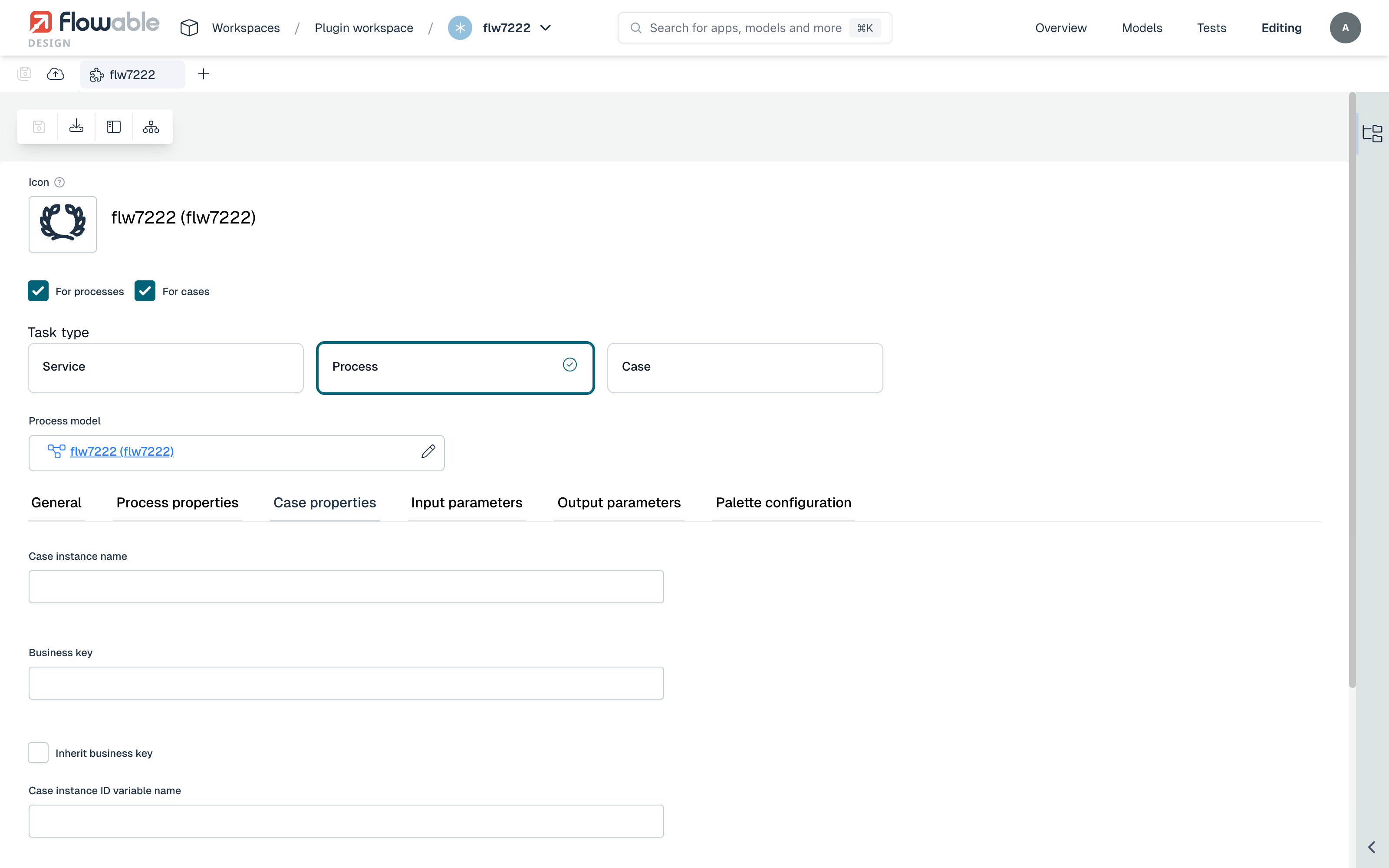
| Property | Description |
|---|---|
| Case instance name | A name for the case instance that is created. |
| Business key | The business key to assign to the new case instance. |
| Inherit business key | When checked, the new case instance reuses the business key of the surrounding case. |
| Case instance ID variable name | The name of the variable that receives the id of the created case instance. |
| AI activated | Marks the task as AI activated. |
| Required | Marks the plan item as required for the completion of its stage. |
| Manual activation | When checked, the task must be started manually instead of activating automatically. |
| Completion neutral | When checked, the plan item does not affect the completion of its stage. |
| Blocking | When checked (the default), the task waits for the created case to complete before it completes. When cleared, the task completes immediately after starting the case. |
The General tab additionally offers the usual asynchronous-execution options and the border and background colors of the generated task shape.
Runtime behaviour
At runtime a process or case plugin task behaves just like a call activity or case task: it starts a new instance of the wrapped process or case, maps the exposed input parameters into it and — when Blocking is enabled — waits for that instance to complete before mapping the output parameters back and continuing. Because the mapping is driven by the declared interface, the modeler using the task only fills in the exposed properties and never has to deal with the internals.
Palette configuration
2026.1.0+Beyond the For processes / For cases targeting, the Palette configuration tab lets you hide individual built-in properties of the generated task from the modeler — separately for each palette. This keeps the task focused on the properties that matter to its users.
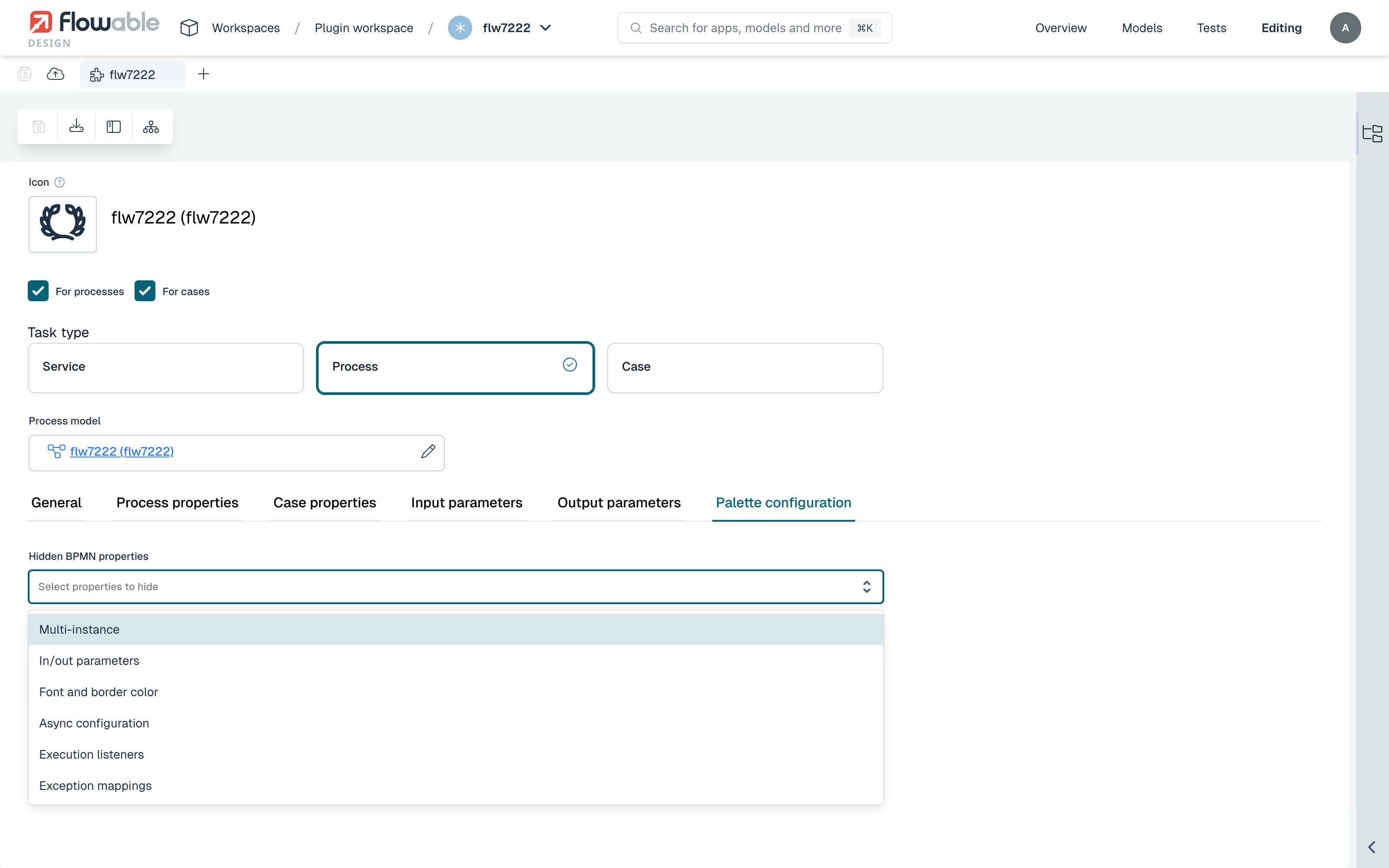
Use Hidden BPMN properties for the BPMN palette and Hidden CMMN properties for the CMMN palette. The available options depend on the palette:
| Hidden BPMN properties | Hidden CMMN properties |
|---|---|
| Multi-instance | Repetition |
| In/out parameters | In/out parameters |
| Font and border color | Font and border color |
| Async configuration | Async configuration |
| Execution listeners | Lifecycle listeners |
| Exception mappings | Reactivation |
For example, hiding In/out parameters stops modelers from editing the raw variable mapping (so they can only use the curated input and output properties you exposed), while hiding Async configuration keeps the asynchronous-execution settings out of view.