Operations
An operation is a single AI invocation as part of an agent. It is possible to define multiple operations on a single agent instance, allowing to reuse model and other settings. Depending on the agent type, like orchestrator agents and document agents there are pre-defined operations. Those pre-defined agents are used as part of automatic invocation within Flowable.
Creating a new operation
To create a new operation, operations must be selected on the left hand side and then press the 'Add operation' button below the list of operations. A modal opens to add operations, to fill in the basic information.
The name describes the purpose of this operation and is used to identify it when linking it to an agent task in BPMN and CMMN. With the key, a unique identifier, the agent is linked to the task, and it is used to execute the agent.
Input and output mapping
The "Input type" and "Output type" allows to define the different types available. There are two main options available:
- Text: Simple, potentially unstructured text is used as input/output.
For inputs the text is available as part of the prompt with the expression
${text}. - Structured: A structure is specified for input/output. A new tab will be visible to define the structure.
For the document agent there are different input and outputs, they are described as part of the document agent reference.
Text input
The text input can be used in the system and user message with the pre-defined variable ${text}
Structured input/output
For a structured input/output there is a separate corresponding tab, in which it's possible to add parameters:
There are three different fields which need to be provided:
- Label: A human-readable label of the property, this name will be shown for example inside the agent task in BPMN and CMMN when linking the operation. Furthermore, for output parameter the name will be also sent to the AI as part of the schema to clarify which data is required.
- Name: A name, will be automatically generated based on the label. This name is a variable and should not contain any spaces etc.
Assuming the name is
city, the corresponding attribute will be available in the user and system message with the expression${city}. - Type: The type of the variable, this can be a string, date, boolean etc. It will be used provide an appropriate input field to the user, as well as for output fields to tell the LLM which format is required.
2026.1.0+ Input parameters can also use a Data Dictionary type, so a structured object defined by a data dictionary can be passed into the agent as an input parameter. When an operation is invoked, the value provided for each input parameter is converted to its declared type — for a data dictionary parameter it is resolved into the referenced data dictionary type. If a value cannot be converted to the declared type, the invocation fails with an error rather than passing an invalid value on to the agent.
Parameter Constraint Types
2026.1.0+Parameters can have guardrail constraints that validate values before or after the LLM call. The following constraint types are available:
| Constraint | Applies To | Description |
|---|---|---|
minLength | String | Value must have at least this many characters |
maxLength | String | Value must have at most this many characters |
pattern | String | Value must match this regular expression |
blocklist | String | Value must not contain any of the specified literal substrings (case-insensitive) |
allowlist | String | Value must exactly match one of the allowed values |
min | Number | Value must be greater than or equal to this number |
max | Number | Value must be less than or equal to this number |
minDate | Date | Date must be on or after this date |
maxDate | Date | Date must be on or before this date |
Prompt
There are up to three different prompt types available, depending on the context: default prompt, simple prompt, prompt template.
For the prompt simple prompt and prompt template it is possible to specify a system message and user message. A user message is an input provided by the end user that initiates interaction with the AI. A system message is a special instruction used to guide or control the behavior of the AI, only visible through Flowable Control in case audit for exchanges is enabled. System messages can set context, define tone, or impose rules on how the AI should respond, helping shape the overall interaction without being part of the user-facing conversation.
 note
noteFor external agents the system message can't be defined since this should be defined in the external agent itself. Only a user message needs to be provided
Simple prompt
A simple prompt is the direct way to define the prompt directly in the operation. This allows to use JUEL expressions inside the template.
For a structured prompt the name is available as variables, while for a simple text prompt the input can be referred to with ${text}.
Prompt template
The prompt template allows to link a text based template model. With a template model there is the option to use a Freemarker template with more options to specify if conditions etc.
For a structured prompt the name is available as variables, while for a simple text prompt the input can be referred to with ${text}.
Default prompt
The default prompt is only available for pre-defined operations. It allows to use a prompt which is from Flowable engineered and maintained over the time of the releases. There is the possibility that this prompt template gets improved in the releases, when we find better prompts based on our tests. To customize prompts use either a simple prompt or a prompt template, both options will disable the default prompt and will not get adapted and changed automatically in new versions.
Generating prompts with AI
2026.1.0+When AI-assisted modeling is enabled, the AI Prompt Helper can draft the system and user message of a simple prompt for you. This removes the need to switch to an external chat tool and copy prompts back and forth into Design.
An AI Prompt Helper button is shown in the top-right corner of the system message and user message fields.
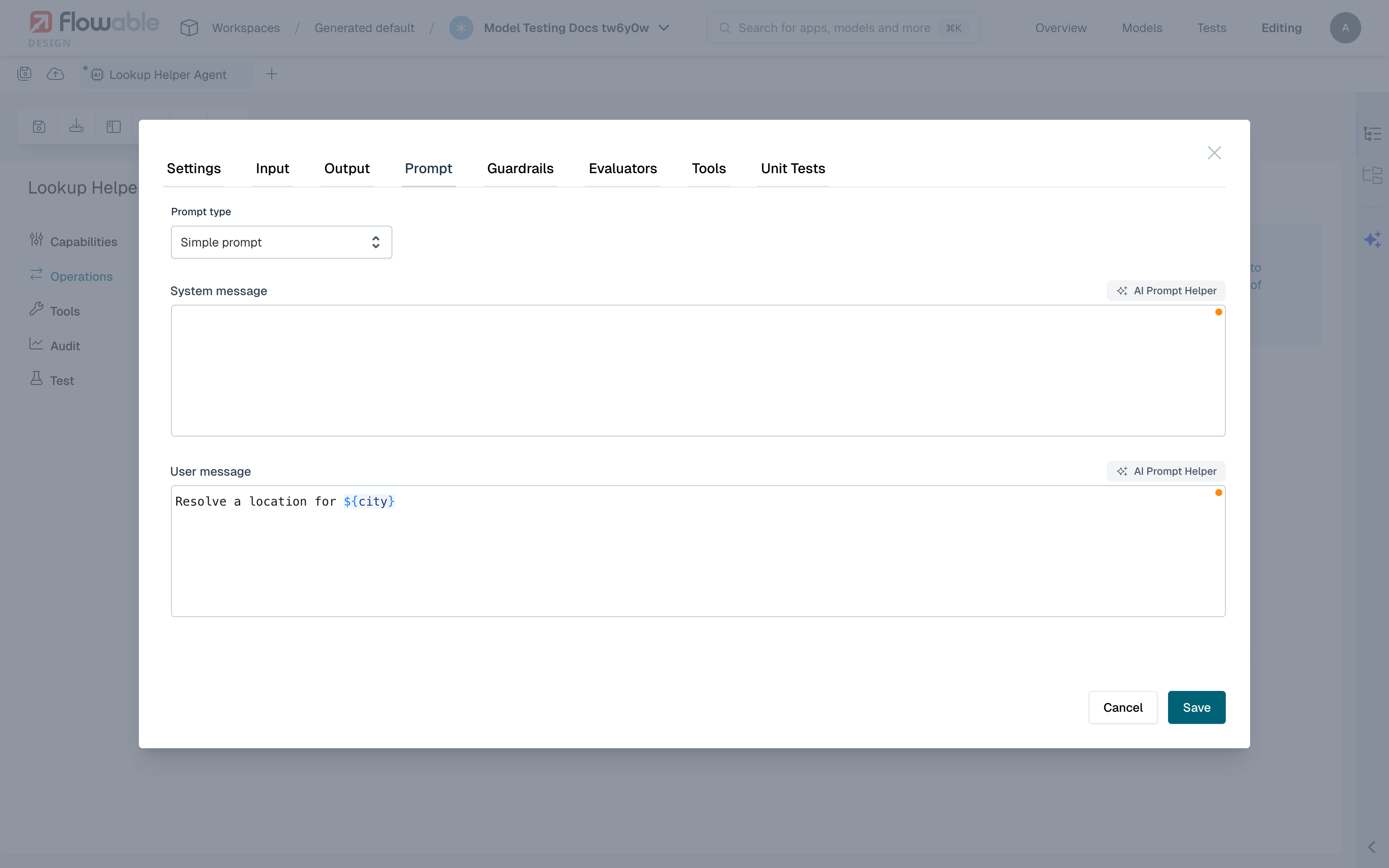
noteThe AI Prompt Helper is only available for the simple prompt type, not for a prompt template or the default prompt. As with a regular simple prompt, external agents and A2A agents only offer it for the user message, since they don't define a system message.
Clicking the button opens a chat panel next to the message that is being edited.
Describe in natural language what the message should do, and the assistant drafts a suggestion.
The assistant is aware of the operation it belongs to — its name, key and the configured input and output parameters — and of the current content of the message, so the generated prompt can reference the available variables (such as ${city}) and build on what you already wrote.
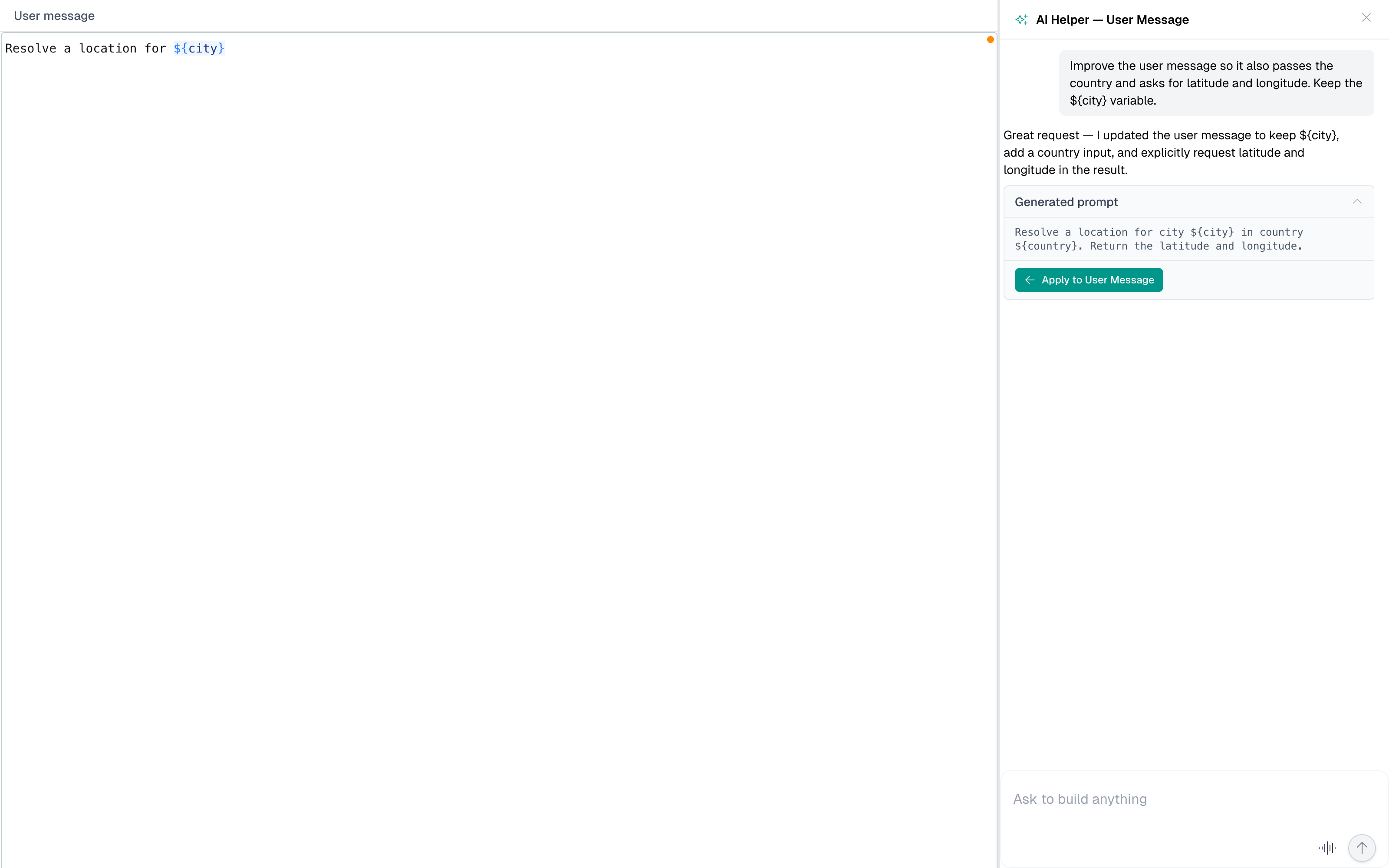
Every suggestion is shown as a Generated prompt block. Press Apply to System Message or Apply to User Message to insert it into the corresponding field. You can keep chatting to refine the result — for example "make it more concise" or "add error handling instructions" — and apply a later suggestion once you are happy with it.
Finding where an operation is used
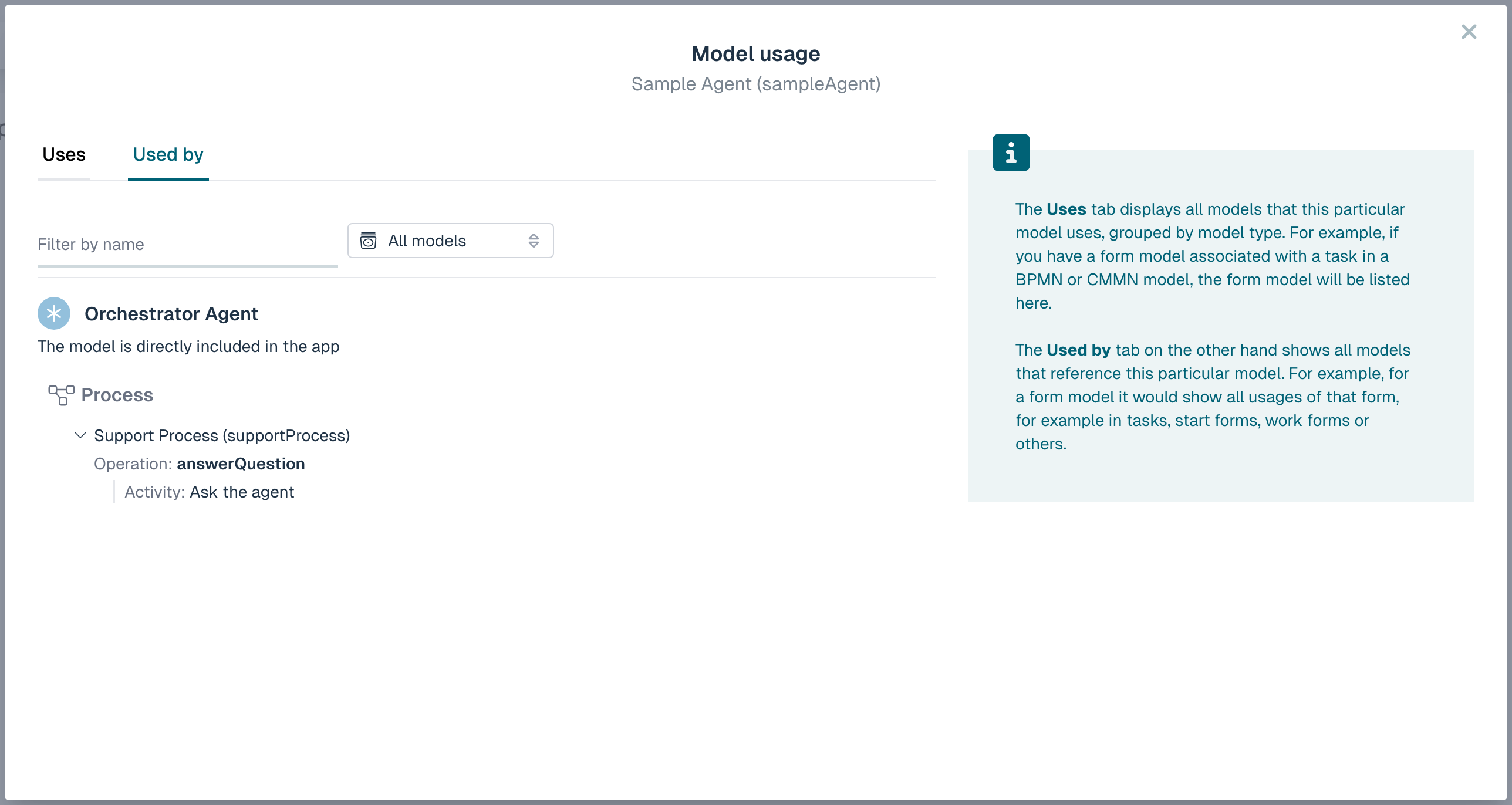
To see which models call an agent, open the agent model and click the Usage button in the toolbar, or select Usage from the model's actions menu. This opens the Model usage dialog. See Model Usage for a general description of the Uses and Used by tabs.
For an agent model, the Used by tab lists every process, case, form and page that calls it. Each entry can be expanded to show which elements reference the agent, grouped by the specific operation that is called. This makes it easy to see which operations are used and where.