Initialize Variables
Introduction
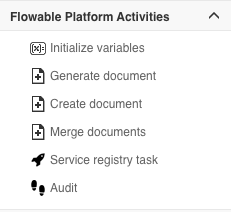
The Initialize Variables task is an activity for Flowable Work that is available in the BPMN and CMMN palette in Flowable Design. It can be found under the Flowable Work Activities group in the palette:
The purpose of this task is to initialize process or case variables with certain values when executed. Common use cases include:
- Setting default values for variables that are expected by forms or downstream tasks, ensuring they exist with the proper type before being used.
- Defining the structure of complex JSON variables, such as creating a nested JSON object that maps to a form with grouped fields (e.g. a
personvariable with nestedaddressproperties). - Mapping and transforming data from a previous task (e.g. filtering and restructuring the response of an HTTP task into the specific variables needed by subsequent tasks).
- Copying variable values from one variable to another using the Variable value type.
The task supports primitive types (Boolean, Double, Integer, Long, String), JSON Objects, JSON Arrays, variable references, and arbitrary expressions for advanced scenarios. When placed on the canvas, two properties specific to this task are shown: Init variables (which opens a configuration popup) and Overwrite if existing (which controls whether existing variables are replaced).
Configuration
The Init variables popup has a tabular format: each row corresponds with a variable (or, as we'll see later, the definition of the structure of a complex variable).
The icons on the left hand-side can be used to respectively remove, move up or move down that row. Moving the rows up and down doesn't make a difference for regular variables, but the order is important for complex variables as the rows are read from top to bottom at runtime.

The Target column is optional. It can be used when defining a complex variable JSON structure (see later) or with values root or parent. Setting root or parent will set the variable not on the local instance, but on the parent or root instance in a nested hierarchy of process/case instances.
The name column is used to determine the name of the variable and is mandatory.
The Value Type column is used to determine the type of the variable, which is important as it switches the input field type depending on the chosen type (for example a date picker when selecting Date):

Current supported value types are:
- Primitive types that set a variable with the corresponding type: Boolean, Double, Integer, Long and String.
- JSON Array/Object for defining JSON variable values or structures. More about it later.
- Variable: Used to copy the value from another value.
The Value column allows to set the actual value and the input field type for filling in the value depends on the selected Value type, as shown above.
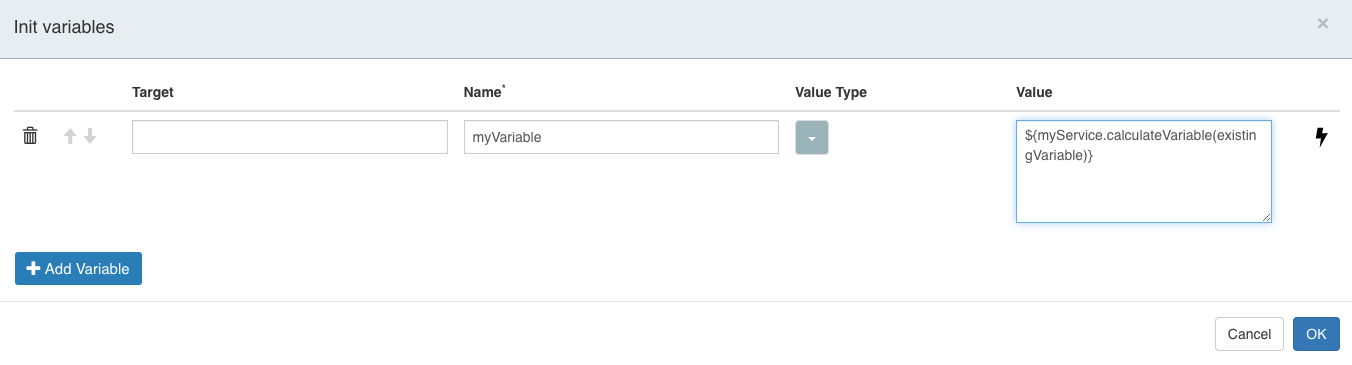
Next to the Value input field is a lightning icon. When clicked, the current row changes:
- The Value field becomes an input text area that allows to write an arbitrary expression.
- The Value type dropdown disappears, as the type will now implicitely be determined by the result of the expression.
This option is meant for advanced variable initializations and is used to write potentially complex expressions for use cases that cannot be covered by the default configuration options. As this is a back-end expression, all the usual beans are available.
Basic Example
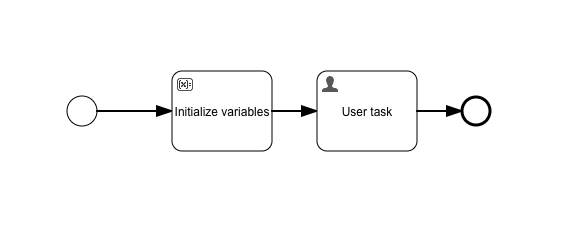
Let's build a simple BPMN process to get familiar with the Initialize variables task. Drop both an Initialize variables and User Task to the canvas and connect them with sequence flow:
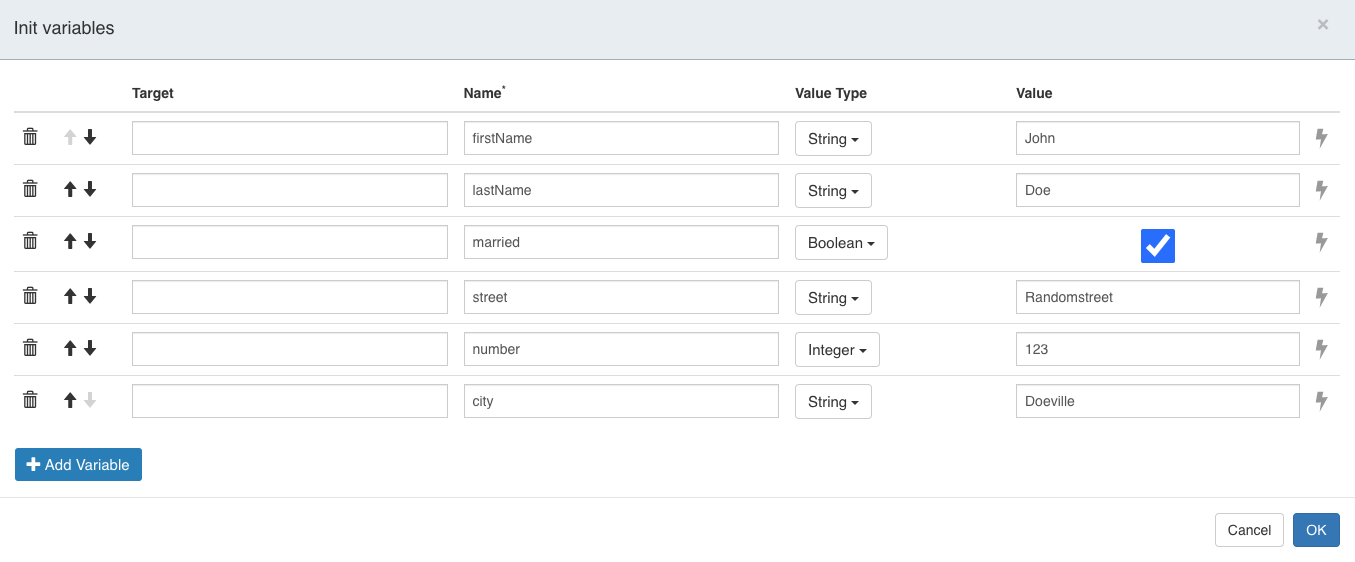
For the Init variables property, let's add some variables:
- firstName (String)
- lastName (String)
- married (Boolean)
- street (String)
- number (Integer)
- city (String)
Add some random values for each variable. You'll notice that it's for example not possible to write regular text in the number field, because the value type is set to Integer.
 note
noteThe use case here is not necessarily to set values of variables hard-coded to a given value (that's not often useful). The main purpose is to 1) make sure the required variables exist with the proper type and 2) (optionally) that default values for them are provided.
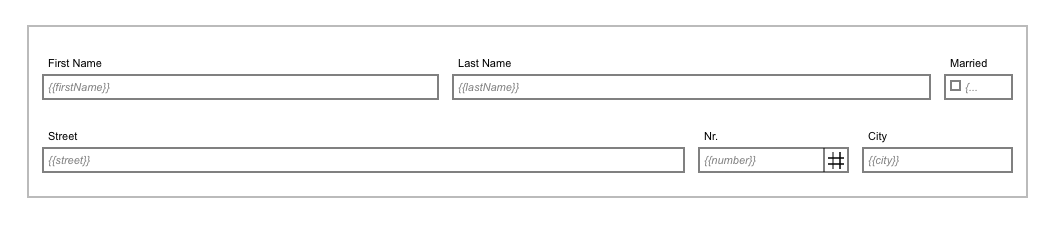
For the user task, create a form that binds the values to the variables set in the Init variables (for example the field with label First Name is bound to value {{firstName}}):
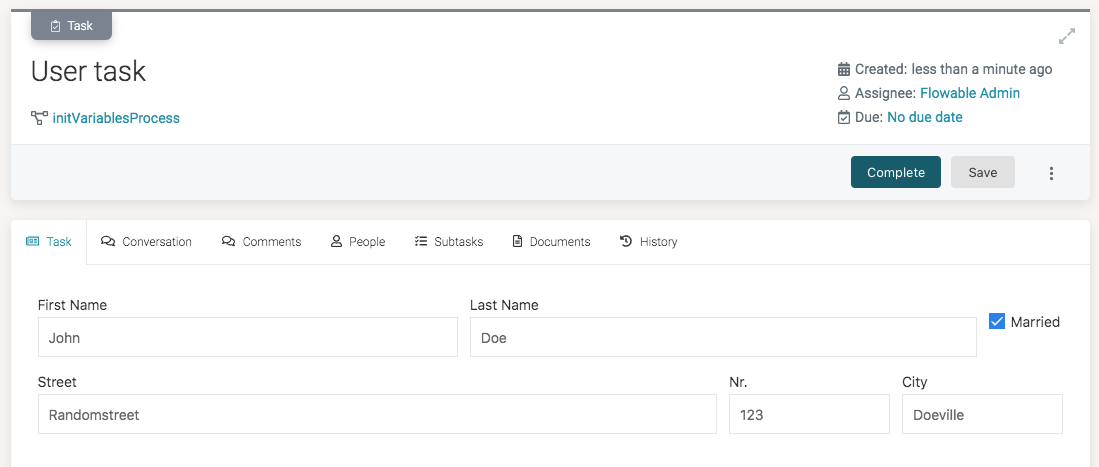
Publish this process model. When now starting a new process instance and opening the user task, we can see the values have indeed correctly been initialized:
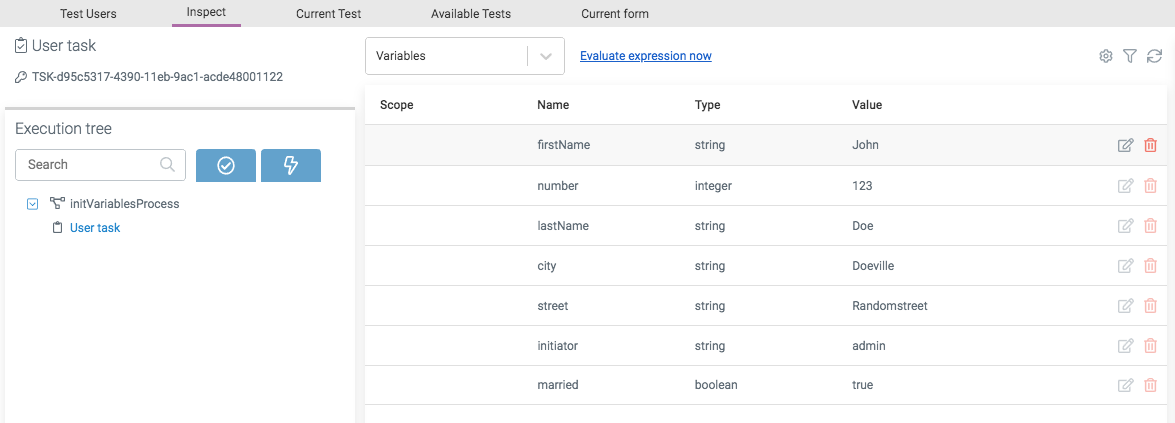
When running with Flowable Inspect enabled, you can see each row in the popup above corresponds with one variable created at runtime:
JSON Variable Example
Another use case for the Initialize variables task is to define the structure of more complex JSON variables.
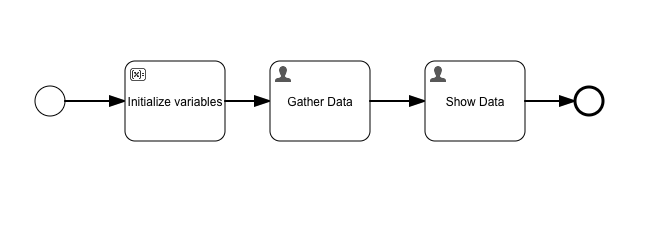
To demonstrate this, let's tweak the model from the previous section. The BPMN model now gets an additional task, which we'll call Show Data. We'll rename the original user task to Gather Data:
The main difference with the basic example is that we don't want to store one variable for each form field. Instead, we'd like to use the JSON variable type to stores all information in one variable. Change the Init variables property as follows:
- Add a new row with name person at the top with value type JSON Object. This will create a JSON variable with name person. The next rows will now be used to define the structure of the person variable.
- Add person to all other fields in the target column. As person is a JSON object, setting the target in this way instructs the engine to put those fields on the json object at runtime.
- Add a prefix address. to the street, number and city variables. This way, we automatically create a nested json object within the person variable.
- Remove all values.
After doing this, the configuration should look as follows:
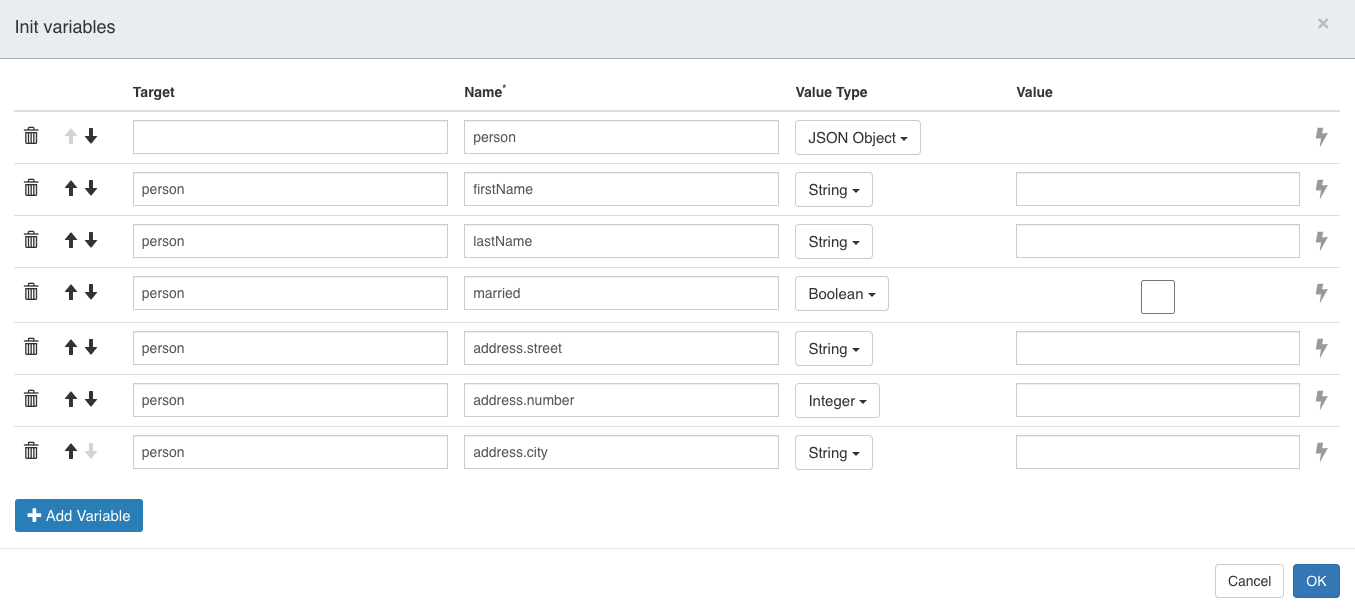
The goal is to have a JSON variable named person with following structure:
{
  "firstName": "a",
  "lastName": "b",
  "married": false,
  "address": {
    "street": "c",
    "city": "d",
    "number": 0
  }
}
We're not setting any default values now (but we could, if we wanted to). The main purpose here is defining the structure of the JSON variable.
As we're using a JSON variable now, we need to bind form fields using {{person.x}} now in the form of the Gather Data task. For the street, number and city, we need to use {{person.address.x}}:
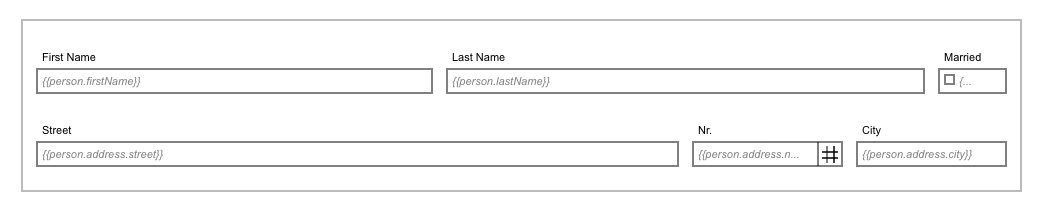
Associate the same form with the Show Data task. In the first user task form we will fill in the fields and in the second task we'll view them.
Publish this new model and start a new instance. None of the form fields of the Gather Data task will have values set (as no value was set above):
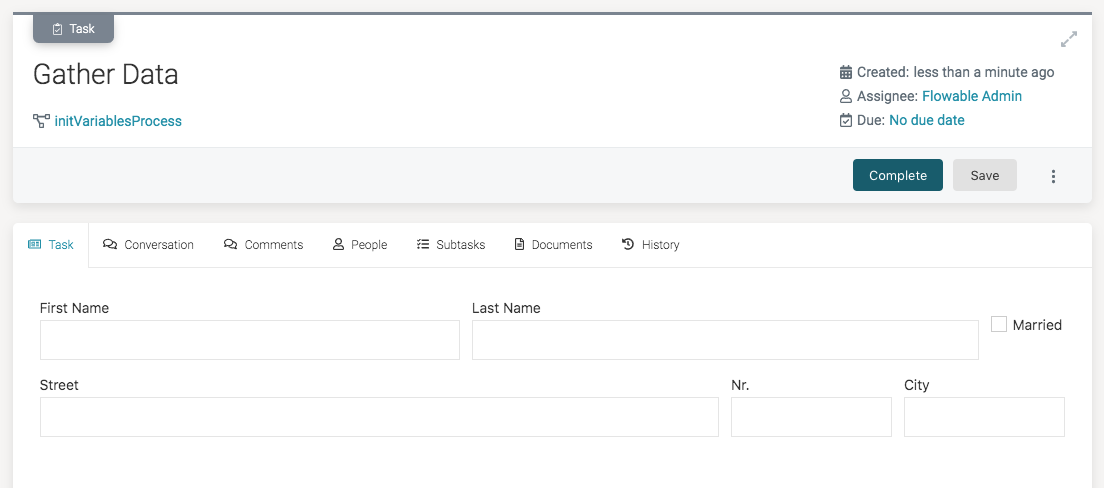
Fill in some values for the various fields and click the Complete button. Select the new Show Data task.
You'll see that the values from the previous form are shown:
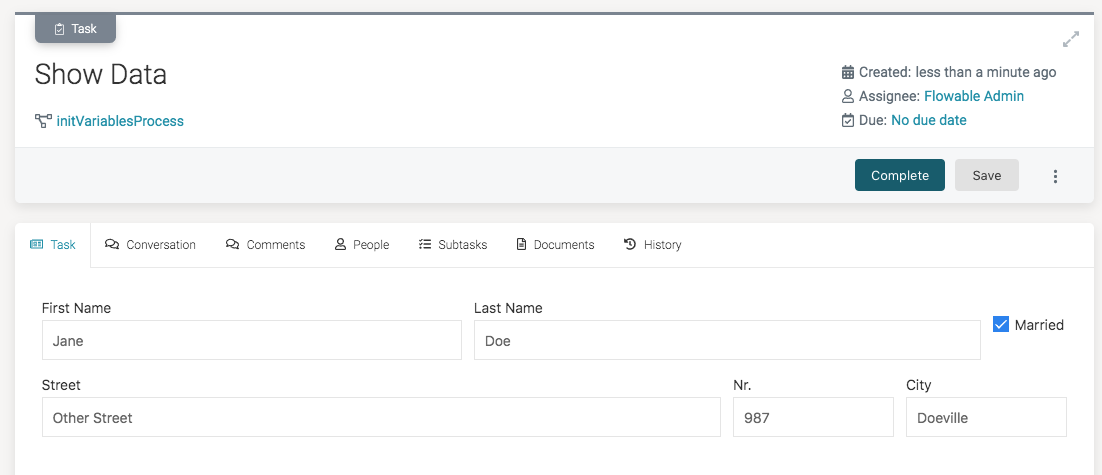
When running with Flowable Inspect enabled, you can see the difference with the basic example clearly; instead of having multiple variables, there's only one person variable:
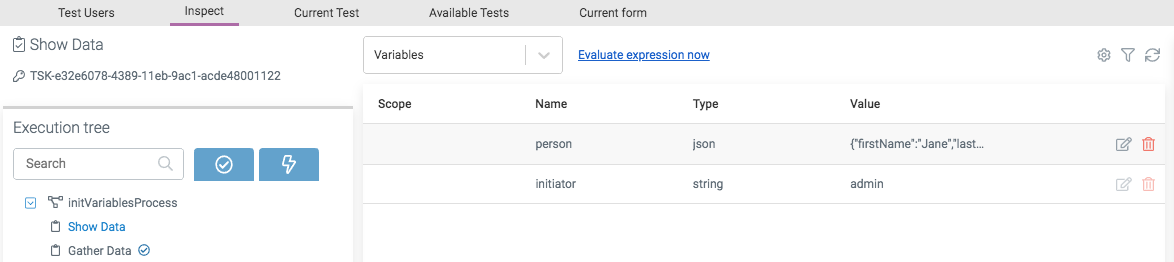
Clicking the edit icon, shows that all data is now stored as a JSON variable with nested properties:
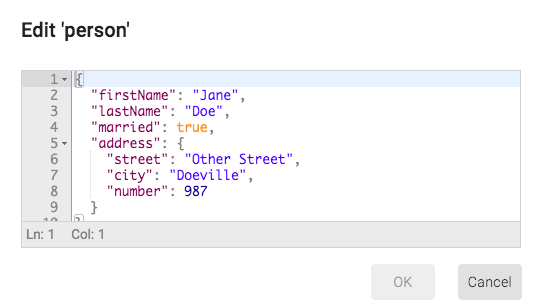
Mapping Data Example
Another use case for the Initialize variables task is to map data into a structure or format that is more suitable for tasks that follow after it.
Let's assume we want to fetch data from a HTTP REST service and store some parts (but not all) of the response need to be stored as variables. Such an API can be locally mocked by using for example Mockoon:
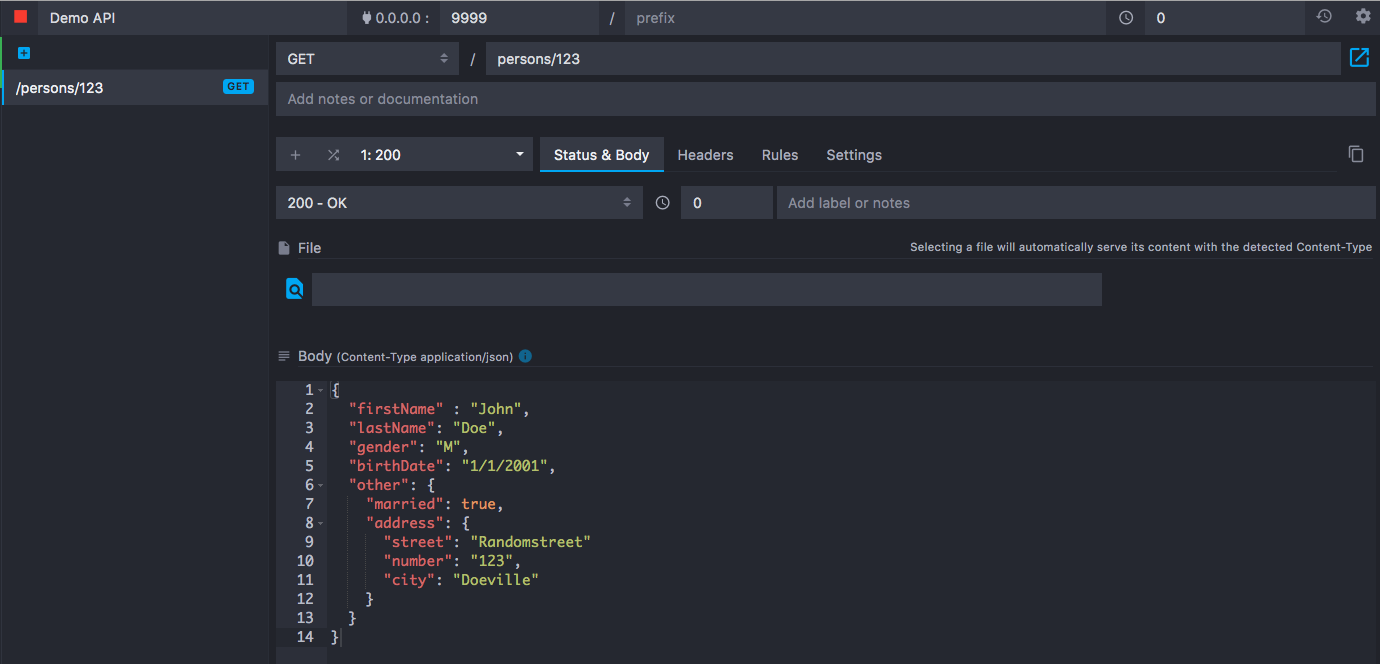
This service response data looks as follows:
{
  "firstName" : "John",
  "lastName": "Doe",
  "gender": "M",
  "birthDate": "1/1/2001",
  "other": {
    "married": true,
    "address": {
      "street": "Randomstreet",
      "number": "123",
      "city": "Doeville"
    }
  }
}
The response returns more data than needed, so we'll use the Initialize variables task to filter the data and put it in the format we want. The BPMN process model now looks as follows:
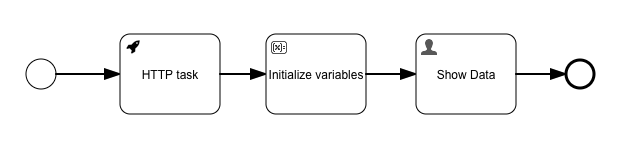
Configure the HTTP Task:
Request method: GETRequest URL: http://localhost:9999/persons/123 (same as the mocked api URL)Save response as JSON: checkedSave response as a transient variable: checked
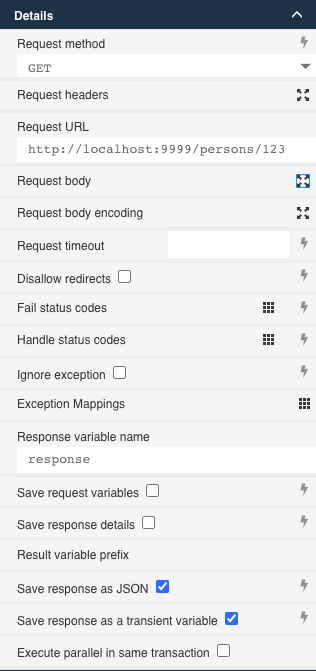
noteThe response of the HTTP task is stored as-is as a transient variable. This means that the variable will not be persisted at the end of the database transaction (which typically we don't want: the response might be large and storing it would be bad for performance). The Initialize Variables task will instead determine what gets stored and will use the transient JSON variable as input.
In the Initialize variables configuration we'll map the JSON response to primitive variables:
- firstName gets value type variable and value
response.firstName. - lastName uses an expression
${response.lastName}. There is no specific reason to not use the variable value type here, except for demonstrating the usage of expressions to do the same as with the variable type. - married gets value type variable and value
response.other.married, because it's not mapped from the root, but from the other nested JSON object. - street, number and city get value type variable and values
response.other.address.street,response.other.address.numberandresponse.other.address.city.
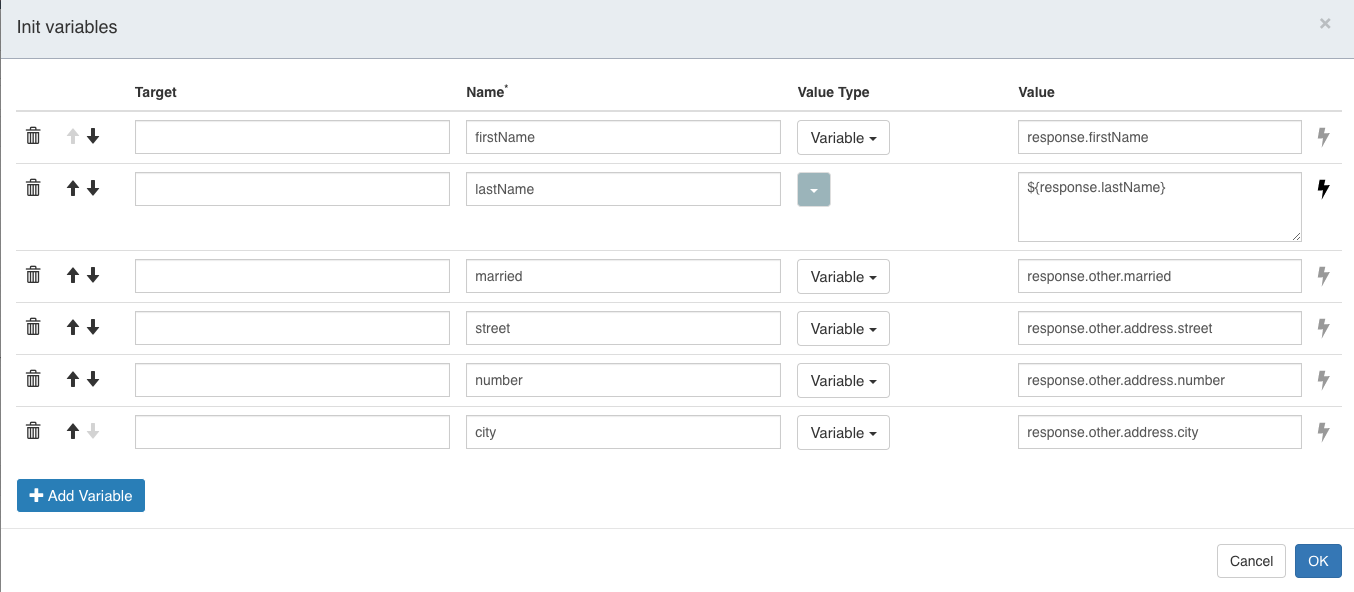
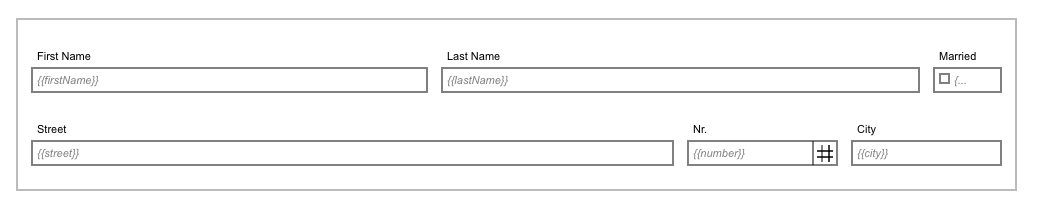
The form in the user task simply displays these variables by binding the fields to the variable values (we're again using one variable per field, similar to the basic example):
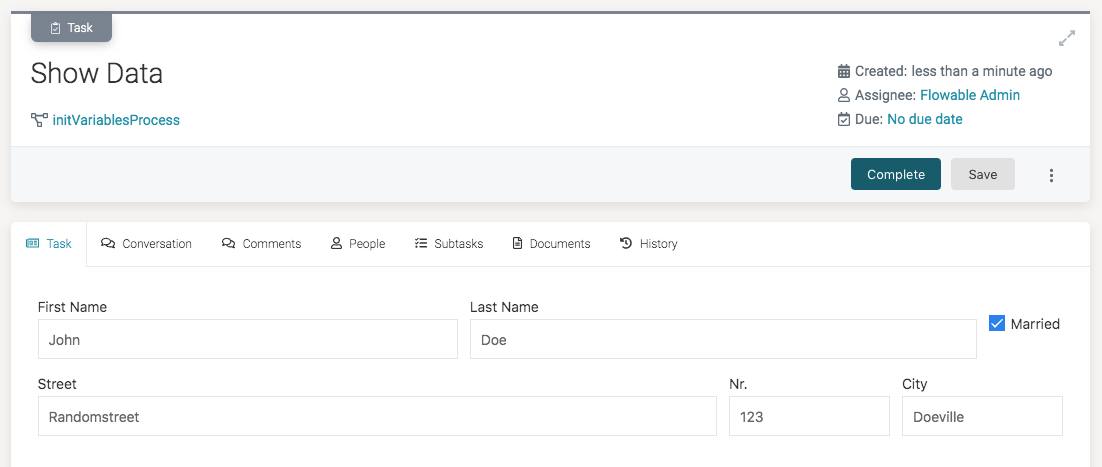
Deploy this model and start a new instance. When opening the Show Data user task, the data fetched from the HTTP service is now displayed in the form:
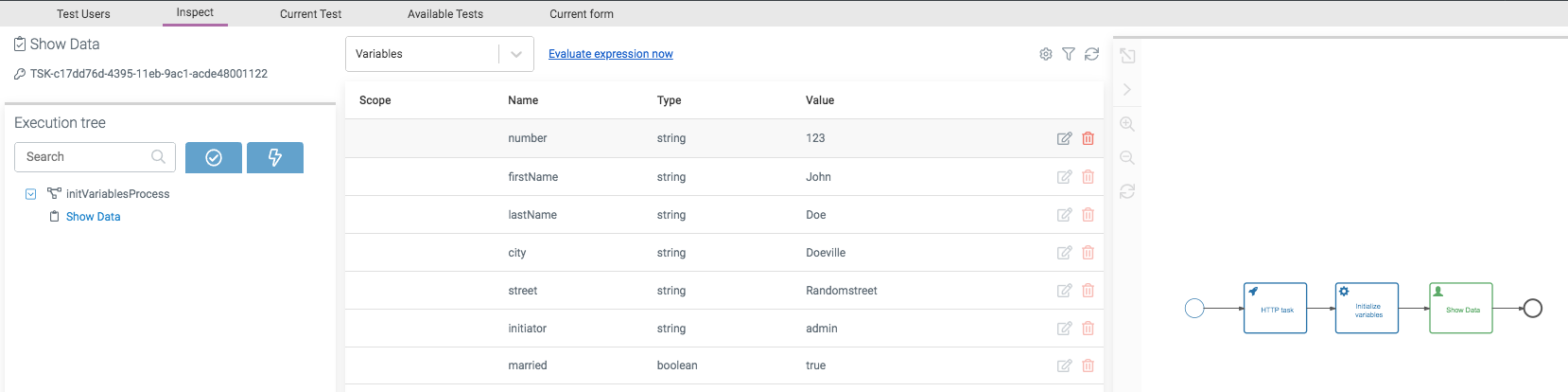
When running with Flowable Inspect enabled, we can see that the HTTP response is not stored as a variable (as we marked it as transient) but the variables from the Initialize variables task have been stored:
Advanced
Name expressions
The name column of the Init variables configuration can be an expression. For example ${newVariableName} is valid if newVariableName comes from a form field that was set in a user task form or service task before.
JSON Arrays
Using the JSON Object value type allows to model JSON variables with a complex structure. The JSON Array value type adds the abilities to store lists.
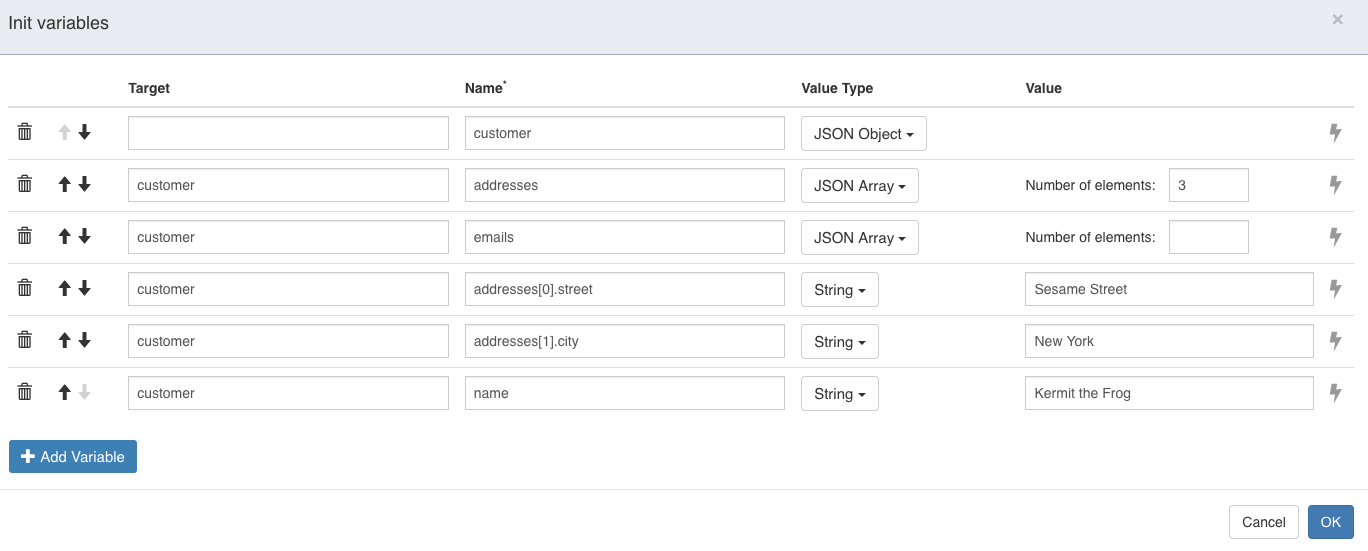
When selecting the JSON Array type, optionally the default size of the array can be configured. Default values can be set by using zero-based indexes (for example by using addresses[0].street ) in the name column and providing a value:
Properties
General
| Attribute | Type | Description | Category |
|---|---|---|---|
| Model Id | Text | Model Id identifies the element within the process model. | The model id, name and documentation properties can be found on any element. They are used respectively to uniquely identify the initialize variables task, to give it a user-friendly name and to add a free-form description. |
| Name | Text | The name of the element. This is the name displayed in the diagram. | |
| Documentation | MarkdownMinimal | A free-form text that can be used to explain details about the particular element. | |
| Store result variable transiently | Boolean | Flag that marks that the result of the expression will not be persisted at the end of the database transaction. Use this if you do not want to store a result after the next wait state, e.g. if you only need access to the result inside a condition. | |
| Init variables | List | Specify all variables to be set using this service task. Specify the target object for each of the variables (even with an expression), specify the name of the variable to set and finally the variable value itself to be set (can also be an expression). | Specify the variables that will be initialized when this task is executed. The Target column is optional. It can be used when defining a complex variable JSON structure or with values root or parent. Setting root or parent will set the variable not on the local instance, but on the parent or root instance in a nested hierarchy of process/case instances. The name column is used to determine the name of the variable and is mandatory. The Value Type column is used to determine the type of the variable, which is important as it switches the input field type depending on the chosen type. The Value field allows to set the value of the variable statically or using a back-end expression. |
| Overwrite if existing | Boolean | If set to true, variables which are already existing will be overwritten, if set to false, only non-existent variable values will be set and existing ones will not be touched. | Check the Overwrite if existing to overwrite any existing variable defined in the variable mapping that existed before this task and has the same variable name. |
Multi Instance
Multi instance
| Attribute | Type | Description | Category |
|---|---|---|---|
| Multi instance type | Selection:
| The type of multi-instance: default is 'None' meaning a single instance is created at runtime. Select either 'Parallel' or 'Sequential' if you want multiple instances to be created. | Multi-instance is used to define the repetition of this initialize variables task at runtime. With multi-instance it is possible to have multiple executions of the custom logic, either sequentially after each other or in parallel. For example, when referencing a collection one invocation of the custom logic is executed for each element of that collection. The typical use case for a multi instance initialize variables task is probably to create a set of variables out of a collection of data. |
| Collection | Text | References a collection variable (for example a JSON array variable) by its name or using an expression that resolves to a collection. | |
| Element variable | Text | The name of the variable where the currently processed element from the multi-instance collection configured above will be stored (for example, 'invoicePosition'). The element can then be accessed through an expression, e.g., ${invoicePosition}. | |
| Element index variable | Text | The name of the variable where the index of the currently processed item from the multi-instance collection will be stored, for example, 'itemIndex'. The index is a number starting with 0 which is increased with every element that is being created. The index can then be accessed through an expression, e.g., ${itemIndex} further on in the process. | |
| Cardinality | Text | A fixed number or an expression that resolved to an integer that controls the number of instances that will be created. This is typically used when there is no collection available or needed. | |
| Completion condition | Text | An expression that should resolve to a boolean value. When evaluating to true, the remaining activity instances will be removed and the process instance will continue. |
Variable aggregation
| Attribute | Type | Description | Category |
|---|---|---|---|
| Variable Aggregations | List | Define an aggregation. Each element in this list will result in one aggregation variable. | When having multiple instances of this task, there could be a need to create an aggregation of the variables created and/or updated in each instance, although the use cases for this are rather limited as most can be done through the variable mapping itself. |
Advanced
| Attribute | Type | Description | Category |
|---|---|---|---|
| Optimize for only automatic steps | Boolean | (Advanced setting, only check it if you understand the implications) If checked, this instructs the Flowable engine that the multi-instance only contains automatic tasks and no wait states. In this situation, an asynchronous job is created when the multi-instance activity is entered that keeps checking if all instances are completed and completes the multi-instance. The benefit of this approach is that it is light on resources versus alternatives and doesn't lead to optimistic locking exceptions. |
Advanced
Execution
| Attribute | Type | Description | Category |
|---|---|---|---|
| Skip expression | Text | If the Skip expression evaluates to true, the flow is taken regardless of any condition. It is required to opt-in to this feature by setting a variable _FLOWABLE_SKIP_EXPRESSION_ENABLED with the Boolean value true on the process instance. | When the Skip expression resolves to true, this service task will not be executed at runtime. The Include in history flag can be used to store the historical entry of this service task when running with a history level that normally would not store the execution of the service task. Note that this flag has no effect when running with history level 'none'. |
| Include in history | Boolean | When the history level is set to "instance" or "task" level with this property it can be configured if this activity instance should be included in the historic activity data. | |
| Is for compensation | Boolean | Determines whether the activity can serve as a compensation for another activity. | A BPMN transaction is a set of activities that logically belongs together. Transactions can be cancelled through the Cancel End Event and handled through the Cancel Intermediate Boundary Event. The Is for compensation field can be used to indicate that the service task is meant as compensation steps for another activity. |
| Asynchronous | Boolean | When enabled, the activity will be started as an asynchronous job. The process state is persisted before this element is executed. Then, the process execution will be resumed asynchroneously. This can be used when the execution an activity takes a long time to return the UI to the user quicker in case the user does not need to see the next step immediately. However, if an error occurs before the following wait state, there will be no direct user feedback. Please refer to the documentation for more details. | When marking this service task as asynchronous, the variable initialization will be executed asynchronously in the background. This is useful for example to not block the UI of a user, in case of longer running logic. Choose exclusive to avoid other asynchronous steps of this process instance to run at the same time. When Leave asynchronously is enabled, the activity will be left as an asynchronous job. This means that the activity is ended asynchronously. |
| Exclusive | Boolean | Determines whether the activity or process is run as an exclusive job. An exclusive job makes sure that no other asynchronous exclusive activities within the same process are performed at the same time. This helps to prevent failing jobs in concurrent scenarios. | |
| Leave asynchronously | Boolean | When enabled, the activity will be left as an asynchronous job. This means that the activity is ended asynchronously, including end execution listeners. Please refer to the documentation for more details. | |
| Leave exclusive | Boolean | Determines whether the activity should leave as an exclusive job. An exclusive job makes sure that no other asynchronous exclusive activities within the same process are performed at the same time. This helps to prevent failing jobs in concurrent scenarios. | |
| Job Category | Text | When set, the underlying generated job will have a Job Category, which will be executed only by Application Servers, where the Process Engine has enabledJobCategories set to this category. |
Advanced options
| Attribute | Type | Description | Category |
|---|---|---|---|
| Exception Mappings | List | Define one or more exception mappings to map a technical Java exception to a BPMN error code. | Map technical java exceptions to BPMN error codes that can be caught with a boundary error event. |
| Failed job retry time cycle | ComplexTrigger | Service task logic defined with a failed job retry time cycle |
Listeners
| Attribute | Type | Description | Category |
|---|---|---|---|
| Execution listeners | List | Allows invoking custom after certain lifecycle events. Start: Executes after the activity has been started. End: Executes after the activity was completed. Transition: When defined on a sequence flow, executes once the flow is transition is taken. | Execution listeners are used to add logic on certain lifecycle events. Typically it is used to add extra technical logic which shouldn't be visible in the BPMN process model. |
Visual
| Attribute | Type | Description | Category |
|---|---|---|---|
| Font size | Selection:
| Font size. | Visual properties that determine how the initialize variables task is shown in the diagram. This has no impact on the runtime execution. |
| Font weight | Selection:
| Select the style between bold and normal. | |
| Font style | Selection:
| Select the style between italic and normal. | |
| Font color | Color | Select a font color. | |
| Background color | Color | The background color of the element in the diagram. | |
| Border color | Color | The border color of the element in the diagram. |
List Attribute Details
Init variables
| Attribute | Type | Description |
|---|---|---|
| Target Variable | Text with suggestions:
| |
| Name | Text | The name of the element. This is the name displayed in the diagram. |
| valueType | Selection:
| |
| Value | Text |
Variable Aggregations
| Attribute | Type | Description |
|---|---|---|
| Target (Variable / Expression) | Text | The name of the target variable or an expression that gives the variable name |
| Type | Selection:
| The type of aggregation. Use 'default' to use the standard behavior of creating an aggregation JSON variable. Use 'custom' to define a delegate expression that will handle the aggregation. Please see the documentation for more information. |
| Delegate Expression | Text | Define a delegateExpression that will resolve to an instance of VariableAggregator (for BPMN) or PlanItemVariableAggregator (for CMMN). This instance will then be responsible for aggregating the variables. |
| Class | String | A class that implements VariableAggregator (for BPMN) or PlanItemVariableAggregator (for CMMN). This instance will then be responsible for aggregating the variables. |
| Target variable creation | Selection:
| Configures the way the aggregation variable is created. The 'Default' option creates the aggregation variable when all instances of the multi-instance have been completed. Use 'Create overview variable' to create a variable at the start of the multi-instance and keep it up to date during multi-instance exeution. Once all the instances are completed it will create a JSON variable in the same way as for Default target variable creation. Use the 'Store as transient variable' option to have the default behavior, but store the resulting aggregation variable transiently. |
| Variable Definitions | BasicFormList | property.loopVariableAggregation.definitions.description |
Variable Definitions
| Attribute | Type | Description |
|---|---|---|
| Source (Variable / Expression) | Text | The name of the source variable or an expression that provides the value |
| Target (Variable / Expression) | Text | The name of the aggregation variable or an expression that resolves to a variable name. |
Exception Mappings
| Attribute | Type | Description |
|---|---|---|
| Error code | Text | The code of an error definition. |
| Exception class name | Text | |
| Root cause | Text | |
| Include child exceptions | Boolean |
Failed job retry time cycle
| Attribute | Type | Description |
|---|---|---|
| Time cycle | Text |
Execution listeners
| Attribute | Type | Description |
|---|---|---|
| Event | Selection:
| The lifecycle event. The 'Take' event is only available for sequence flow. |
| Class | Text | Fully qualified classname of a class to be invoked when executing the task. The class must implement either JavaDelegate or ActivityBehavior. |
| Expression | Text | JUEL Expression to be executed when the task is started. Expressions allow you to interact with the backend by calling services, making calculations etc. You can find more information about expressions in the documentation. |
| Delegate expression | Text | Delegate Expression to be executed when the task is started. A delegate expression must resolve to a Java object, for instance a Spring bean. The object's class must implement either JavaDelegate or ActivityBehavior. |
| Fields | List |
Fields
| Attribute | Type | Description |
|---|---|---|
| Name | Text | The name of the element. This is the name displayed in the diagram. |
| String value | Text | |
| Expression | Text | JUEL Expression to be executed when the task is started. Expressions allow you to interact with the backend by calling services, making calculations etc. You can find more information about expressions in the documentation. |
| String | Text |